The Stable Diffusion Fooocus Guide: Getting started

Updated 04.07.2025
Share:




 Buy me a Coffee
What is Fooocus
If you want to generate images on your own computer without having to go through time-consuming installation procedures and learn complex generation parameters, the Fooocus user interface is the ideal introduction to the world of generative artificial intelligence.img src="dateien
Fooocus was developed as a free alternative to Midjourney and can be installed locally with just a few clicks. The web application generates high-quality images without the need for any prior knowledge.
While other user interfaces, such as Automatic1111 or ComfiUI, are characterised by high flexibility and expandability, Fooocus concentrates on the most important functions for image creation and editing.
The workspace consists of a simple text prompt below the display area for the results. The window can be expanded to display options for image format, style and models. In addition, a collapsible image prompt supplements the text input and enables image-to-image creation, image upscaling, image correction (inpainting, face swap), image expansion (outpainting) and, not least, image editing.
(outpainting) and, last but not least, a controlled posture (pose).

This makes Fooocus the ideal user interface for beginners and midjourney users who want to generate images on their own computer independently of providers.
The advantages and disadvantages of the Fooocus user interface
+ low system requirements
+ easy to install
+ open source, i.e. freely available
+ simple, clear user interface
+ easy to use without prior knowledge
+ simplified prompting thanks to automatic prompt extension
+ prompt with weighting as with Automatic1111
+ no need to manually optimise complex settings
+ over 270 predefined styles
+ Python is on board, no installation required
+ uncomplicated change of midjourney
- Not very flexible
- not customisable
- cannot be extended with "extensions"
- not all LoRAs work
System requirements for Fooocus
- Windows 10 or 11
- 30 GB free hard drive space
- 8 GB RAM memory
- At least: separate NVIDIA graphics card with 4 GB VRAM (6 GB recommended) or AMD graphics card with 8 GB VRAM (see below)
Fooocus was primarily written for Windows and NVIDIA graphics cards. Installation on other operating systems, such as Linux or Mac, is possible, but requires additional steps. The necessary customisation for AMD graphics cards can be found under "Configuring Fooocus for an AMD graphics card".
Installing Fooocus under Windows
Step 1: Downloading the installation file
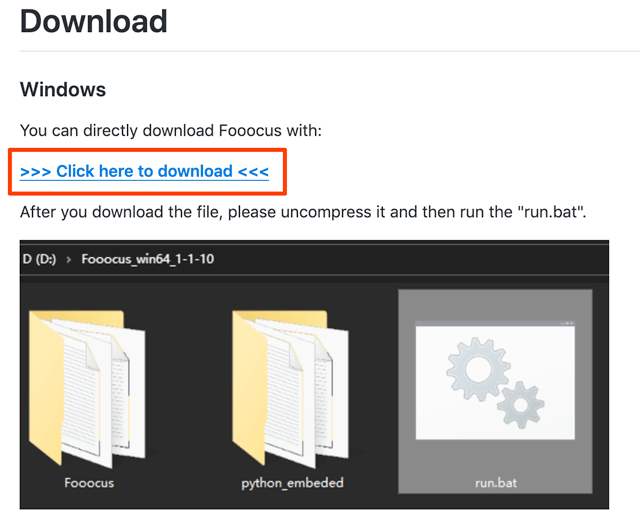
To install Fooocus on Windows, download the latest 7ZIP file "win64_*.7z" from the Fooocus website https://github.com/lllyasviel/Fooocus on Github (1.6 GB).
Step 2: Installing the user interface
Unzip the file, e.g. with the programme 7-ZIP or WinRAR, into a directory of your choice. After unpacking, the user interface is fully installed. The files "run.bat", "run_anime.bat" and "run_realistic.bat" should now be present in your installation directory.
| run.bat | Starts the basic application |
| run_anime.bat | Starts the application optimised for anime images |
| run_realistic.bat | Starts the application optimised for realistic photos |

Support for AMD graphics cards is still in the beta stage. Before you start Fooocus with an AMD graphics card, you must make some changes to "run.bat" (see "Configuring Fooocus for an AMD graphics card").
Step 3: Installing the models
The next step is to install the models that Fooocus works with. The models - called "model" or "checkpoint" - contain the training data from which the images are generated. Fooocus currently uses the models:
| Basic application (run.bat) | juggernautXL_v8Rundiffusion.safetensors | 6.6 GB |
| Anime (run_anime.bat) | animaPencilXL_v100.safetensors | 6.5 GB |
| Realistic photos (run_realistic.bat) | realisticStockPhoto_v20.safetensors | 6.9 GB |
Now double-click on the file "run.bat". The "JuggernautXL V8 + Rundiffusion" model (6.6 GB) for the basic application will be downloaded and Fooocus will start automatically in your standard web browser. You can get started immediately.

All other models will only be downloaded when you start the .bat files for the optimised applications "Anime" and "Realistic Photos".
If you already have the aforementioned models in *.safetensors format on your computer, you can copy them to the directory "YourInstallationDirectory/Fooocus/models/checkpoints" and spare yourself the download.
If you install Fooocus on a computer with an NVIDIA RTX 50xx graphics card, you will receive the error message “NVIDIA Geforce RTX 50** with CUDA capability sm_120 is not compatible with the current PyTorch installation” in the Windows Terminal, which in turn prevents you from generating images. In this case, follow the instructions under “How to get Fooocus running on NVIDIA RTX 50xx graphics cards”.
Step 4: Generating images
To exit Fooocus, close the browser window and the Windows terminal window. To restart, double-click on the "run.bat" file. The Fooocus user interface opens in your web browser.
The generated images appear in the upper field. Below this you will find a text input field in which you can enter your "prompt" - i.e. what you want to see on your image. As a rule, you should be able to create good images with simple prompts, similar to Midjourney. You can find detailed instructions for creating Stable Diffusion prompts here.
Here is an example of a simple prompt:
woman in red dress, flamenco dancer, dancing in a bodega
Click on "Generate" to create two images. This takes a little longer after starting the program, but is then much faster depending on the performance of your graphics card.
To display an image individually, click on it. Click a second time to enlarge it.
Foocus saves the results in the "output" folder in your Fooocus directory (Fooocus\outputs\). At the top right of the single image display you will also find a download button to save your image to a location of your choice.
Fooocus Dark Mode
To activate Fooocus Dark Mode, i.e. to replace the white user interface with a grey one, open the "run.bat" file with an editor or right-click and select "Edit". Add a space and the instruction to the line ".\python_embeded\python.exe entry_with_update.py":
--theme dark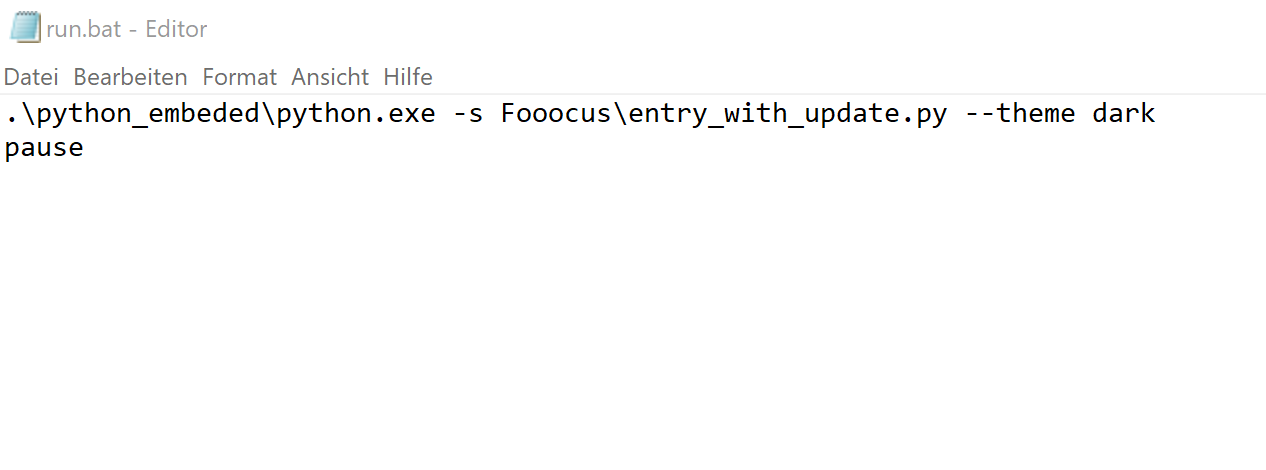
Save and close the file and start "run.bat" with a double-click.
Configuring Fooocus for an AMD graphics card
As Foocus is optimised for NVIDIA graphics cards, installation on computers with AMD graphics cards requires additional manual work. The author lllyasviel provides the modified code for the batch files on Github, but points out that AMD support is still in the beta stage.
Open the file "run.bat" with an editor or with a right click and select "edit".
Replace the file content with this code:
.\python_embeded\python.exe -m pip uninstall torch torchvision torchaudio torchtext functorch xformers -y
.\python_embeded\python.exe -m pip install torch-directml
.\python_embeded\python.exe -s Fooocus\entry_with_update.py --directml
pause
Save and close the file and start "run.bat" with a double-click. The script now installs the "torch-directml" version for AMD graphics cards and starts Fooocus.
You should also change the run_anime.bat and run_realistic.bat files accordingly before starting them.
run_anime.bat:
.\python_embeded\python.exe entry_with_update.py --directml --preset anime
pause
run_realistic.bat:
.\python_embeded\python.exe entry_with_update.py --directml --preset realistic
pause
Due to the lack of an AMD graphics card, I could not test the above instructions.
Advanced: useful settings for image format, style and quality
Despite the clearly organised controls, Fooocus is in no way inferior to other user interfaces in terms of setting options. The advanced settings appear to the right of the image area if you tick "Advanced" at the bottom left.
General settings - "Setting" tab

Presets
Foocus comes with different presets for the basic application, for realistic photos and for anime. Since version 2.30, you can select these directly in the Advanced user interface without having to start the corresponding batch files separately. Further optimisations have been added. You can also use your own presets, which you can save in the "Fooocus\presets" folder.
When you activate the "anime", "realistic" or "sai" options for the first time, Fooocus first downloads the required models. It may therefore take some time for the image generation to start.
| Preset | Preset description | Model download (safetensors) | Gb |
|---|---|---|---|
| initial | Adopts the presets with which Fooocus starts | ||
| anime | Optimised for anime images | animaPencilXL_v100 | 6.5 |
| default | Default settings of the basic application | juggernautXL_v8Rundiffusion | 6.6 |
| lcm | Like "default" but with "Extreme Speed" performance | juggernautXL_v8Rundiffusion | 6.6 |
| lightning | Uses the base model with the "Lightning" performance | SDXL-Lightning 4 step LoRA | 0.4 |
| realistic | Optimised for realistic photos | realisticStockPhoto_v20 | 6.9 |
| sai | Optimised for Stable Diffusion XL 1.0 and the SDXL refiner | sd_xl_base_1.0_0.9vae, sd_xl_refiner_1.0_0.9vae | 6.6, 6.0 |
Performance
You can set the speed and quality of the image results. A higher image generation speed leads to poorer quality, but also to lower utilisation of the graphics card memory (VRAM). You have the choice between:
| Speed | Best combination of speed and quality. |
| Quality | Better quality, requires more VRAM. |
| Extreme Speed | Very fast, helpful when VRAM is low. |
| Lightning | Very fast, good quality thanks to SDXL-Lightning. |
The "Lightning" performance option complements any basic model with the "SDXL-Lightning 4 step LoRA" from ByteDance. SDXL-Lightning speeds up image generation considerably, as only 4 steps are required for image generation.
However, you can also use any other user-defined Lightning model in Fooocus that you have downloaded from Civitai or Huggingface. However, if you have selected a Lightning model under "Model", you should not activate the "Lightning" option under "Presets" or "Performance", as the function has already been trained in these models! For the same reason, the negative prompt is omitted when working with Lightning models.
Inage Size (Aspect Ratio)
Under "Aspect Ratio" you can select the aspect ratio of the generated images in pixels. However, you will not find the standard 4:3 and 16:9 formats here. As the stable diffusion models were trained with images whose side lengths were divisible by 64 pixels, the results should also have a corresponding format.
Image Number
Here you enter the number of images that you want to generate in one run. This setting also depends on the performance of your graphics card as to how high you can go without having to wait too long for the results. The default value for the number of images is 2.
Negative Prompt
In the negative prompt, you enter which content you want to exclude from your image. As Fooocus only uses Stable Diffusion XL models to generate images, you usually do not need a negative prompt. In addition, Fooocus already works in the background with predefined, optimised prompt extensions so that you do not have to create complex texts at this point.
However, the negative prompt is helpful if you want to remove an element from the image, for example. You can find detailed instructions on how to use the negative prompt under "The Stable Diffusion prompt for perfect images".
Random start value, Seed
Each generated image is given an identification number, the so-called "Seed", which you can use as a start value or which enables you to restore the image at any time. The "Random" setting causes the image generation to produce a random result. If you want to generate variations of an existing image, enter the "Seed" here to define the image as the start value.

You can find the seed for an image in the "History Log".
History Log: Read settings of already generated images
Clicking on the link to the history log shows you a list of the images created that day along with all the creation parameters.

To reuse the settings and prompts of an image, copy them by clicking on "Copy to clipboard" and then paste them into the text input field (prompt) of Fooocus. The "Generate" button label now changes to "Load Parameters". Clicking on the button loads all the settings that were used to generate the original image into the prompt.
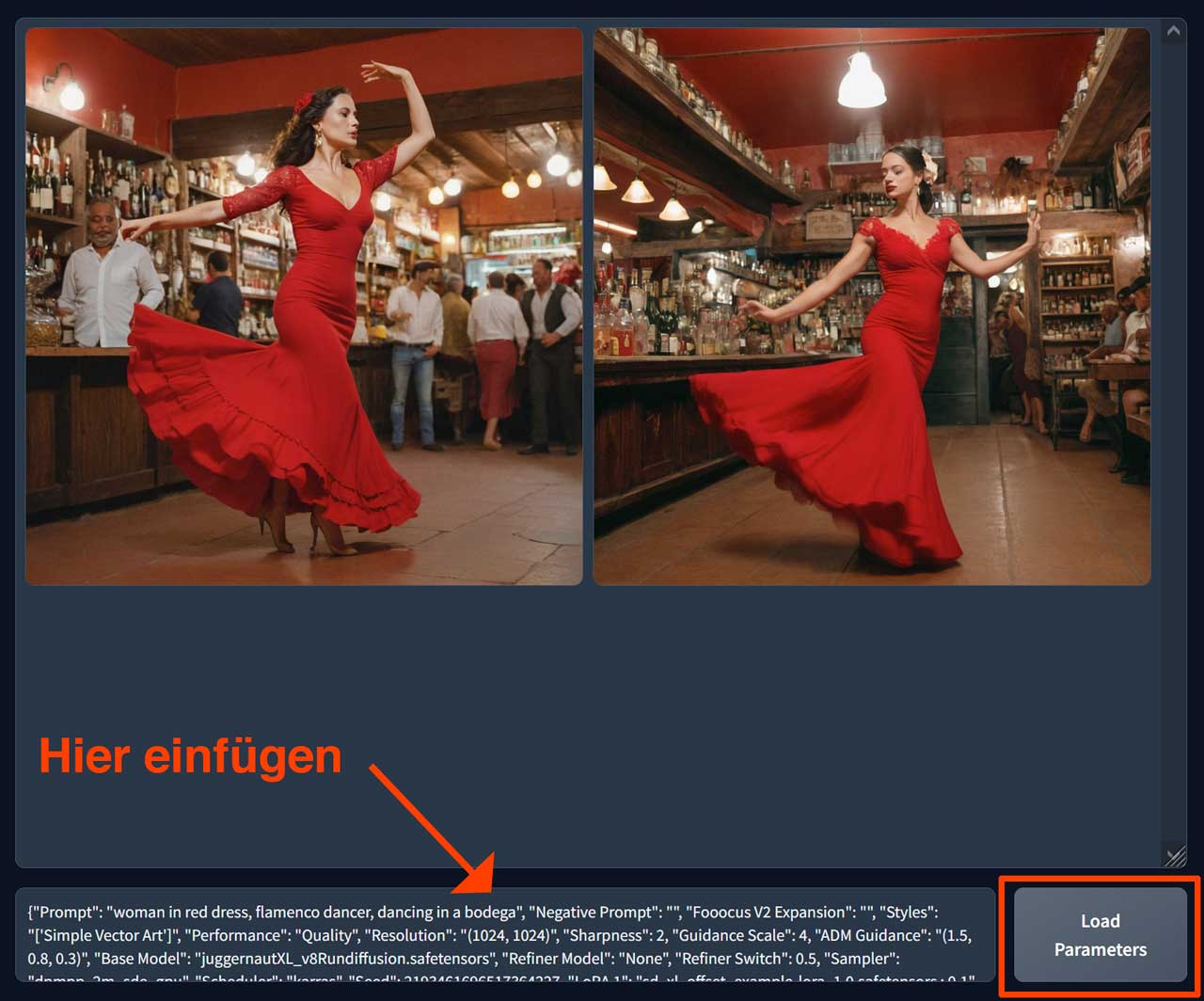
To load the list of any other day, search for the "Fooocus\outputs\" directory in Windows File Explorer, open the folder with the desired date and double-click the "log.html" file.
If other images were used to create the newsletter, you must import them again.
Style tab
A major advantage of Fooocus compared to other user interfaces for Stable Diffusion is the enormous selection of predefined "styles". The 276 buttons represent detailed descriptions of popular art techniques and styles such as comic, anime or neon punk. This allows you to display your motif in different art styles and moods without having to experiment with endless text entries.

You can select individual styles or a mixture of different ones. The preset combination of "Fooocus V2", "Fooocus Enhance" and "Fooocus Sharp" ensures optimised, realistic images in a style similar to midjourney. Activating the "Fooocus V2" style also allows other styles to be mixed without any loss of quality.
To get an impression of how a particular style affects the result, simply move the mouse over the buttons. A small preview will appear.
You can find an illustrated overview of the 276 styles at "Irmargon" at
https://docs.google.com/spreadsheets/d/10UXU59fBA5wZrcEEvgv1MTf1MSNTCB5PT4fNxsAst8E/edit#gid=423524839.

Here are some examples of different styles:
woman in red dress, flamenco dancer, dancing in a bodega
princess with medieval crown inside a castle
medieval castle on a hill, winter, full moon
Model tab
Fooocus works exclusively with Stable Diffusion XL models as a basis. If you want to use Stable Diffusion 1.5 models, you can load them as "Refiner". During installation, the "Juggernaut" checkpoint is downloaded, a universal model that can be used to solve most tasks.
However, you can also use customised models that are fine-tuned for specific applications and styles, such as illustration, scifi or architecture.
Search for "SDXL 1.0 Checkpoints" on Civitai or Huggingface, e.g. by clicking on "Filters" in the top right-hand corner of Civitai, selecting "Checkpoints" under "Model types" and "SDXL 1.0" under "Base model".

Clicking on the preview image will take you to the detailed description of the model.

Download the Safetensors file and save it in your installation folder under "Fooocus\models\checkpoints".

Tip: Read the notes from the author of this checkpoint further down on this page and try out some of the example prompts to get a feeling for how the model works.
After you have clicked on "Refresh All Files" under the "Model" tab at the bottom, you can select the model with which you want to create your images under "Base Model" at the top. The first run takes a little longer, as Fooocus first has to load the changed checkpoint.

Refiner
The refiner was introduced together with Stable Diffusion XL 1.0. The Refiner model reworks the generated image and improves the quality. As many SDXL models now produce perfect results, refining the image results with a refiner is usually no longer necessary.
However, you can use the "Refiner" selection list to rework images that you have generated with an SDXL model using a Stable Diffusion 1.5 model. This is useful if you cannot achieve the aesthetics of a particular 1.5 model with an SDXL model. To do this, the Stable Diffusion 1.5 checkpoint must also be located in your model directory under "Fooocus\models\checkpoints".
LoRA
LoRAs (Low-Rank Adaptation) are mini-models (2-200 MB) that have been trained for individual tasks and to extend the basic models. Their advantage is that they can be trained with a limited number of images and the file sizes of 2-200 MB are significantly smaller than the basic checkpoints.
With LoRAs, you can add certain art styles, effects or characters to the basic model, for example, or improve and detail the result. You can find a variety of LoRAS on Civitai.
Open "Filters" at the top right and select "LoRA" under "Model types" and "SDXL 1.0" under "Base model".

Clicking on the preview image will take you to the detailed description of the LoRA.

Download the Safetensors file and save it in your installation folder under "Fooocus\models\lora".

Again: Read the notes from the author of this LoRA further down on this page and try out some of the example prompts. In order to additionally control the influence of the LoRA on image generation with your text input, you should memorise the so-called "trigger words" and incorporate them into your prompt. These are keywords that trigger specific effects of the LoRA in image generation.
If you have saved new files in your Fooocus LoRA directory, you can update your selection lists by clicking on "Refresh all files" at the bottom.
Under LoRA1 you can now select the desired LoRA and control the influence on image generation with the "Weight" slider to the right of it. You can mix and weight up to five LoRAs.

To provide our princess from the style example above with an exotic outfit, I downloaded the "Hanfu Daxiushan Style" LoRA from Civitai and selected it under LoRA1. You can see the effect of different weights below:
princess with medieval crown inside a castle
Please note, that not only the clothing changes with increasing weight, but also the hair colour and posture. The higher the weight, the more the images of the black-haired Chinese women in Hanfu, with whom the LoRA was trained, are superimposed on our image of a blonde European princess.
Advanced tab
The "Advanced" tab offers two setting options with which you can additionally control the image result. A click on the "Document" link at the bottom opens a detailed English documentation of the two controls on Github.
Guidance Scale
The Guidance Scale determines the extent to which the text input is taken into account when generating images. The higher this value is, the more creative and colour-intensive the result will be.
crotcheted mint mouse
Image Sharpness
The SDXL model sometimes generates images that appear excessively soft, smooth or plastic-like. To achieve a more realistic display, you can sharpen the image elements with this slider.

Input Image
Learn how to use the image prompt to create variations, control the body position, enlarge, correct, add to and expand images in part 2 of this guide: The Stable Diffusion Fooocus Guide: The Image Prompt.