How to get Fooocus, Forge WebUI and Automatic1111 running on NVIDIA RTX 50xx graphics cards
Updated 14.05.2026
Share:




 Buy me a Coffee
Anyone who has purchased one of the new NVIDIA RTX 50xx graphics cards with Blackwell architecture, which have been available since the beginning of 2025, will be in for an unpleasant surprise as soon as they start the Fooocus, Forge WebUI or Automatic1111 user interfaces for image generation: All three are not compatible with NVIDIA RTX 50xx graphics cards and issue an error message.
The reason for this is that the new graphics cards work with CUDA 12.8 - 13.2 and expect a more up-to-date PyTorch version. CUDA (Compute Unified Device Architecture) is a development environment for NVIDIA graphics cards for creating powerful, GPU-accelerated applications. PyTorch is a framework for Python with libraries for machine learning.
Since the user interfaces Fooocus, Forge WebUI and Automatic1111 have not been updated for months and are based on an older PyTorch version, you will see the error message "NVIDIA Geforce RTX 50** with CUDA capability sm_120 is not compatible with the current PyTorch installation" in the Windows terminal when starting.
Important! At the beginning of March, NVIDIA released new drivers with CUDA version 13.2 for the 50xx series. PyTorch currently (as of May 14, 2026) offers the PyTorch version (cu132) compatible with CUDA 13.2. Before you get started, you should first check which version of CUDA is running on your computer. If CUDA 13.2 is already installed, you should wait to update your NVIDIA drivers to a higher CUDA version until PyTorch releases the corresponding “stable” version.
Please find the current status at https://pytorch.org/get-started/locally.
How to find the CUDA-Version of your NVIDIA-graphics card
Right-click on the Windows desktop and select "NVIDIA Control Panel". Under "Help > System Information", you will find the "Components" tab. Look for "NVCUDA64.dll" in the list on the left. You will see the installed CUDA version of your NVIDIA graphics card on the right. As of May 14th, 2026, this should not be higher than 13.2.

User interfaces for image generation that are compatible with NVIDIA RTX 50xx graphics cards
Before we start tinkering with Fooocus, Forge WebUI or Automatic1111, we should celebrate the user interfaces that are already compatible with NVIDIA RTX 50xx graphics cards:
- SD.Next
- SwarmUI
- RuinedFooocus
- ComfiUI (Windows Standalone Build)
- InvokeAI Community Edition (Windows Standalone Installer)
Even if Fooocus, ForgeWebUI and Automatic1111 have not been updated for some time, there are often good reasons to solve the NVIDIA RTX 50xx problem.
How to get Fooocus running on NVIDIA RTX 50xx graphics cards
Fooocus is not only popular with beginners for its perfect image results, clear user interface and extensive image-to-image functions.
In order for Fooocus to work with your NVIDIA RTX 50xx graphics card, you need to update the installed PyTorch version.
If you want to do a fresh Installation of Fooocus, unzip the "Fooocus_win64_2-5-0.7zip" file into a directory of your choice and start "run.bat" there. Fooocus will now be updated and will download any required files. If you have already installed Fooocus, start the "run.bat" to ensure that your Fooocus version is up-to-date.
Now go to the Fooocus installation directory in Windows Explorer and look for the "python_embeded" directory there.
Go into this folder so that the complete file path is displayed in the address bar.

Type "cmd" in the address bar where the file path is located so that only "cmd" is displayed in the bar and press the Enter key.
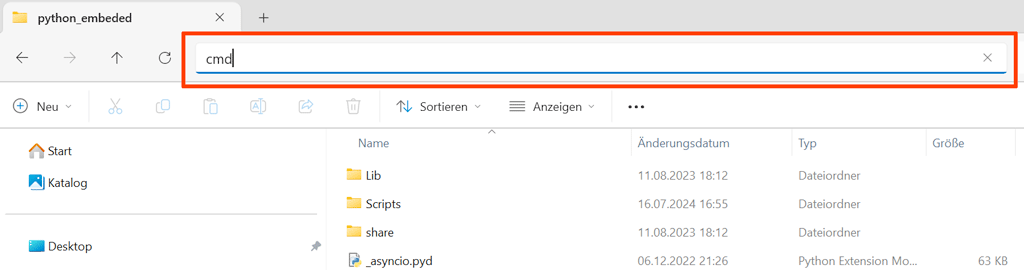
A black terminal window should now open with a prompt that looks something like this "<C:\MyPath\Fooocus_win64_2-5-0\python_embeded>".
For CUDA 1.28 copy or type the following command after the prompt in the window and press the Enter key:
.\python.exe -s -m pip install --pre --upgrade --no-cache-dir torch torchvision torchaudio --extra-index-url https://download.pytorch.org/whl/cu128For CUDA 12.9 just replace „cu128“ with „cu129“ at the end, for CUDA 13.0 use „cu130“ and for CUDA 13.2 use „cu132“.

Terminal now downloads approx. 4 GB of data and installs the current PyTorch version. Close the window and start the "run.bat". Fooocus should now generate images without any problems.
How to get Forge WebUI running on NVIDIA RTX 50xx graphics cards
Forge WebUI generates images many times faster than AUTOMATIK1111, requires less graphics memory and also processes Flux.1 models. The interface also offers control options for the interaction of graphics card memory, RAM and virtual memory.
In order for Forge WebUI to work with your NVIDIA RTX 50xx graphics card, you must update the installed PyTorch version.
If you want to do a fresh Installation of Forge WebUI, unzip the "webui_forge_cu121_torch231.7zip" file into a directory of your choice and start "update.bat" there first. Forge WebUI will now be updated. Now start the "run.bat". If necessary, Forge WebUI will download any required files and then open your web browser with the application. If you have already installed Forge WebUI, start the "update.bat" to ensure that your Forge WebUI version is up-to-date.
Now go to the Forge WebUI installation directory in Windows Explorer and look for the "python" directory there.
Go into this folder so that the complete file path is displayed in the address bar.

Type "cmd" into the address bar where the file path is located so that only "cmd" is displayed in the bar and press the Enter key.
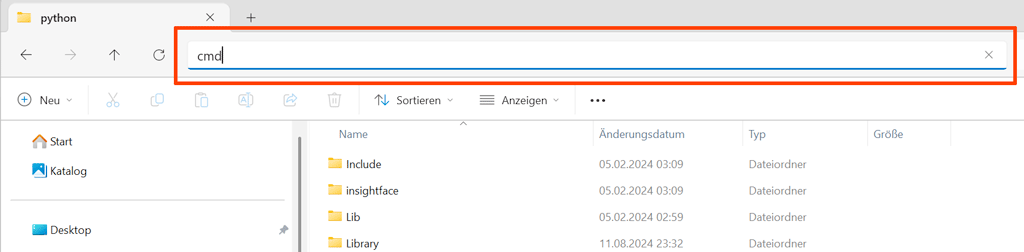
A black terminal window should now open with a prompt that looks something like this "<C:\MyPath\Forge WebUI\system\python>".
For CUDA 1.28 copy or type the following command after the prompt in the window and press the Enter key:
.\python.exe -s -m pip install --pre --upgrade --no-cache-dir torch torchvision torchaudio --extra-index-url https://download.pytorch.org/whl/cu128For CUDA 12.9 just replace „cu128“ with „cu129“ at the end, for CUDA 13.0 use „cu130“ and for CUDA 13.2 use „cu132“.

Terminal now downloads approx. 4 GB of data and installs the current PyTorch version. Close the window and start the "run.bat". Forge WebUI should now generate images without any problems.
How to get AUTOMATIC1111 running on NVIDIA RTX 50xx graphics cards
AUTOMATIC1111 is the dinosaur among user interfaces for image generation. The application is easy to use and compatible with countless add-ons.
There is a version of AUTOMATIC1111 customised for NVIDIA RTX 50xx graphics cards that is compatible with CUDA 1.28, 1.29 and 13.0 that you can install with just one click.
Search for the paragraph "Method 1: use the a new standalone release" on the Github page of AUTOMATIC1111 at https://github.com/AUTOMATIC1111/stable-diffusion-webui/issues/16824. Download the file "sd.webui-1.10.1-blackwell.7z" there, unzip it into a directory of your choice and start the "run.bat" there.

Update 27.12.2025: Since some download repositories on GitHub have been unavailable for some time, you will currently receive error messages when you first start the program, such as: “RuntimeError: Couldn't clone Stable Diffusion” or “could not read Username for ‘https://github.com’”. AUTOMATIC1111 is attempting to download installation files that are necessary for the user interface.

You can fix the error by changing the link to the Github repository. To do this, open the file “webui\webui-user.bat” in your AUTOMATIC1111 installation directory and add the command:
set STABLE_DIFFUSION_REPO=https://github.com/w-e-w/stablediffusion.git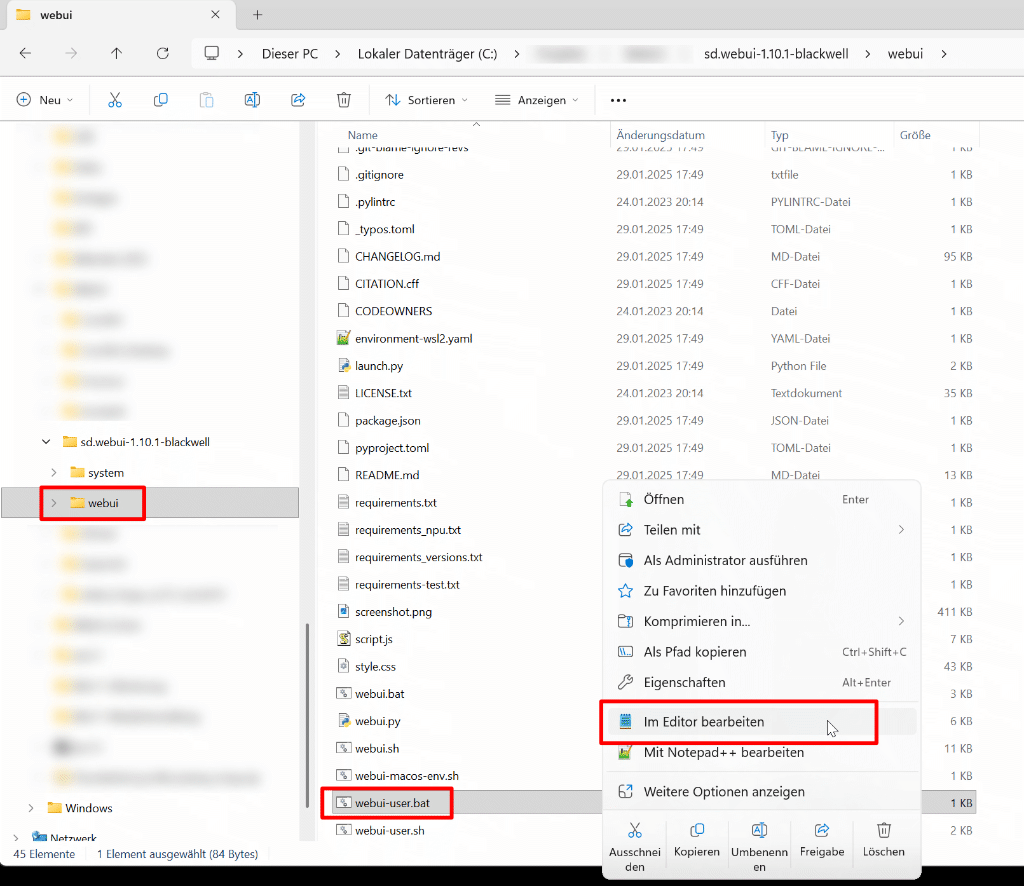
The result should look like this:
@echo offset PYTHON=set GIT=set VENV_DIR=set COMMANDLINE_ARGS=set STABLE_DIFFUSION_REPO=https://github.com/w-e-w/stablediffusion.gitcall webui.bat
Save the file and start „run.bat" again.