Stable diffusion outpainting: simple image extension

Share:




 Buy me a Coffee
The outpainting function of the Forge WebUI and the AUTOMATIC1111 user interface expands the size of existing images by analysing the image content and text input and attempting to extend the image elements in a meaningful way. The image elements in the extension relate to the style, content and colouring of the image source.
There are different methods for image enhancement with Forge WebUI and AUTOMATIC1111:
Simple outpainting method:
Direct image expansion with the pre-installed outpainting scripts "Poor man's outpainting" or "Outpainting mk2" provides the fastest results. It is therefore also suitable for beginners.
The contents in the extended image area refer to the elements of the image source and the text prompt, but are generally left to chance. Often several attempts with different settings are necessary until a usable result is achieved. The visible defects can be easily repaired by creating variations of the expanded image with the img2img-function.
Complex outpainting method:
If you need more control over the content of the image extension, you can first extend the image source in an image editing program such as Affinity Photo, Photoshop, Gimp or Photopea and sketch out which elements you want to see in the additional area. Then generate the expanded image using the img2img-function and a text prompt in Forge WebUI or AUTOMATIC1111. The ControlNet function of ForgeWebUI or the corresponding addon for AUTOMATIC1111 gives you additional control over the new screen elements.
The aim of these instructions is to achieve a quick and uncomplicated result without lengthy installation processes and parameter traversals. The simple outpainting method does not usually lead directly to outstanding image quality, but with the img2img-function the shortcomings can be easily rectified.
The Stable Diffusion Outpainting guide
The outpainting function can be found in the ForgeWebUI and AUTOMATIC1111 user interface under the img2img tab:

1. Upload an image
You can send an image that you have created with txt2img to the img2img-function using the "Send to img2img" button. The prompts and image settings are also transferred at the same time.
If the generated image does not originate from the current session, it is easiest to import the PNG file under the "PNG" tab and not under "img2img". You can drag and drop the file into the field provided or click on "Source" and open the file. The "PNG" function now reads out all the creation data of the file, which you can then pass on to the inpaint function using the "Send to img2img" button.
Drag all other image files under "img2img" to the field provided for this purpose (1) or click on "Source" and open the file on your computer.
2. Select the model (checkpoint)
First select the model you want to work with in the top left-hand corner. As a rule, use the same model that you used to generate the image with "txt2img" or "img2img".
If you want to edit an image which is not generated with Stable Diffusion, you should search the Civitai or Huggingface archive for a model (checkpoint) that corresponds to the style of your image source. Download the "saftensors" file and save it in your model directory.
If you have created an image with txt2img, a text is already available. You can now change the prompt step by step to create variations.
3. The text prompt
Describe in the Prompt what you want to be displayed in the image and in which style. If you have created an image with txt2img or img2img, it is usually sufficient to accept this text. Only if this leads to unexpected results you should change the text and only describe the desired content of the image extension.
Accordingly, use the "negative prompt" to describe content, errors and genres that you want to exclude from your image. In this case, however, mainly use the negative text input to remove or change content in the outpainting area.
4. Resize mode - the method for changing the image size
As the outpainting function extends the image, you need to specify how you want to handle the aspect ratio of the image source so that it won't be distorted. You have two options:
- "Just resize": The image is automatically extended by the outpainting area you specify under "Script". You do not need to do anything else.
- "Resize and fill": The image is enlarged to the dimensions you specify under "Resize to". To do this, you must add the number of pixels by which you want to expand the image to the width or height of the image source. The number should be divisible by 64.
5 Denoising strength - The mixing ratio between image source and randomness
The "Denoising strength" is the most important setting for the image expansion. It regulates the extent to which the image source influences the image expansion. As the content in the expanded area should differ more or less clearly from the image content of the source, we allow the process maximum creativity.
The value for "Denoising strength" should therefore be as high as possible, i.e. between 0.75 and 1.
6. Poor man's outpainting: image enhancement for lazy people
The "Poor man's outpainting" script is the simplest method for expanding an image.
In our example, an image of a meditating monk in front of a mountain panorama was generated with the txt2img function and sent to the img2img function.
ethereal fantasy concept art of a monk, meditating on a mountain, mountain range in background, moutain tops covered with snow, sunset, dramatic lighting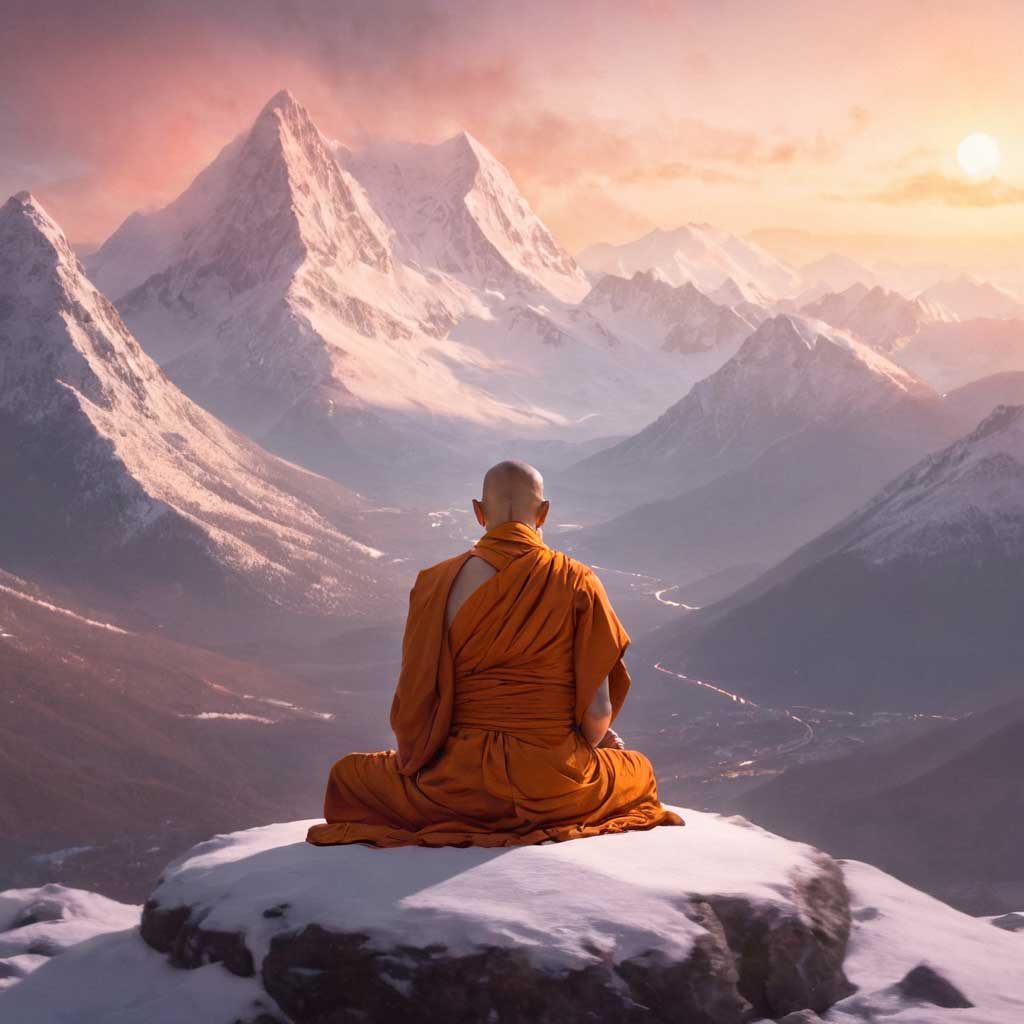
Model: juggernautXL_v8Rundiffusion
Sampler: DPM++ 2M Karras
Steps: 30
The model, the sampling method and the sampling steps were also taken from the txt2img generation.
To improve the quality, you can increase the value for "Sampling steps" to 50-80 steps.
Once the image source has been loaded and the text prompt is displayed, you can activate the script at the bottom left under "Script" (6). Various settings for image generation now appear under the selection menu:
7. Pixels to expand - size of the image expansion
Under "Pixels to expand", specify how many pixels the image should be expanded by. The default value of 128 pixels is a good start here. If you get inferior results, you should reduce this setting. The value should be divisible by 64.
If the background is not too complex, you can take larger steps. In our example, the source was initially extended by 256 pixels to the left.
8. Mask blur - the edge blur of the mask
In order to guarantee seamless transitions between the image extension and the image source, the edge of the image extension is given a blurred area. The "Mask blur" defines the width of this blending area in pixels. You should gradually increase the default value of 4 pixels until the transition between the extension and the source is barely perceptible. In most cases, this will not disappear completely. This is not a problem, however, as we can revise the outpainting result at the end using the img2img function.
9. Masked content - the content of the image extension
The "Masked content" setting defines the content with which the calculation in the extension area is to be started:
| fill | Start generation with the colors of the image |
| original | Start generation with the existing image content |
| latent noise | Start generation with random image noise |
| latent nothing | Start generation without content |
As the outpainting function is generally used to expand the background, you should use the "fill" setting here.
10. Outpainting direction - the direction of the image expansion
Under Outpainting direction, you specify the direction in which the image source is to be expanded. You will achieve the best results if you only generate one direction at a time.
Image generation with outpainting
The "Poor man's outpainting" script ignores the "Batch count" setting and only generates one image.
In our example, 256 pixels were initially added to the left-hand side. The settings for the "Sampling method" (DPM++ 2M Karras) and the "Sampling steps (value = 30) were taken from the txt2img image generation. The "Denoising strength" remained at the default value of 0.75, while "Mask blur" had to be increased to 8 pixels to improve the transition from image source to extension.
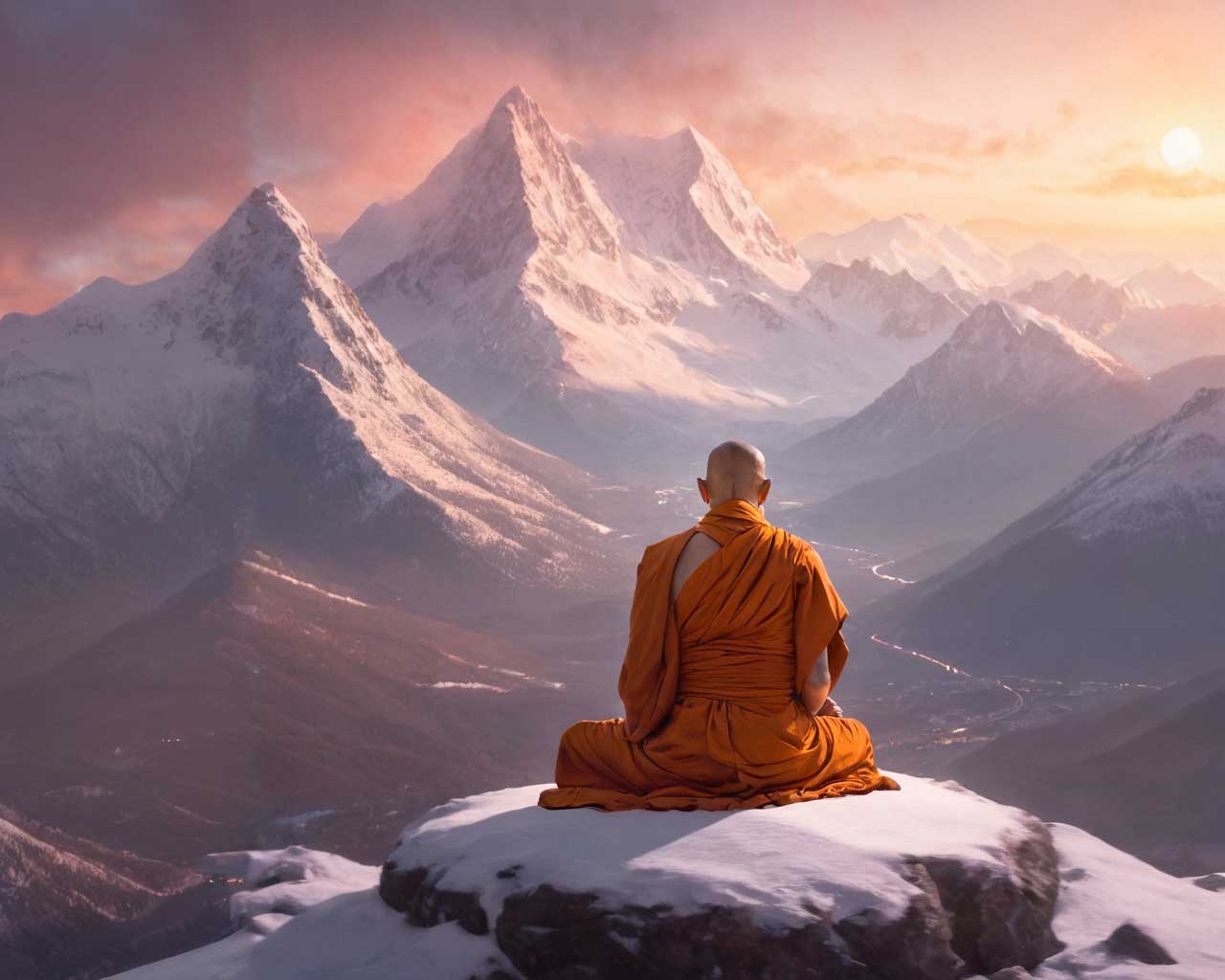
If you look closely, you will still notice the transition to the outpainting area. For our purposes, however, the quality is sufficient for now.
The image generated in this way was then transferred to the workspace using the "Send to img2img" button and expanded to the right in four 256-pixel steps. The "Denoising strength" was increased to 0.85 in order to obtain more variation in the background.
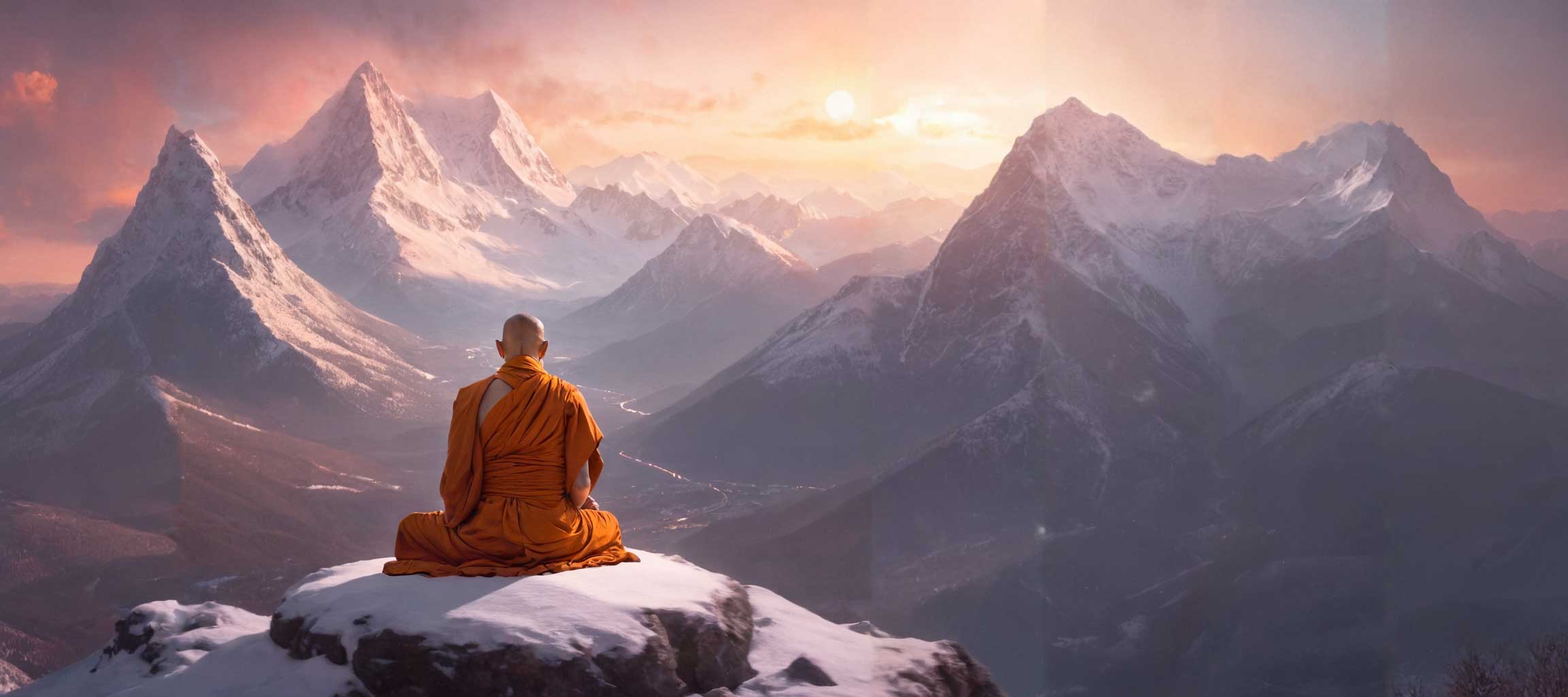
Finally, the left side was extended by another 256 pixels.

Revision of the outpainting result with the img2img function
As the transitions to the image extensions are still visible, we send our outpainting result to the img2img workspace one last time. To correct the transitions, we only want to change the image slightly.
To do this, select the "None" option at the bottom left under "Script" and enter the "Seed" in the field above by clicking on the green "Recycling" button to the right of the field.
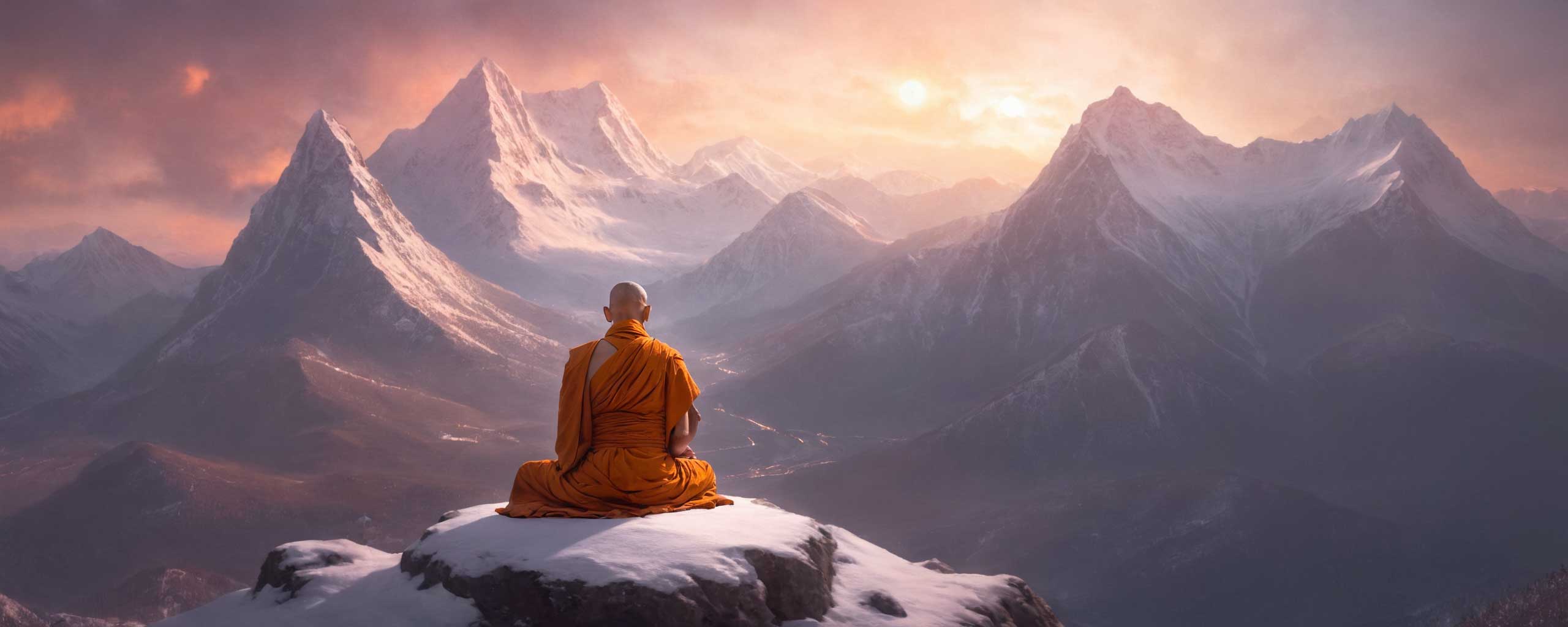
As we don't want to change much, we reduce the "Denoising strength" (5) to a value between 0.3 and 0.4. The transitions should now have disappeared from the generated image.

And here is the result:
11. The "Outpainting mk2" script
The "Outpainting mk2" script offers other setting options than "Poor man's outpainting". Use it when the poor man's script does not lead to decent results or you need more options. The settings for "Pixels to expand", "Mask blur" and "Outpainting direction" were explained above under "Poor man's outpainting".
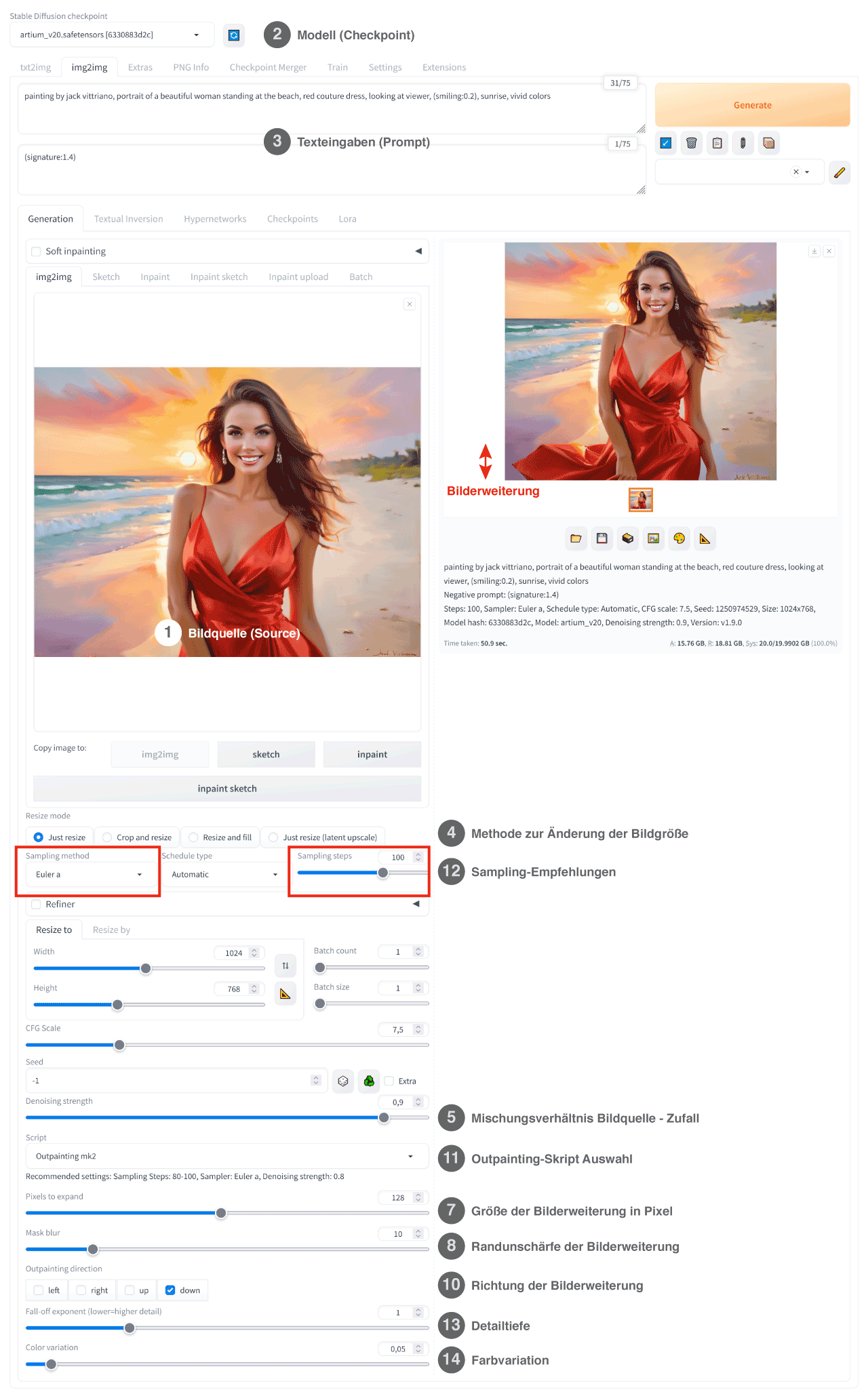
12. Sampling settings for outpainting mk2
If you use the "Outpainting mk2" script, you should preferably use the "Euler a" sampling method and set the "Sampling steps" to a value between 80 and 100.
13. Fall-off exponent - the depth of detail exponent
The "Fall-off exponent" reduces the amount of detail in the expanded area of the image. An exponent of 1 adopts the depth of detail of the image source. A higher value reduces the number of details, while a lower value increases the depth of detail.
The default value of 1 usually generates the best results.
14. Color variation
Use the "Colour variation" slider to control the deviation of the colour scheme in the image extension area in relation to the image source. The lower this value is, the more the colours in the outpainting area match the colour scheme of the original.
This example was generated with the txt2img function and sent to the img2img function:
painting by jack vittriano, portrait of a beautiful woman standing at the beach, red couture dress, looking at viewer, (smiling:0.2), sunrise, vivid colours
Model: artium_v20
Sampler: DPM++ 2M Karras
Steps: 30
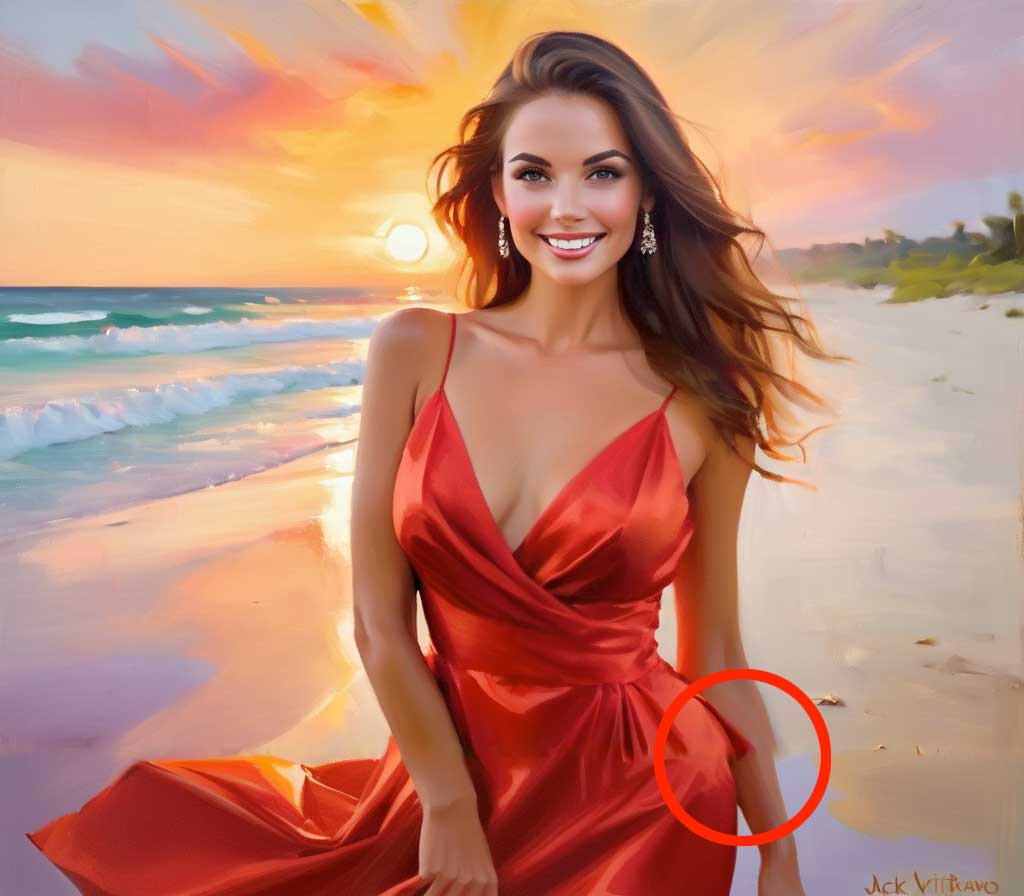
The image was extended by the default value of 128 pixels. "Euler a" with 100 sampling steps was selected as the sampling method. To improve the quality of the transition from the image source to the extension, the edge blur (mask blur) was increased to 10 pixels. It took a relatively large number of attempts to achieve the displayed result. The generated image clearly shows an offset between the image source and the extension, especially on the arm and the dress. However, this can easily be repaired using the img2img function.
Reworking the image extension result with the img2img function
In this example, the transition to the image extension is still visible. As described above, we send our outpainting result to the img2img workspace once again, select the "None" option at the bottom left under "Script" and enter the "Seed" by clicking on the green "Recycling" button to the right of the "Seed" field. We reduce the "Denoising strength" to a value between 0.3 and 0.4.
In order to achieve the best possible result, the settings for Model, Sampling method and Sampling steps were reset to the values with which the image source was generated under the txt2img function, i.e:
Model: artium_v20
Sampler: DPM++ 2M Karras
Steps: 30
Here too, the transitions in the generated image should now have disappeared.
