Fooocus Enhance: Automatically enhance image elements
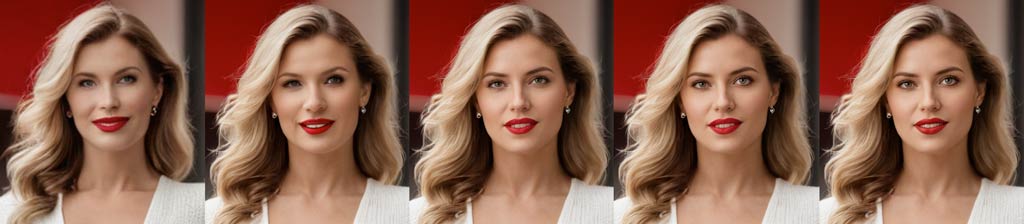
Share:




 Buy me a Coffee
The Enhance function improves the content of a selected image element. This is particularly helpful for generated faces, eyes or the physique of people. The described object is searched for using the Advanced Masking technique, masked and then reworked using the Inpaint process. The Enhance function can be used both directly during image creation and for revising existing images.
For use during image creation tick the "Enhance" option below the prompt. If you want to improve an existing image choose the "Input Image" option under the "Enhance" tab. The settings are identical in both cases.
A typical application example are the full-body images of people. Faces often appear distorted as they are relatively small and only a few pixels are available to display details such as eyes or lips. A first step would be to increase the image resolution by "upscaling" in order to obtain more pixels for displaying the details. The face could then be reworked with "Inpaint". This procedure is time-consuming, but leads to the best results. The Enhance function automates and speeds up this process.
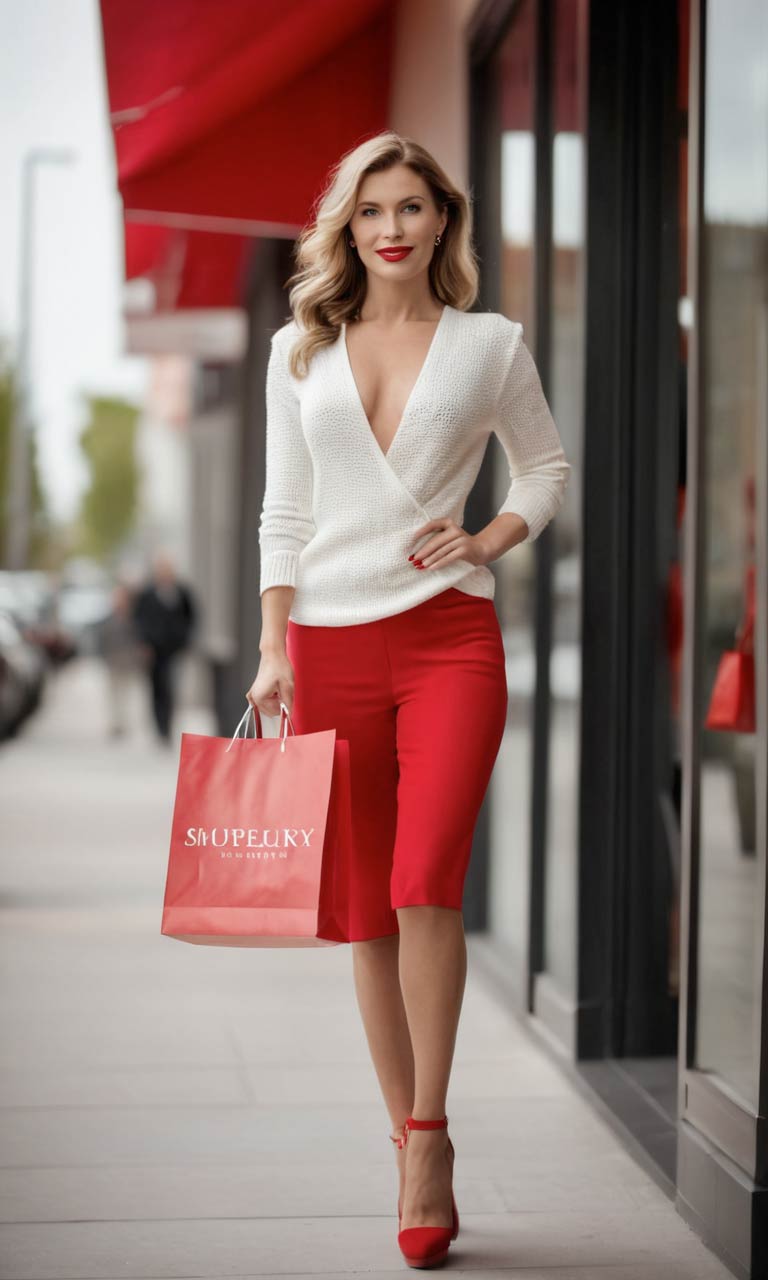
Here is the image of a woman with the typical facial issues for full-body representations:
Step 1: Load image source (Input Image)
To revise the face without changing the image content, we load it into the image source area after activating the "Input Image" function under the "Enhance" tab. The settings for the "Enhance" function can be found directly under the image source.

Step 2: Increase image resolution (Upscale or Variation)
To increase the image resolution, activate one of the "Upscale" functions under the "Upscale or Variation" tab. As the face is very small in relation to the image area, double magnification was selected here.
For the same reason, the "Before First Enhancement" option was selected under "Order of Processing". This setting determines whether the image enlargement should be carried out before or after the image elements have been revised. If, as in our case, smaller details are to be reworked, it makes sense to increase the image resolution beforehand.
Step 3: Revise the face (tab #1)
The "Enhance" tool provides three function cycles under tabs "#1" - "#3". We use these to edit the face, eyes and mouth in sequence.
Important! Make sure that you have activated the "Enable" option under the "#1" tab!
Search prompt for the Advanced Masking Features (Detection prompt)
Enter the description of the image element to be masked in the text field under "Detection prompt". Below the prompt you will find buttons for frequently used terms.
As an example, we will use the image of a woman shopping shown above, which was generated with the following prompt:
photo of a woman with a red shopping bag, (full body:1.4), high heels, looking at viewer, storefront in backgroundAs often usual in generated full-body images, the face is distorted because it is relatively small and at a resolution of 768 x 1280 px there are few pixels available for displaying the eyes and mouth.
To enhance the face, "face" was entered as the detection prompt.

Text input for the enhancement (enhancement prompt)
In the "Enhancement positive prompt" you describe what is to be generated within the mask. As we want to revise the face, we may enter here:
highly detailed woman faceYou can also enter further details here, such as facial shape, emotional expression or colours.
In the "Enhancement negative prompt", enter details that you want to avoid or delete from the masked area, such as glasses or make-up.
If you leave the text fields empty, the original prompts that you entered above under the field for image creation or under "Advanced > Negative Prompt" will be used.
Masking settings (Detection)
The masking settings in the "Detection" field correspond to the settings described under "Advanced Masking Features". The "Mask Erode or Dilate" slider for mask blurring can be found further down in the "Inpaint" window.
Retouching (Inpaint)
In the "Inpaint" window, you specify the settings with which the masked area is to be retouched. A description of the Inpaint function can be found here: The Stable Diffusion Fooocus guide: The image prompt.

Inpaint method (Method)
Under "Method" you have the choice between:
| Inpaint or outpaint | Reworks the masked content according to the text prompt. |
| Improve Detail | Analyses the masked content and improves it according to the text prompt. |
| Modify Content | Replaces the masked content with the elements described in the text prompt. |
Select "Improve Detail" as the method if you want to correct an element, otherwise you will not achieve any noticeable improvement!
Deactivate random image noise (Disable initial latent in inpaint)
The inpaint function starts the generation with random image noise. If the generated mask content is in stark contrast to the surroundings or deviates too much from the original during an enhancement, activate the "Disable initial latent in inpaint" option.
Inpaint Engine
If you want to use a fine-tuned inpaint model, you can select it under "Inpaint Engine". If in doubt, leave it at "None".
Mixing ratio between image source and randomness (Inpaint Denoising Strength)
The "Denoising strength" regulates the extent to which the masked content is changed. The higher the image noise that is superimposed on the image source at the start of image generation, the greater the changes. A value of 0 outputs the masked content unchanged. A value of 1 completely ignores the image source.
| 0.4 - 0.5 | Minor change to the image source | Helpful for obtaining more details. |
| 0.5 - 0.65 | Mild change to the image source | Creates slight variations, e.g. for faces or materials. |
| 0.65 - 0.75 | Creative modification of the image source | Colours and image composition of the image source are taken into account, but objects are changed to a greater extent. |
| 0.75 - 0.9 | Extensive modification of the image source | Colours and image composition of the image source are taken into account, but objects are completely replaced by other image elements. |
In our example, the default value remains at 0.5.
The reference frame (Inpaint Respective Field)
The reference frame specifies the extent to which the content of the image source should influence the revision of the masked content. While the value "0" only takes into account the content of the masked area, the value "1" includes the entire surroundings of the mask in the calculation.
As we only want to change details in the face, we stick with the default value "0".
Mask blur (Mask Erode or Dilate)
As described under "Advanced Masking Features", you can use the "Mask Erode or Dilate" slider to increase the blurring of the mask if the transitions between the object and the background appear unrealistically hard. Pixel values between 1 and 3 are useful.
Invert selection (Invert Mask)
The "Invert Mask" option inverts the selection so that the unmasked area is changed rather than the masked content. This is particularly suitable for cropping objects and replacing the background.
In this case, you should use a negative value for the mask blur.
Step 4: Revise the eyes (tab #2)
Now that we have improved the proportions of the face, the next step is to edit the eyes.

Activate the "Enable" option under the "#2" tab!
We enter the singular of eyes, i.e. "eye", as the search term in the "Detection prompt". Accordingly, we ask for a "highly detailed eye" in the "Enhancement positive prompt". You can also add further properties here, such as "sparkling", "blue" or "big".
And here too, it is important to set the "Inpaint > Method" to "Improve Detail".
Step 5: Revise the mouth (tab #3)
In a final run, we try to improve the mouth.

To do this, activate the "Enable" option under the "#3" tab!
The search term in the "Detection prompt" is now "mouth" and in the "Enhancement positive prompt" we expect at least a "detailed mouth". Other properties would be "pink", "glossy" or "full lips", for example.
Don't forget to select the "Inpaint > Method" "Improve Detail" for this step too.
Step 6: Generate image
As soon as you press the "Generate" button, the Enhance tool runs through the specified steps: Firstly, the image resolution is increased, then the function zooms into the face and revises the facial proportions, eyes and mouth one after the other.

Each step creates a new image. Compare the results of the individual steps - the image from the last step is not always an improvement.
