The Flux.2 Guide – Part 2: Installation, Settings, How It Works
Updated 25.09.2026
Share:




 Buy me a Coffee
With the Flux.2 models from Black Forrest Labs, you can not only generate images but also edit or combine image elements without having to go through the trouble of cutting them out, selecting them or masking them. Whilst Part 1 of this guide shows you how to control objects, image composition and styles using text or image prompts, Part 2 guides you through the installation of the various Flux.2 models within user interfaces such as ComfyUI, InvokeAI, SDNext, SwarmUI or RuinedFocus. It also explains the most useful settings and working methods.
Commercial use of Flux.2 models
As already described in Part 1 of the Flux.2 guide, the Flux.2 base models are clearly aimed at professional users and are relatively large. Only the models accessible via the Flux.2 API or cloud providers, as well as the slimmed-down Flux.2 [klein] 4B models under the Apache 2 licence, are fully commercially usable. Images generated using the FLUX [dev] or Flux.2 [klein] 9B model may only be used commercially to a limited extent, in accordance with the terms of the FLUX Non-Commercial Licence v2.0.
What is the difference between BF16, FP8 and NVFP4 models?
As many graphics cards cannot cope with the size of the Flux models, there is a wide range of Flux.2 models of varying sizes and levels of detail available in addition to the base models from Black Forrest Labs, which even computers with limited graphics memory can handle.
Flux.2 [dev] and Flux.2 [klein] are 16-bit models (BF16), which are correspondingly large and require a relatively large amount of graphics card memory for image generation. The 8-bit models (FP8) are compressed versions of the original Flux models, optimised for graphics cards with less than 64 GB of VRAM.
Whilst FP8 models are significantly smaller than BF16 models, NFP4 models require just 30 per cent of the original file size. NFP4 models have been optimised for NVIDIA 50XX series graphics cards and are significantly faster at rendering images than the FP8 models.
What is the difference between GGUF and Safetensors models?
GGUF files are also so-called ‘quantised’, i.e. compressed, models for computers with limited graphics card memory. The Flux AI base models are available in gguf variants designated Q2, Q3, Q4, Q5, Q6 and Q8, with file sizes ranging from 8 to 35 GB.
They are also suitable for graphics cards with 8 GB VRAM or more (12 GB recommended), but take longer to generate images as they must first be decompressed. Whilst the image quality of the Q8 model is certainly comparable to that of the FP8 model, satisfactory results cannot be expected below the Q4 level.
The 5-bit and 4-bit gguf variants are also available with different quantisation levels:
| Q5_1 | 25 GB [dev] | 7 GB [klein] | minimal loss of quality |
| Q5_0 | 23 GB [dev] | 7 GB [klein] | balanced image quality |
| Q5_K_S | 23 GB [dev] | 7 GB [klein] | minimal loss of quality (recommended) |
| Q4_1 | 21 GB [dev] | 6 GB [klein] | significant loss of quality |
| Q4_0 | 19 GB [dev] | 6 GB [klein] | very high loss of quality |
| Q4_K_S | 19 GB [dev] | 6 GB [klein] | significant loss of quality |
Why do I need which text encoders and VAE encoders?
A text encoder is an artificial neural network that has been trained on text-image pairs. In text-to-image generation, it serves to interpret the prompt by breaking down the text input into individual features and recognising relevant image elements.
The Flux.2 [dev] model has been paired here with Mistral AI’s comprehensive language model. The encoder is not only capable of understanding prompts in natural language but also text inputs in many different languages. The downside of Mistral AI’s language model is its file size, which affects the speed of image generation. The model is available in FP16 and FP8 variants, the latter being 50 per cent smaller than the base model.
As the Flux.2 [klein] model was designed for graphics cards with lower memory capacity, a language model that requires less memory is used here: the text encoder from Qwen AI. Here, too, there are FP16 and smaller FP8 variants.
A Variational Autoencoder (VAE) is a neural network that accelerates the image generation process, improves quality and level of detail, and enhances colors.
Overview of the Flux.2 base models
If you’ve completely lost track of the various Flux.2 models and encoders by now, here’s a rough overview:
| Model | File size | Recommended VRAM | Reference images |
| Flux.2 [dev] BF16 | 64 GB | > 64 GB | 6 |
| Flux.2 [dev] FP8 | 35 GB | 32 GB | 6 |
| Flux.2 [dev] NF4 | 23 GB | NVIDIA 50xx | 6 |
| Flux.2 [dev] Q2-Q8 GGUF | 13–35 GB | > 12 GB | 6 |
| Flux.2 [klein] BF16 9B | 18 GB | 32 GB | 4 |
| Flux.2 [klein] FP8 9B | 9 GB | 16 GB | 4 |
| Flux.2 [klein] BF16 4B | 8 GB | 12 GB | 4 |
| Flux.2 [klein] FP8 4B | 4 GB | > 8 GB | 4 |
| Flux.2 [klein] Q2-Q8 4B GGUF | 4–10 GB | > 8 GB | 4 |
The designations 9B (9 billion) and 4B (4 billion) indicate the number of parameters used to train the model.
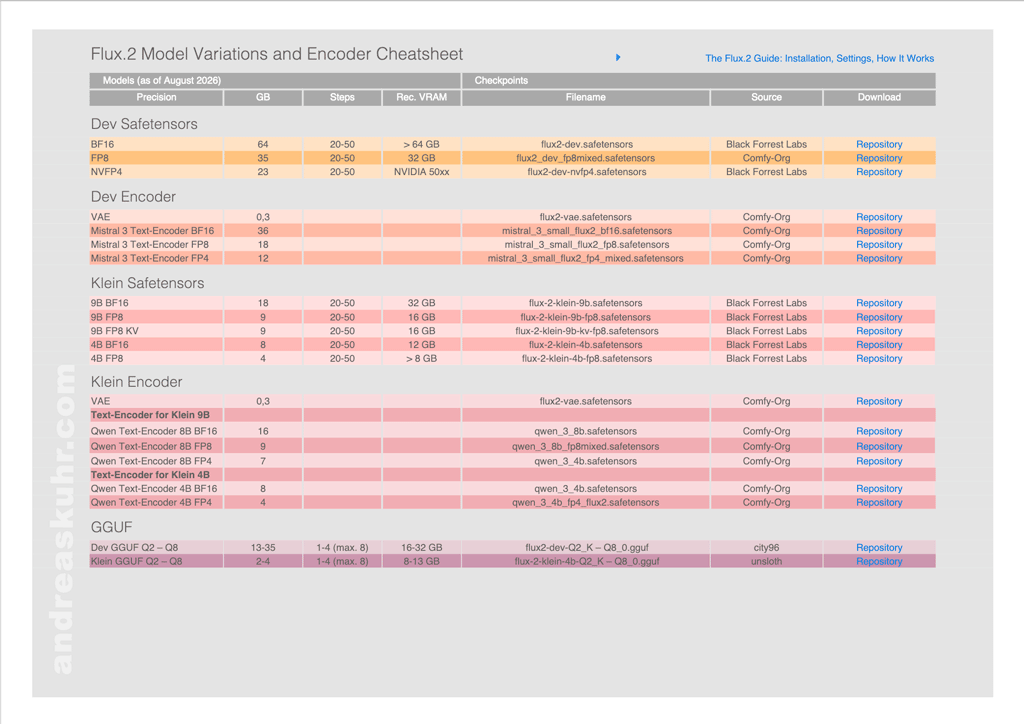
A table containing further information on quantisations, encoders and download links is available here as a PDF download:
System requirements: So which Flux.2 model should I choose?
That depends on which user interface you are using and how long you are willing to wait for an image to render. As a general rule of thumb, the graphics card memory should be slightly larger than the file size of the model. If you want to work at a reasonable speed, bear in mind that the text encoders are also very large and require a corresponding amount of storage space. Depending on the user interface, the text encoders are swapped out to RAM during the process so that the file sizes do not add up. Your RAM should therefore be sufficiently large as well.
In principle, you can dive into the Flux.2 adventure with at least 8 GB of graphics card memory and 16 GB of RAM. However, with limited memory capacity, you must expect long waiting times during image generation. It only really gets fun with 24 GB of VRAM and 32 GB of RAM, although you should focus on the compressed models here. For the FP8 [dev] models, you should have at least 32 GB of VRAM and 64 GB of RAM available.
Why do I need a HuggingFace API token?
Many user interfaces offer some form of automated or guided download, meaning the UI automatically downloads both the correct model and all the necessary text encoders and VAE encoders. To download Flux models, you must first accept Black Forest Labs’ terms of use. To do this, you’ll need a HuggingFace account. Go to HuggingFace.co and open the relevant ‘Model card’ for the model, e.g. Flux.2 [klein] 9B. At the very top, you’ll find the ‘Agree and access repository’ button.
Once you have agreed to the terms of use, you can generate an API token. This is a kind of password that allows your UI to access protected files on Huggingface. If you enter this API token in the designated field in your WebUI, you can download models without having to log in to Huggingface every time.
How do I generate a HuggingFace API key or HuggingFace token?
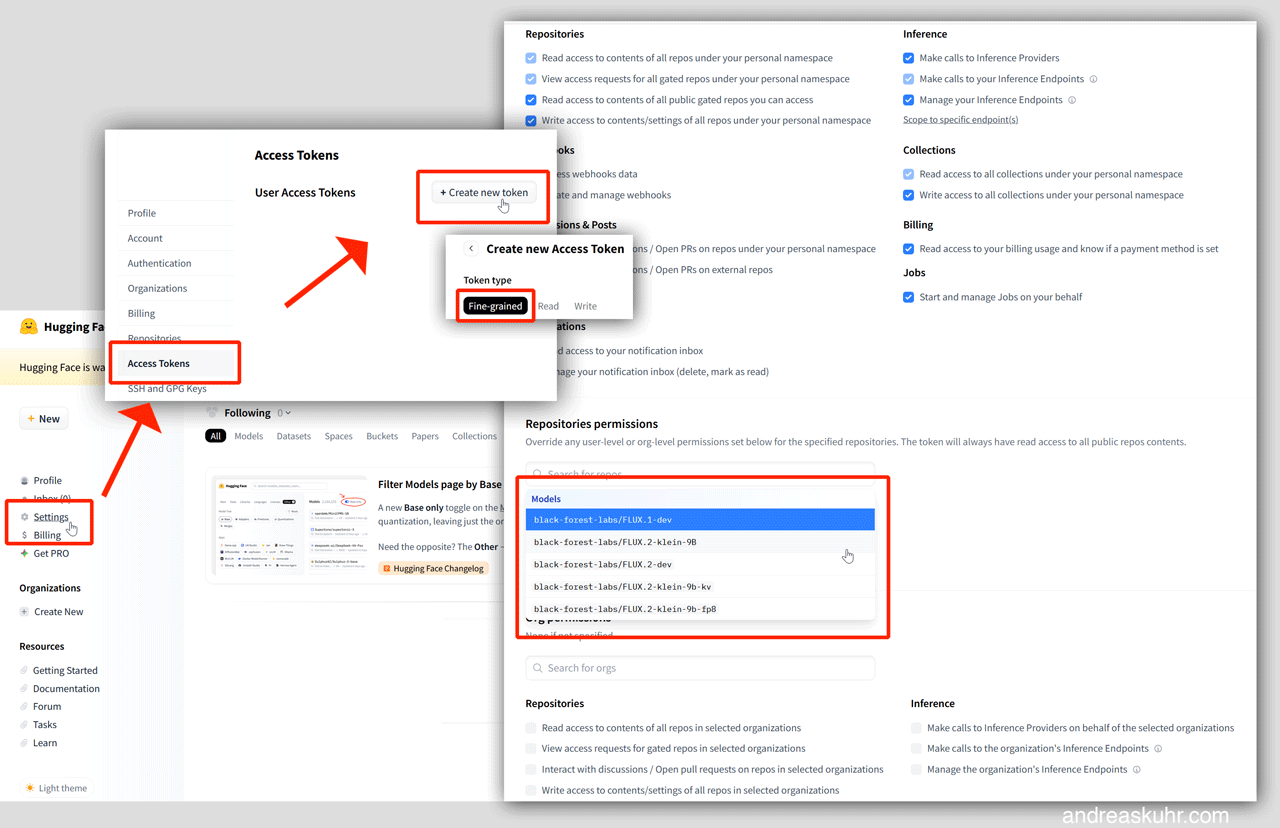
Log in to Huggingface, navigate to ‘Access Tokens’ via ‘Settings’ and click on ‘Create new token’. If you then select ‘Fine-grained’ as the ‘Token Type’, you can select the models to which you already have access further down under ‘Repositories permissions’.
Local user interfaces for Flux.2
Not all user interfaces are compatible with the Flux.2 models. If you prefer to generate images on your own computer, the web interfaces ComfiUI, InvokeAI, RuinedFooous, SDNext and SwarmUI are available to you. ForgeWebUI is apparently no longer being developed.
ComfyUI
ComfyUI is by far the most flexible user interface and is always up to date when it comes to processing the latest models. A desktop version is available for convenient installation and use. For tinkerers who like to get their hands dirty, the ‘portable’ version is recommended.
Installing Flux.2 in ComfyUI
Whilst the installation of Flux.1 models in the ‘portable version’ could be carried out conveniently via the ‘Manager’, this feature has unfortunately been removed from the desktop version.
However, for both versions, it is possible to install models via the error messages in the workflows. The advantage of this is that you can download exactly the Flux.2 models and the corresponding text and VAE encoders that you need.
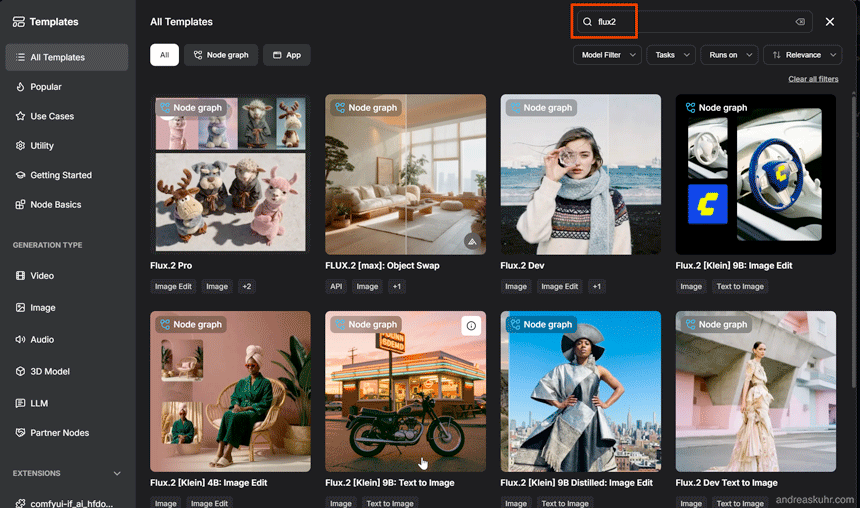
To load a Flux.2 template, open the templates overview using the button in the top-left corner and search for ‘Flux 2’. You could, for example, select the ‘Image Flux.2 Klein 9b’ template. The ‘Flux.2 klein 9b’ model strikes a good balance between image quality and memory usage.
Several windows or ‘nodes’ will now appear in your workflow with a red border, as elements are missing here. On the right, under ‘Workflow Overview’ > ‘Errors’, ComfyUI lists the missing files. You can now download the model and the encoders directly using the ‘Download’ buttons, or copy the download links to the files using ‘Copy URL’.
For users of the “portable version”, the download links for the models and encoders, along with their locations within the ComfyUI folder structure, are also listed in a note on the left-hand side of the workflow.
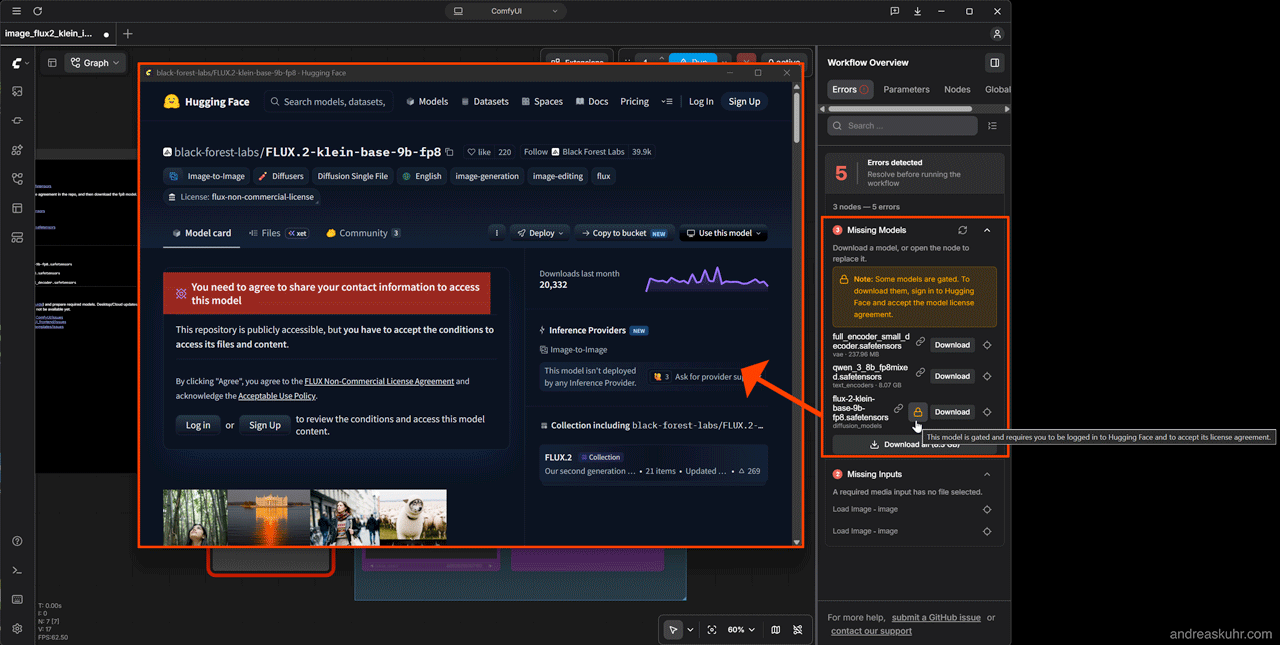
To use Flux.2 models, you must first agree to the terms of use for each model on Huggingface.co. This is why you will find the note “Some models are gated” under “Missing Models”. If you click on the padlock to the right of the relevant model, a window will open with the HuggingFace login page. Here you can log in or register. You will then be shown the terms of use. Once you have confirmed these by clicking ‘Agree and access repository’ and the message ‘You have been granted access to this model’ appears, you can download the model using the ‘Download’ button. Keep the Huggingface window open whilst doing so and remain logged in.
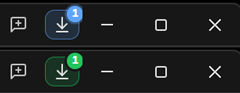
The blue button in the top right-hand corner indicates that the download is in progress. It turns green once the process is complete.
The desktop version of ComfyUI saves the files on Windows under ‘C:\Users\YourUsername\AppData\Local\Comfy-Desktop\ComfyUI-Shared\models\’. If you already have the models on your computer, you can simply copy them – for both the desktop and portable versions – into the ComfyUI model directory within your ComfyUI installation directory:“MyInstallationDirectory\models\diffusion_models”.
In addition to the Flux.2 model, you will need a text encoder and a VAE encoder. You can also download these conveniently via the “Missing Models” list or copy them into your model directory:
- Text encoder: MyInstallationDirectory\models\text_encoders
- VAE encoder: MyInstallationDirectory\models\vae
Image generation in ComfyUI with Flux.2
ComfyUI offers workflows for various Flux.2 [dev] and [klein] models. Your options depend on the size of your graphics card memory.
To get an overview, select the ‘Templates’ button in the top-left corner of the sidebar and enter ‘flux2’ in the search field at the top right of the new window. To start with, I recommend working with the ‘Flux.2 [klein] 9B’ model, which offers a good balance between quality, speed and memory usage.
To generate an image, you could therefore select the ‘Flux.2 [klein] 9B: Text to Image’ template. In the Text to Image node, all you then need to do is enter a prompt and specify the image size.
The settings for image generation are already configured. The default settings are:
- CFG Guider: 5
- Sampler: Euler
- Steps: 20
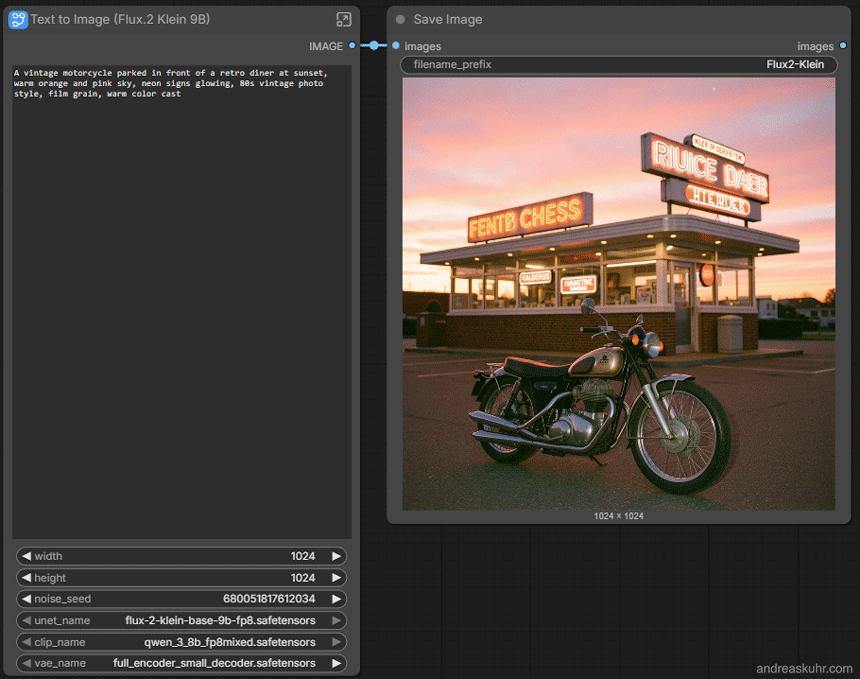
To improve the quality, you can increase the number of steps to 30. If the color saturation of the results is too high, you should reduce the value for the ‘CFG Guider’. To change these values, open the subgraph node by clicking the button in the top right-hand corner of the Text to Image node.
Image editing in ComfyUI with Flux.2 and reference images
Depending on the model, you can use up to six reference images in ComfyUI. For the ‘Flux.2 [klein] 9B’ model recommended above, ComfyUI provides the ‘Flux.2 [klein] 9B: Image Edit’ template, which allows you to use up to two reference images.
To do this, click the ‘Templates’ button in the top-left corner of the sidebar, enter ‘flux2’ in the search field at the top right of the new window, and select the ‘Flux.2 [klein] 9B: Image Edit’ template. If necessary, download any missing files. In the “Load Image” node, you can now load a reference image by clicking the “choose file to upload” button. Then, in the text field in the “Image Edit” node, describe what you want to do with the image. In our example:
remove the man in front of the car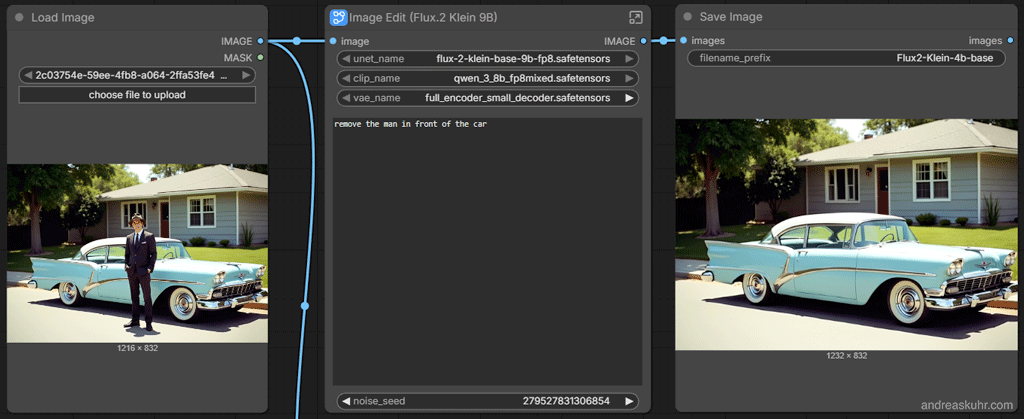
Image editing in ComfyUI using Flux.2 and multiple reference images
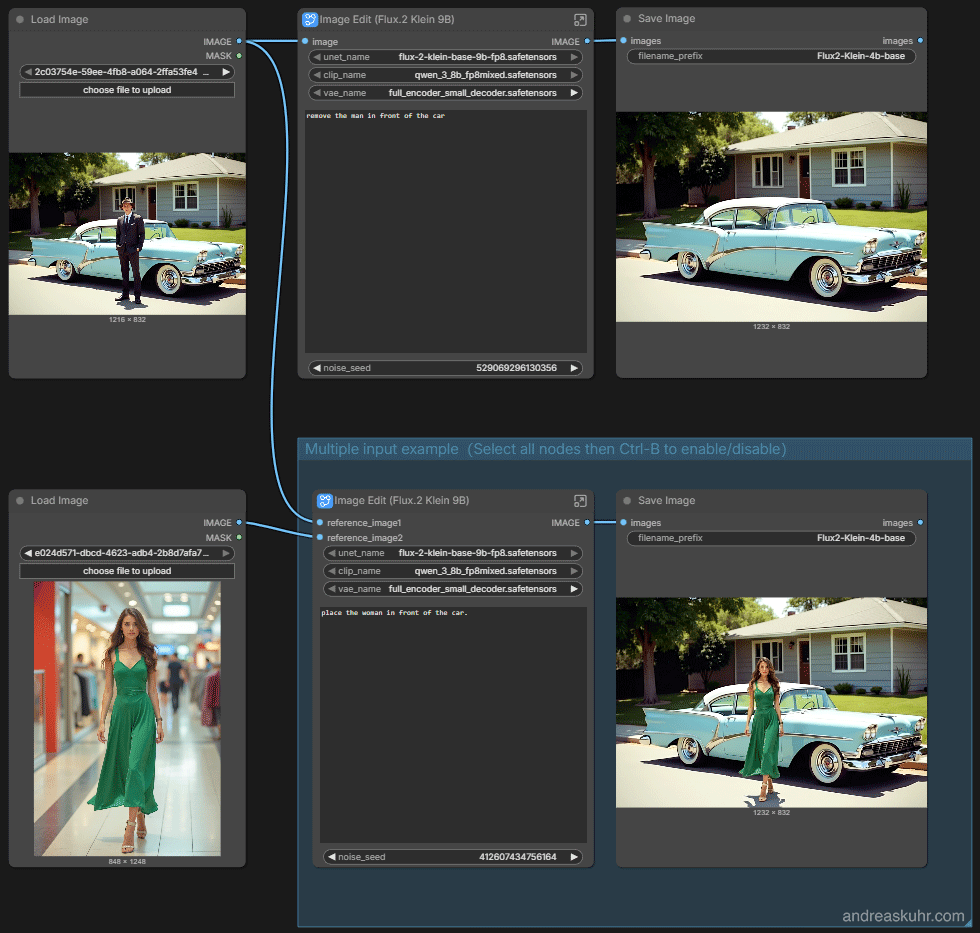
If you wish to use a further reference image in the “Flux.2 [klein] 9B: Image Edit” template, load it into the lower “Load Image” node and activate the lower, purple-coloured ‘Image Edit’ and ‘Save Image’ nodes by clicking on the node and then on the ‘Bypass/Unbypass Selected Nodes’ button in the top right-hand corner above the node. Then enter a prompt in the ‘Image Edit’ node, such as:
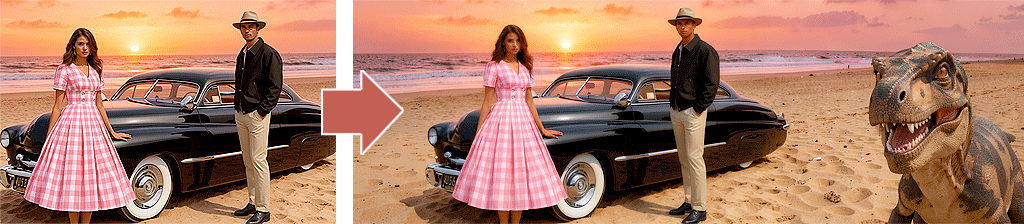
place the woman in front of the carThe two prompts are now processed one after the other: the man disappears and the woman is inserted.
Here is another example with four reference images and a prompt. The workflow is based on the ‘Flux.2 Dev’ template, which initially only offers a ‘Load Image’ node. The model used is ‘Flux2 [dev] FP8 Mixed’.
To be able to insert further reference images, I broke down the ‘Image Edit’ subgraph node into its constituent parts by clicking on the ‘Image Edit’ node and then selecting the ‘Unpack the selected Subgraph’ button above the node (fourth icon from the left).
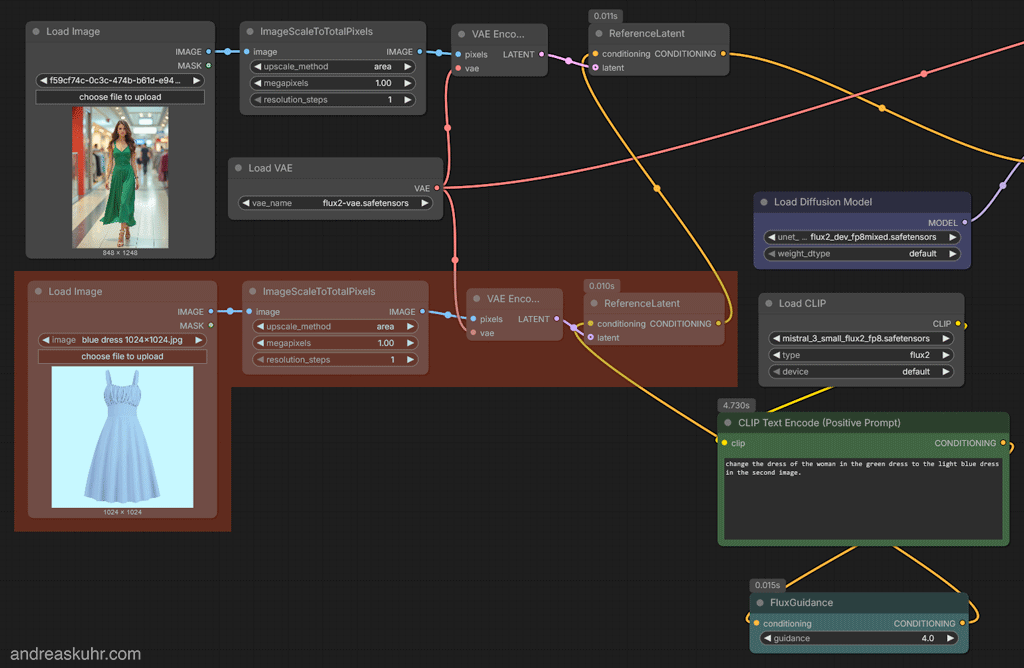
I then copied the combination of the ‘Load Image’, ‘ImageScaleToTotalPixels’, ‘VAE Encode’ and ‘Set Reference Latent’ nodes three times and connected each of the ‘VAE Encode’ nodes to the ‘Load VAE’ node. In addition, the ‘Set Reference Latent’ nodes had to be connected in series, with the topmost node remaining connected to the ‘Basic Guider’ node, whilst the bottom one is fed from the ‘Flux Guidance’ node.
Here is the prompt:
A woman in a red and white chequered dress is standing by the bonnet of a black car, with one hand on the bonnet and looking at the viewer. A man with his hands in his pockets, wearing a black jacket, beige trousers and a hat, is standing near the car door.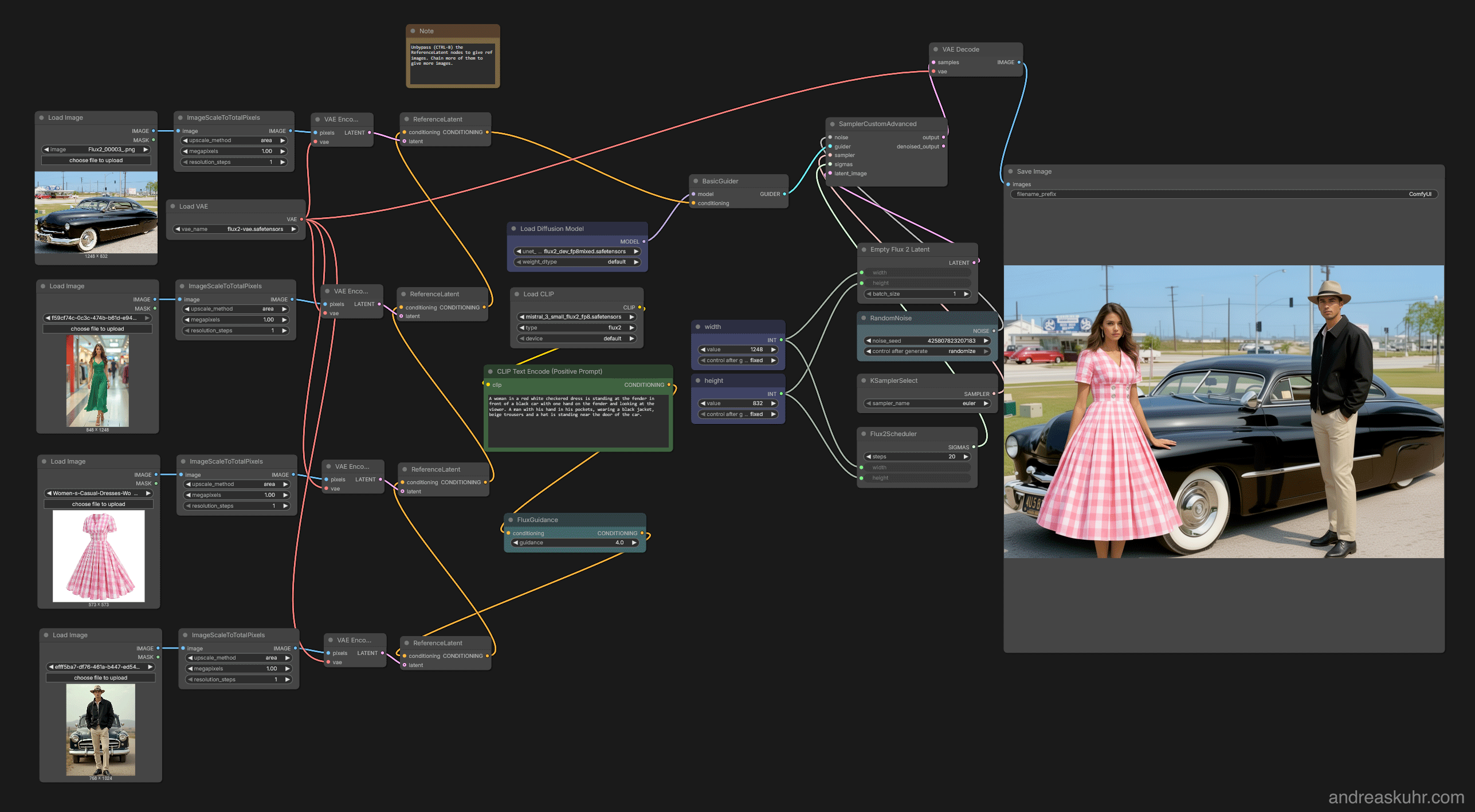
For a clearer overview, I’ve deleted all nodes related to the ‘8 Steps LoRA’. This would be helpful if you want to achieve results more quickly.
InvokeAI
Unlike other user interfaces, InvokeAI works with different layers for image generation, masks and ControlNets – similar to image editing or illustration programmes. The layers can be exported as a Photoshop file. This makes it easy to integrate InvokeAI into professional workflows.
Installing Flux.2 in InvokeAI
In InvokeAI, you install models exclusively via the user interface. The advantage of this is that you do not have to deal with the folder structure and only download models that InvokeAI can actually process.
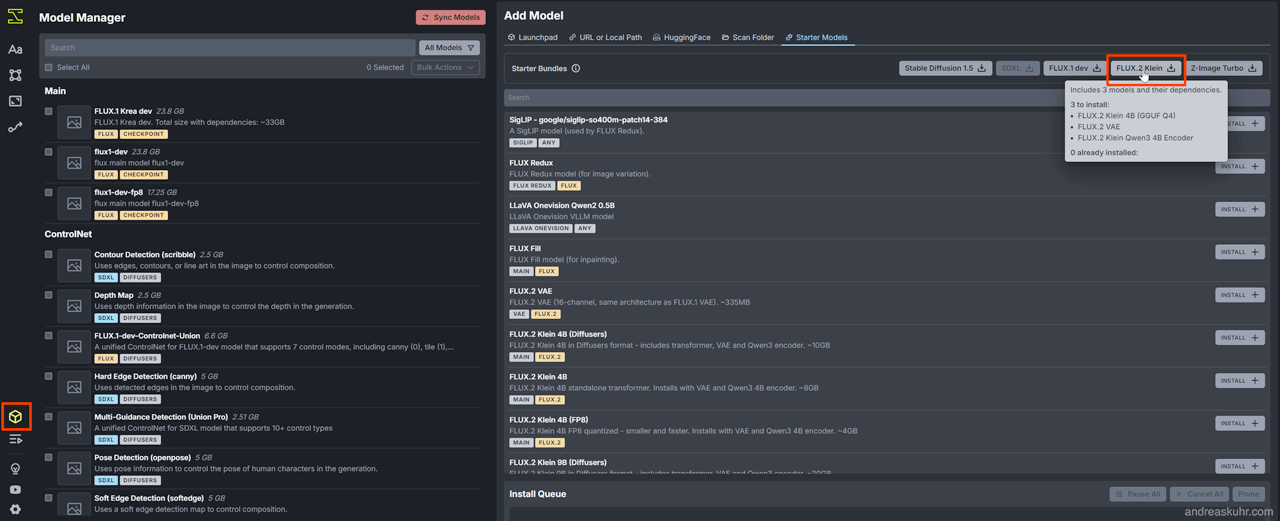
You can access the model overview by clicking the cube icon in the bottom left-hand corner of the user interface. The ‘Model Manager’ on the left-hand side shows you an overview of which models are already installed. On the right-hand side, under ‘Add Model’, you now have three options for installing different Flux.2 models.
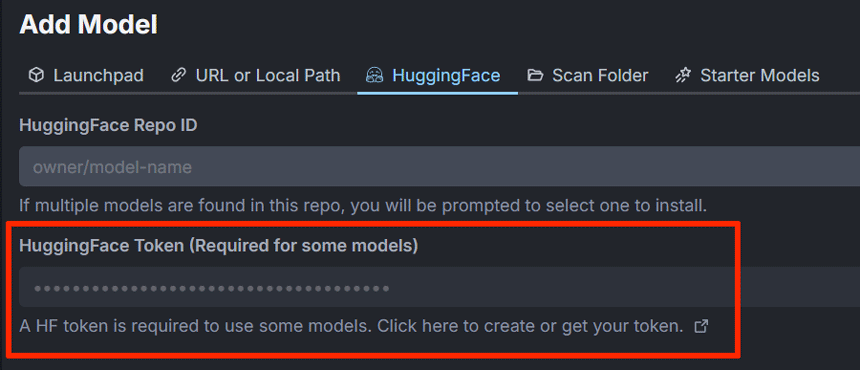
Before downloading models, you should first enter your Huggingface API key in the ‘Huggingface Token’ text field under the ‘Huggingface’ tab; otherwise, you will receive the error message ‘You do not have access to this model’.
Ready-to-use Flux.2 starter model for low-end graphics cards
If you don’t want to spend time figuring out which model to use with which text encoder and which VAE encoder, and simply want to get started, the ‘Starter Models’ tab at the top right is the right place for you. Clicking the “Flux.2 Klein” button in the “Starter Packs” section will download a Flux.2 [klein] GGUF Q4 model along with all the necessary encoders (7 Gb). You can use this model without any issues with a graphics card with 8 Gb or more and 16 Gb or more of RAM. However, you shouldn’t have overly high expectations regarding image quality.
Flux.2 [klein] models for higher expectations
Also under the ‘Entry-level models’ tab, further down the page, you’ll find a list of models that you can download as a bundle including all the necessary encoders. Scroll down until you reach the Flux.2 [klein] models. If your graphics card is up to it, I recommend the ‘Flux.2 Klein 9B (FP8)’ model. This offers a good balance between quality and modest graphics card memory requirements.
Using Flux.2 models from your own archive in InvokeAI
If you prefer to store models in a central archive, you’ll need to install them under the ‘URL or Local Path’ tab. The easiest way to do this is to navigate to the local directory where the model is located, right-click on the file and select ‘Copy as path’ to copy the file path, then paste this into the ‘URL or Local Path’ text field and click ‘Install’.
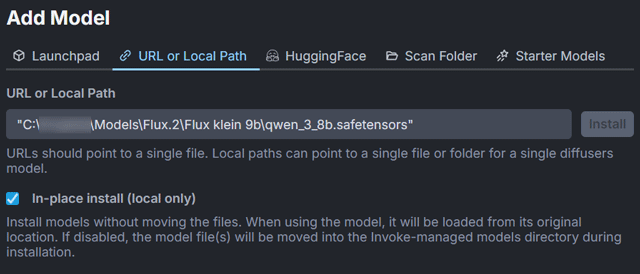
But be careful: InvokeAI only supports certain combinations of Flux.2 [klein] and text encoders. If in doubt, check under ‘Starter Models’ to see which encoders your chosen model has been bundled with.
Ticking the ‘In-place install’ box leaves the model in your archive rather than copying it to the InvokeAI model directory.
Image generation in InvokeAI with Flux.2
To generate an image in InvokeAI using Flux.2, click the ‘Aa’ button in the top-left corner and enter a text prompt. In the ‘Generation’ window, under ‘Model’, select the desired Flux.2 model. InvokeAI will now automatically search for the appropriate text encoder and VAE encoder and display these in the ‘Advanced’ window at the bottom left. If you see an error message there, you will need to download the appropriate encoder.
Under ‘Image’, you can set the desired image size. You should bear in mind the recommended aspect ratios. The menu under ‘Aspect ratio’ offers you various pre-set formats for this. However, you can also specify your own image sizes under ‘Width’ and ‘Height’, provided the values are divisible by 64.
InvokeAI also automatically configures the settings for image generation. The default settings are:
- Planner: Euler
- Steps: 20
- Guidance: 4
The ‘Guidance’ setting is no longer displayed for compressed Flux.2 [klein] models. The default value is ‘1’ and cannot be changed.
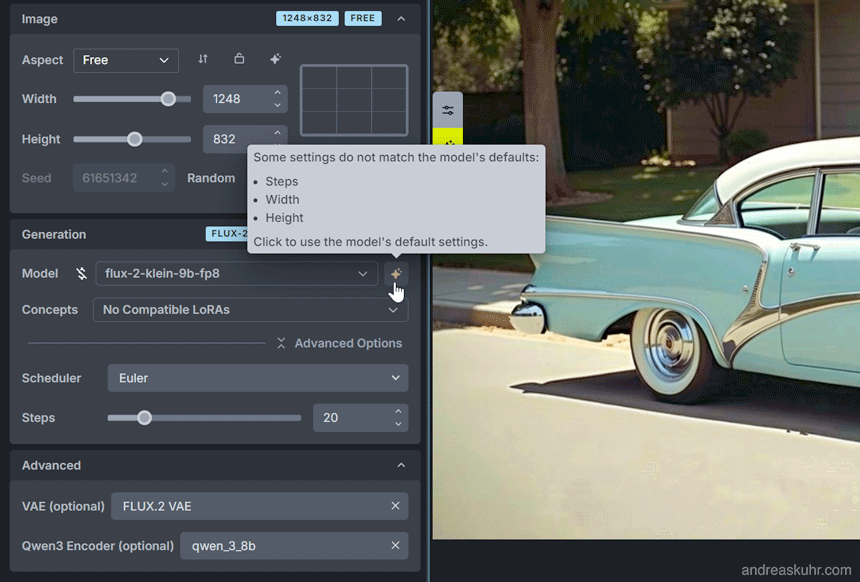
If neither a ‘VAE’ nor an encoder is entered under ‘Advanced’ in Invoke, you must select one. The encoders are not optional.
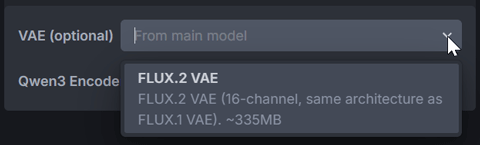 To improve quality, you can increase the number of steps to 30.
Image editing in InvokeAI with Flux.2 and reference images
With the ‘Aa’ button enabled, you can add a reference image below the text prompt by uploading one there, or by right-clicking on the desired image on the right-hand side of your gallery. Then, as described in Part 1 of the Flux.2 guide, enter a detailed text prompt explaining what you want to do with the image.
In our example we select the photo of a 1950s custom car with its owner from the gallery on the right side by right-clicking > ‘Use as Reference Image’. Under ‘Image’, we enter the resolution of the original image as 1248 x 832 so that the image size is preserved. To make the man disappear, we write in the text prompt:
Remove the man in front of the car.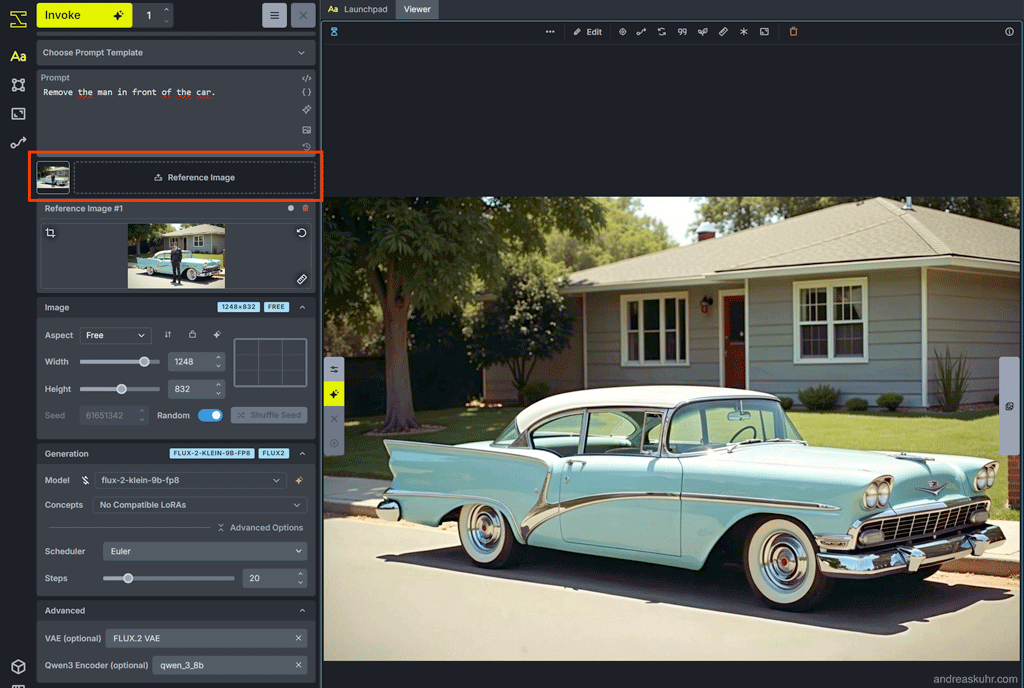
How do I work with multiple reference images in InvokeAI?
InvokeAI accepts multiple reference images. As described above, you can select these under ‘Assets’ or ‘Images’ and define them as reference images. In the text prompt, you can then either describe in detail the individual image elements you want to see in the result, or refer to the sequence of images, i.e. ‘Action...Image 1...Image 2...Image 3...’.
Coloured photograph of a 25-year-old man in a suit, wearing a hat and black shoes, in 1950s fashion. Full-body shot. Hands in pockets. Standing in front of a 1950s pale blue custom car on a suburban street. You can see the driver’s side of the car. A woman in a red and white chequered dress is standing by the front fender of the car, with one hand on the fender and looking at the viewer. Bright sunlight on a summer’s day.Add the woman from image 2 to the photograph of the man in a suit in image 1, standing in front of his car. The woman is wearing the red and white chequered dress from image 3. She is standing by the front fender of the car with one hand on the fender and looking at the viewer. Bright sunlight on a summer’s day. Retain all other details of the scene.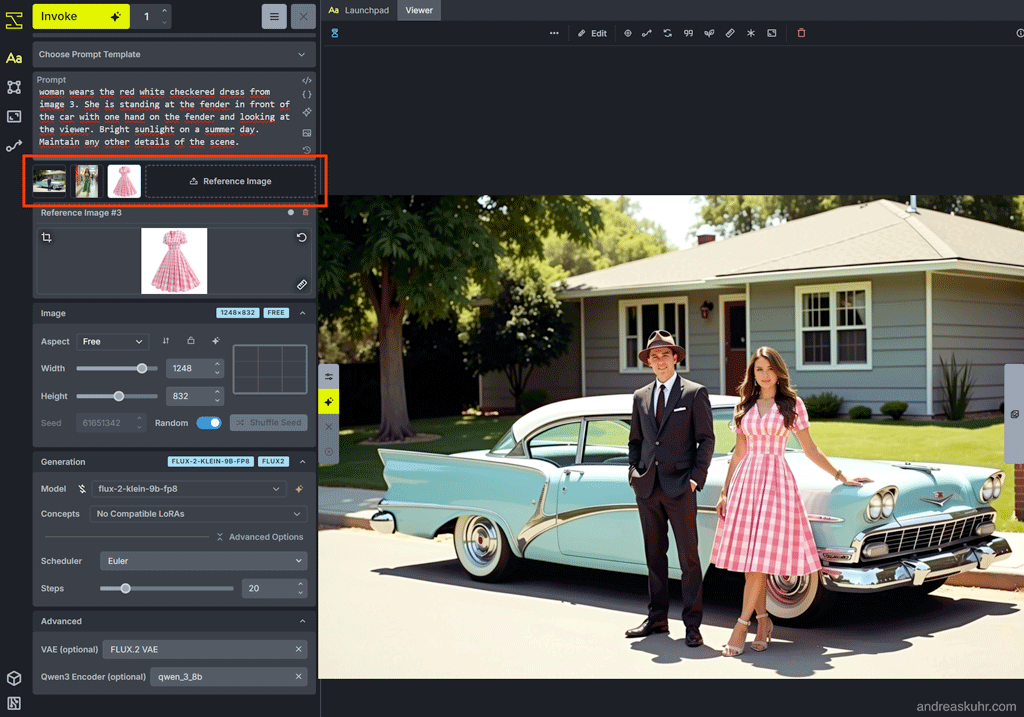
SDNext
For those who miss the good old AUTOMATIK1111 web UI, SDNext is just the ticket. The current SDNext user interface can even be reset to the original interface.
Installing Flux.2 in SDNext
In SDNext, you install models exclusively via the user interface. The advantage of this is that you do not have to deal with the folder structure and only download models that SDNext can actually process. The downside is that SDNext does not download complete models that you can use in other user interfaces without much effort, but rather several sub-components.
You can find the model overview on the right under ‘Networks’, under the ‘Model’ > ‘All’ tab. If you enter ‘Flux.2’ in the search box, SDNext will list all compatible Flux.2 models that are available for installation or are already installed. If you hover over the image with your mouse and click on ‘I’, you’ll see detailed information about the model.
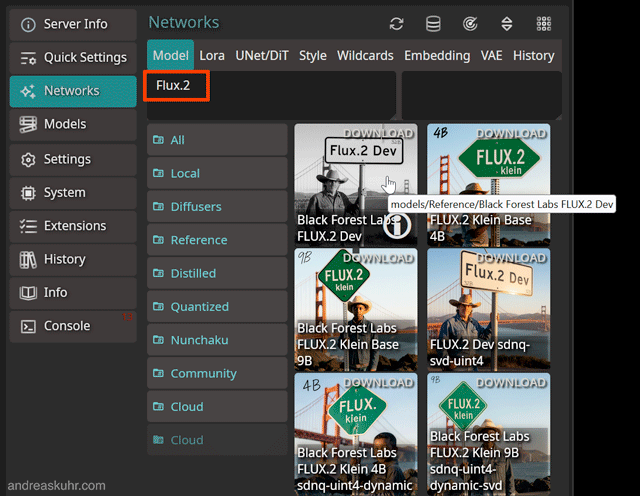
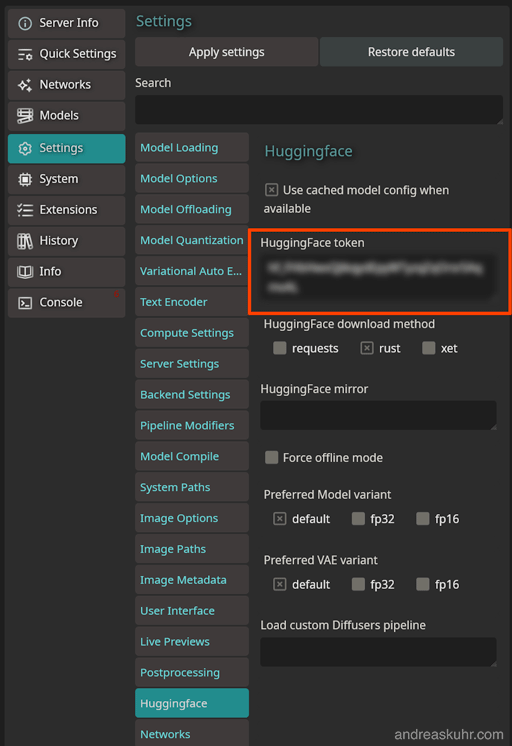
Before installing models, you should first enter your Huggingface API key in the ‘Huggingface token’ text field under the ‘Settings’ > ‘Huggingface’ button, as you will otherwise not have access to Flux.2 models.
To download a model, click on the relevant image under ‘Networks’ in the ‘Model’ > ‘All’ tab. SDNext will then download the selected model. As soon as you start image generation, all the necessary encoders will also be downloaded. Depending on the file size, this may take a while.
Compatible Flux.2 models for SDNext
| Flux.2 [dev] |
| Flux.2 [dev] sdnq-uint4 ¹ ² |
| Flux.2 [klein] Base 9B |
| Flux.2 [klein] 9B |
| Flux.2 [klein] 9B KV ³ |
| Flux.2 [klein] 9B sdnq-uint4-dynamic-svd ¹ ² |
| Flux.2 [klein] Base 4B |
| Flux.2 [klein] 4B |
| Flux.2 [klein] 4B sdnq-uint4-dynamic ¹ ² |
¹ SDNQ models use the cross-platform‘SD.Next Quantisation Engine’.
² UINT4 quants are compressed models with reduced quality and speed, but require 3.6 times less GPU memory than the standard models.
³ KV models are optimised for accelerated image generation using multiple reference images.
Image generation in SDNext with Flux.2
To generate an image in SDNext using Flux.2, enable the desired Flux.2 model on the right under ‘Networks’ > ‘Models’. Then select the ‘Images’ and ‘Prompt’ buttons in the top-left corner and enter a text prompt. Further down, you can set the desired image size. You should observe the recommended aspect ratios. Click on the ‘Sampler’ and ‘Guidance’ buttons to check or change these.
The default settings are:
- Steps: 20
- Sampling method: Euler
- Guidance scale: 1–4
To improve the quality, you can increase the number of steps to 30 or more. If the color saturation of the results is too high, you should increase the ‘Guidance rescale’ setting.
For this example, the Flux.2 [Klein] 9B KV model was used, which is particularly well-suited to image generation using multiple reference images.
Colour photograph of a 25-year-old man in a suit, wearing a hat and black shoes, in 1950s fashion. Full-body shot. Hands in pockets. Standing in front of a 1950s pale blue custom car on a suburban street. You can see the driver’s side of the car. A single-storey house with horizontal grey wooden panelling in the far background. Bright sunlight on a summer’s day.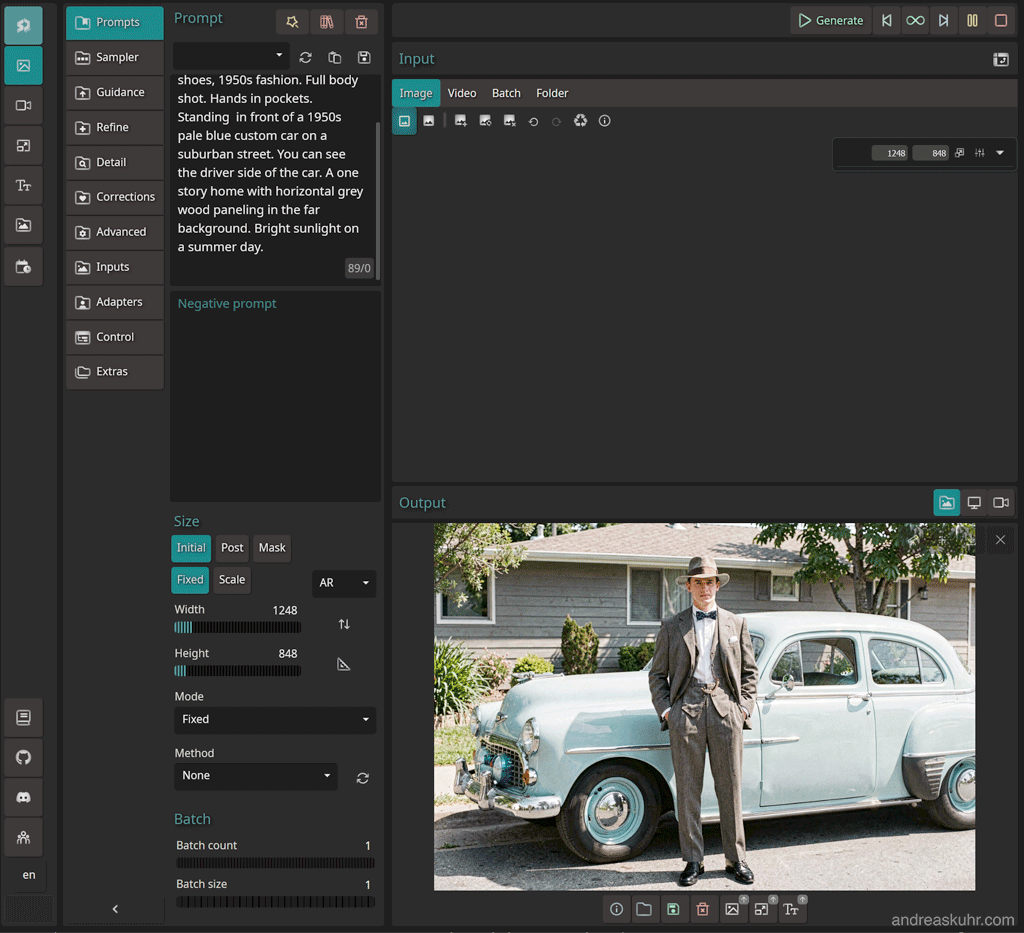
Image editing in SDNext using Flux.2 and reference images
To the right of the prompt, under the ‘Input’ > ‘Image’ tab, you can upload a reference image. To do this, click on the ‘Upload image to active layer’ button. On the right-hand side, you will see that SDNext has created a so-called ‘Stage’.
In the text input field on the left for the prompt, enter what you want to happen to the image:
Remove the man in front of the car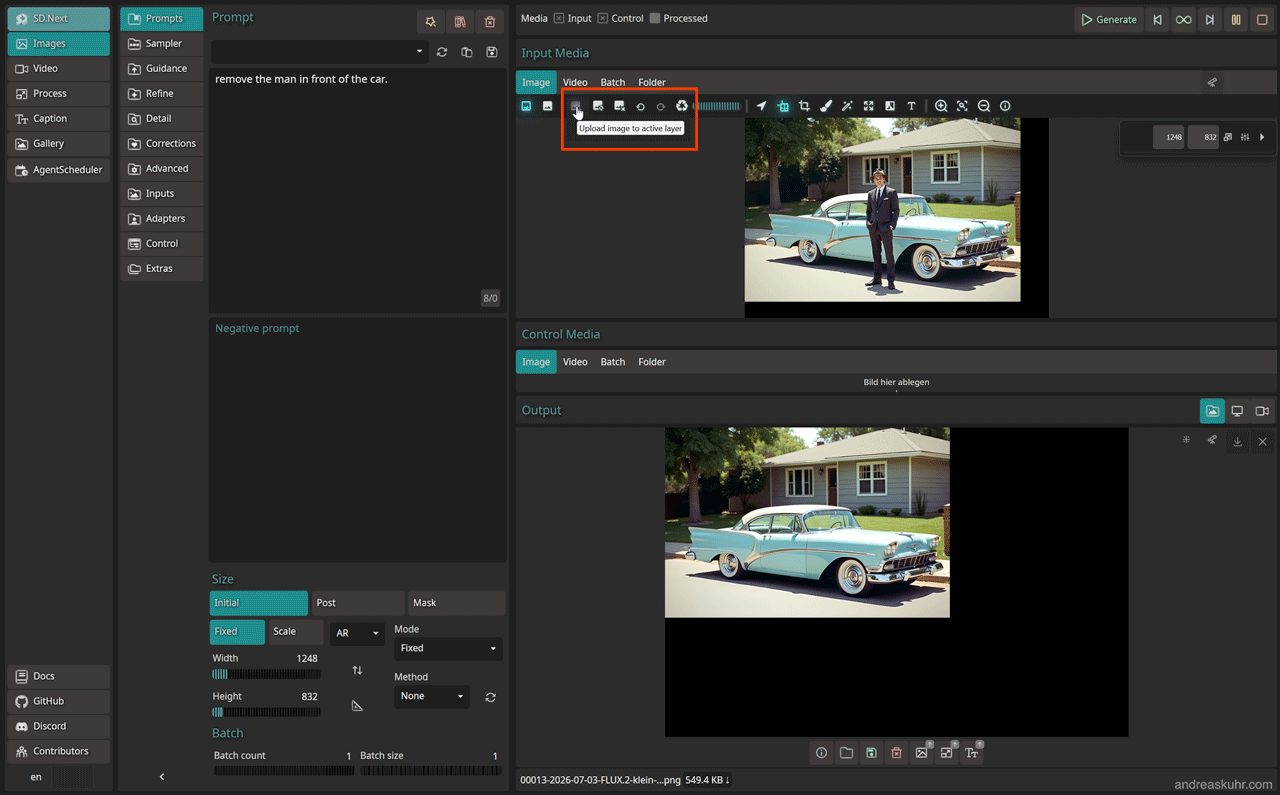
Image editing in SDNext using Flux.2 and multiple reference images
To use more than one reference image, first upload the main image to the image input as described above using the ‘Upload image to active layer’ button. Then create a new layer (Stage 2) by clicking the plus sign in the top right-hand corner under ‘Stages’. You can then load the second reference image using the ‘Upload image to active layer’ button again. Ensure that the set image size meets your requirements or matches the aspect ratio of the main reference image.
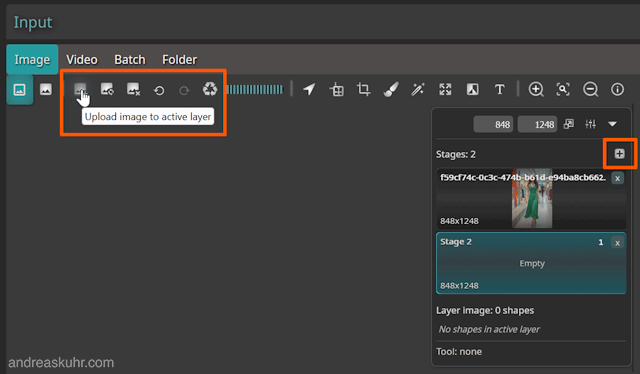
Now go to ‘Inputs’ in the menu column on the left and tick ‘Skip input processing’ so that SDNext passes your images on to the image generation process unprocessed.
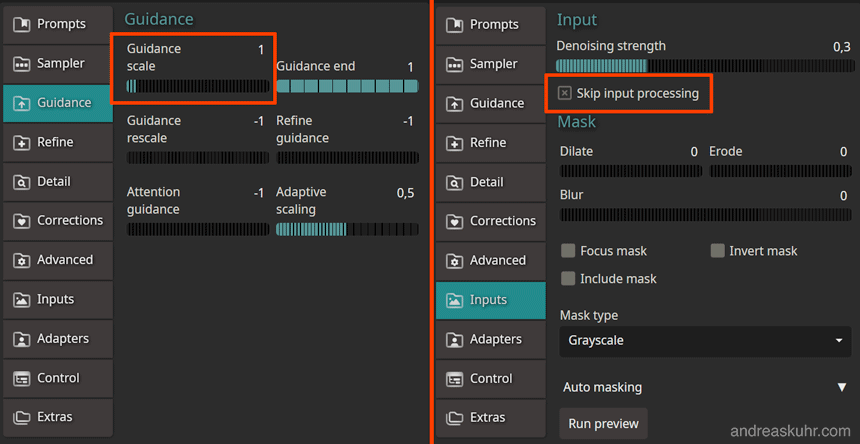
In the example below, three reference images have been loaded into three stages.
Add the woman in image 2 to the scene in image 1. She is wearing the red and white chequered dress from image 3 and is standing to the right of the man by the bonnet at the front of the car, with one hand on the bonnet and looking at the viewer. She is slightly smaller than the man. Retain all details from image 1.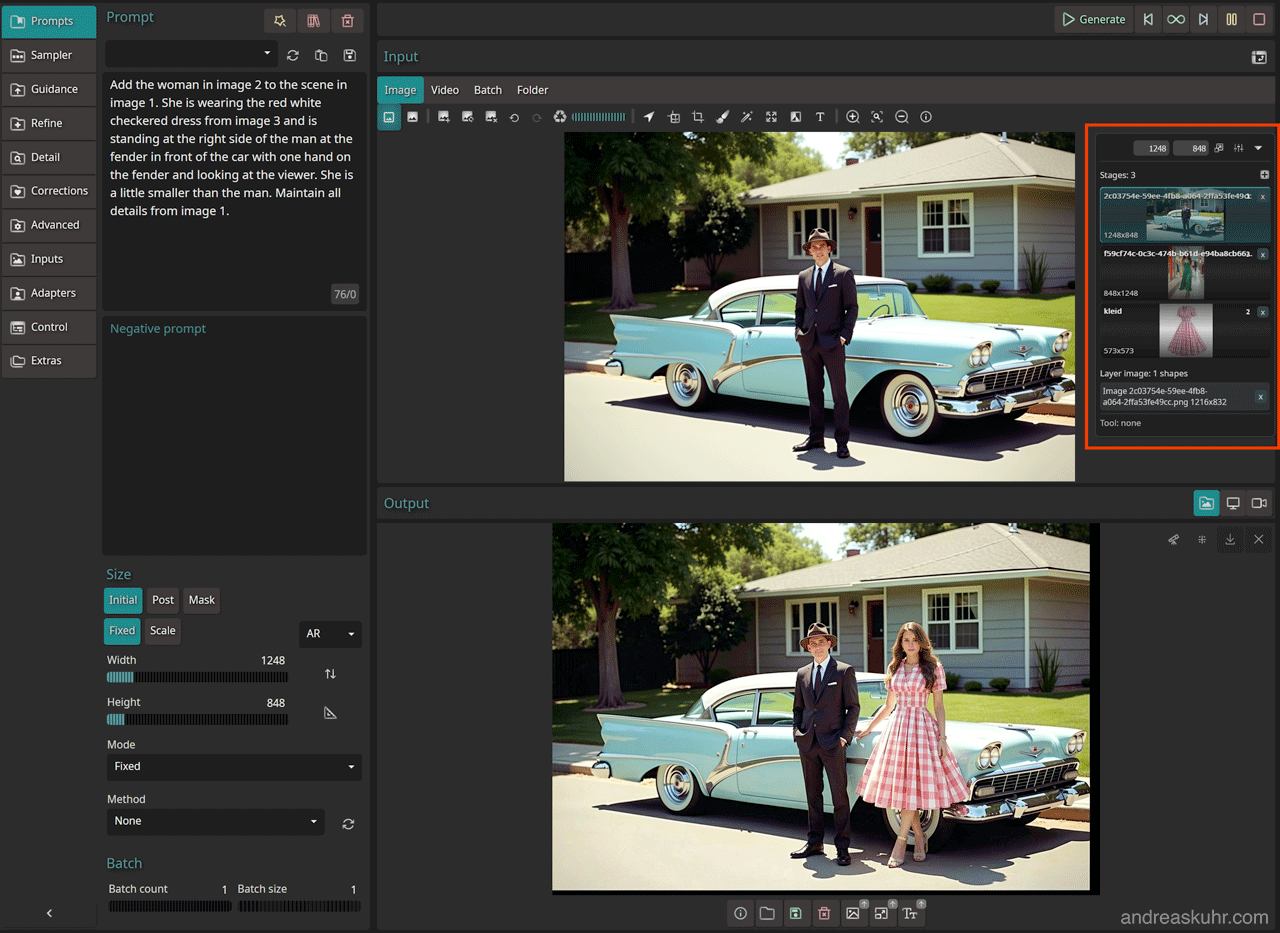
SwarmUI
SwarmUI is a further development of the AUTOMATIK1111 interface, with the difference that you can use many of the latest image and video generation models. The user interface is clear and there is an installer that allows you to install SwarmUI with a single click.
Installing Flux.2 in SwarmUI
In SwarmUI, you must download Flux.2 models directly from Huggingface.co and copy them to the directory‘MyInstallationDirectory\Models\diffusion_models’. Unfortunately, the ‘Downloader’ provided with SwarmUI saves the data to the wrong directory. SwarmUI processes all Flux.2 models.
SwarmUI automatically downloads the encoders compatible with the respective model when the first image is generated. The text encoder is saved in“MyInstallationDirectory\Models\text_encoders” and the VAE encoder in“MyInstallationDirectory\Models\VAE”.
Image generation in SwarmUI with Flux.2
To generate an image with SwarmUI, select the desired Flux.2 model in the lower pane under the ‘Models’ tab and enter a prompt in the ‘Type your prompt here’ text field.
SwarmUI automatically applies the necessary settings for the selected model; all you need to do is specify the image size under ‘Resolution’. The default settings are for:
Flux.2 [dev]
> Core Parameters
- Steps: 20
- CFG Scale: 1
> Sampling
- Sampler: Euler
- Scheduler: Normal
- Flux Guidance Scale: 3.5
Flux.2 [klein]
> Core Parameters
- Steps: 20
- CFG Scale: 7
> Sampling
- Sampler: Euler
- Scheduler: Normal
- Flux Guidance Scale: 3.5
In the example below, I used the Flux.2 [klein] 9B FP8 model with a CFG scale of 1. A lower CFG scale of 2–3 produced better-quality results.
Colour photograph of a 25-year-old man in a suit, wearing a hat and black shoes, in 1950s fashion. Full-body shot. Hands in pockets. Standing in front of a 1950s pale blue custom car on a suburban street. You can see the driver’s side of the car. A single-storey house with horizontal grey wooden panelling in the far background. Bright sunlight on a summer’s day.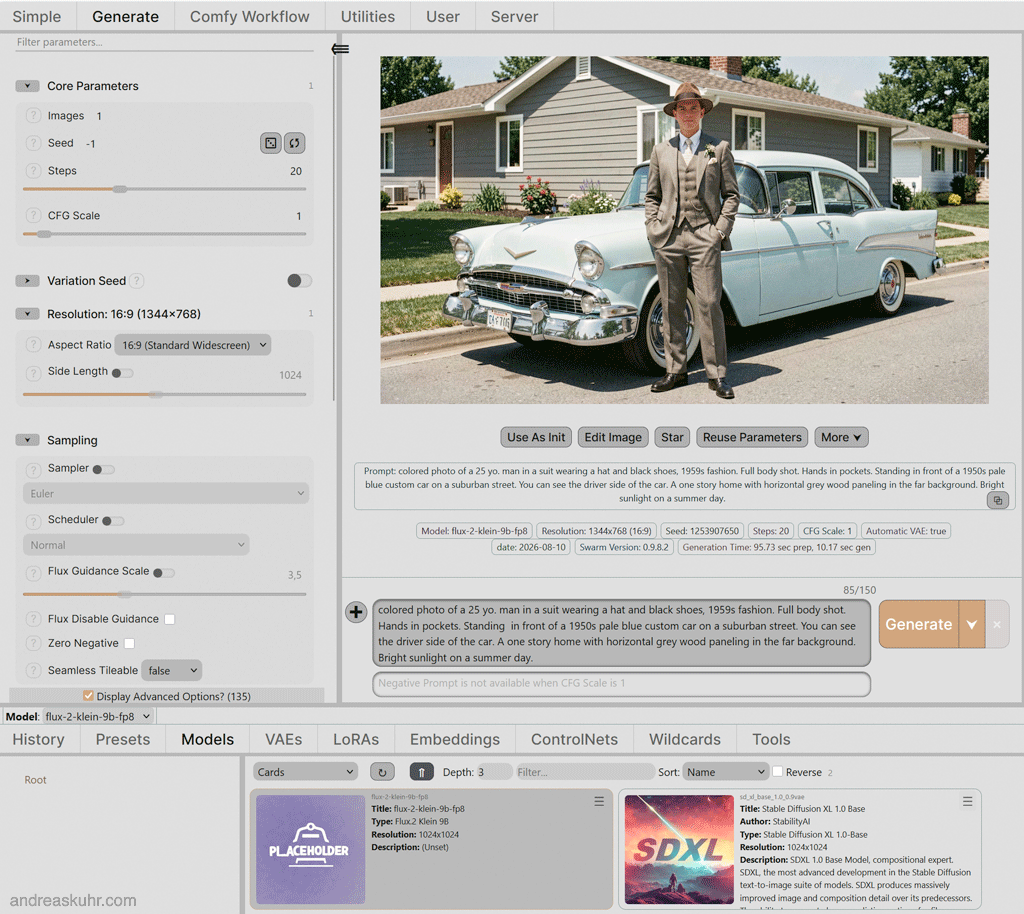
Image editing in SwarmUI with Flux.2 and reference images
The number of reference images you can use in SwarmUI is limited only by the model you are using. To select a reference image, you can drag it onto the text prompt input field or paste it there. It will then appear above the prompt.
In our example, we’re making a man standing in front of his car disappear. Under ‘Resolution’, with ‘Aspect Ratio’ set to ‘Custom’, the image size has been set to its original dimensions, and the ‘CFG Scale’ has been set to 1.
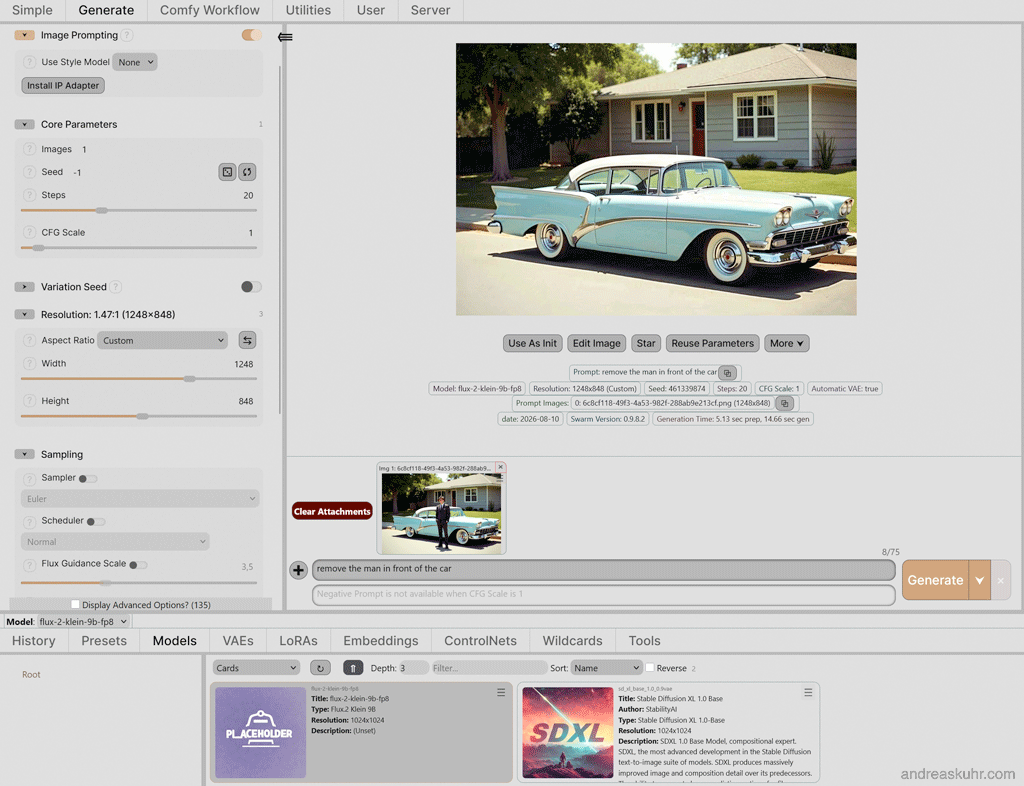
Image editing in SwarmUI with Flux.2 and multiple reference images
You can add further reference images by copying these into the text field for the positive prompt as well. As the Flux.2 [klein] models are slower on the uptake than the Flux.2 [dev] models, the prompt in this case is a little more detailed:
Add the woman in image 2 to the scene in image 1. She is smaller than the man. She is wearing the red and white chequered dress from image 3 and is standing by the bonnet at the front of the car with one hand on the bonnet and looking at the viewer. Maintain all details from image 1.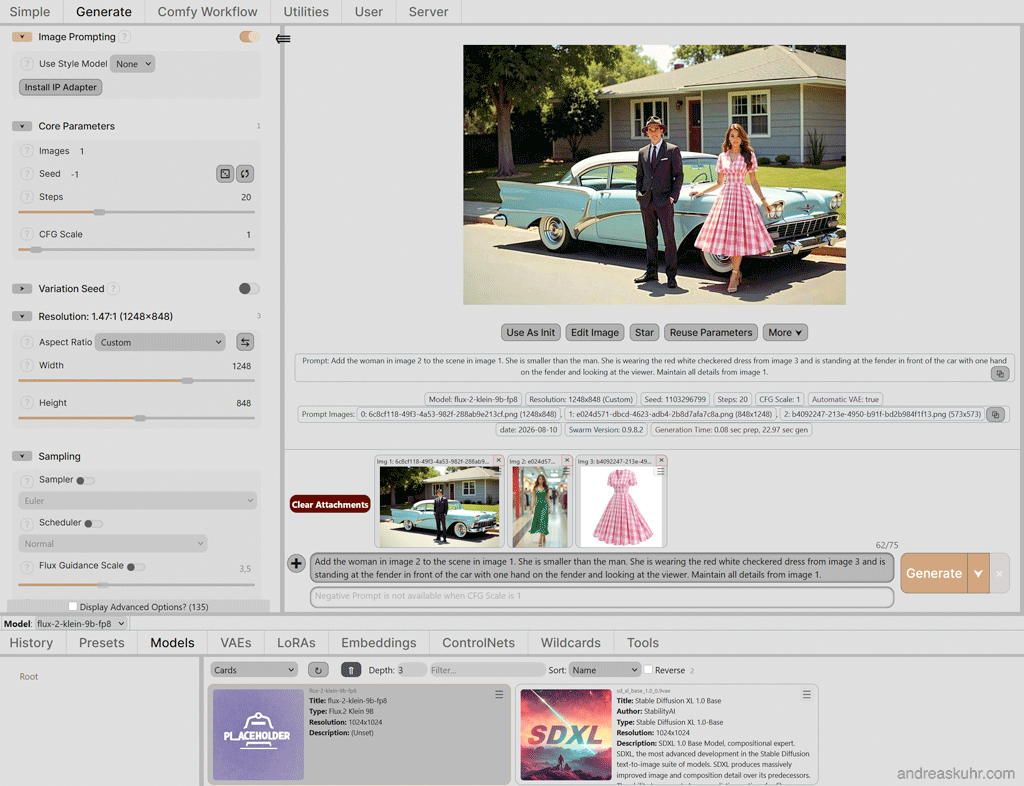
RuinedFooocus
RuinedFooocus is a fork of the popular ‘Fooocus’ user interface. Whilst the original offers a significantly wider range of features, RuinedFooocus is capable of working with many of the latest image and video generation models. As RuinedFooocus automatically downloads all the necessary encoders depending on the Flux model, without you having to deal with the various dependencies, this user interface is particularly suitable for beginners.
The disadvantage compared to other user interfaces when working with Flux.2 in RuinedFooocus is that you can only use one reference image and no GGUF models.
Installing Flux.2 in RuinedFooocus
In RuinedFooocus, you must download Flux.2 models directly from Huggingface.co and copy them to the directory‘MyInstallationDirectory\models\checkpoints’. To download Flux.2 models, you must first sign up with Huggingface and agree to Black Forrest Labs’ terms of use.
RuinedFooocus automatically downloads the encoders compatible with the respective model when you generate your first image. The text encoder is saved in‘MyInstallationDirectory\models\clip’ and the VAE encoder in‘MyInstallationDirectory\models\vae’.
Image generation in RuinedFooocus with Flux.2
To generate an image with RuinedFooocus, select the desired Flux.2 model in the top-right pane under the ‘Models’ tab and enter a prompt in the ‘Type prompt here’ text field in the bottom-left corner.
Under the ‘Settings’ tab, select the ‘Flux’ setting from the ‘Performance’ drop-down menu. RuinedFooocus will then apply the necessary settings, which you can customise as desired using the ‘Custom’ setting. Under ‘Aspect Ratio’, you can now specify the desired image size.
Here is an example generated using the Flux.2 [klein] 9B model.
Coloured photograph of a 25-year-old man in a suit, wearing a hat and black shoes, in 1950s fashion. Full-body shot. Hands in pockets. Standing in front of a 1950s pale blue custom car on a suburban street. You can see the driver’s side of the car. A single-storey house with horizontal grey wooden panelling in the far background. Bright sunlight on a summer’s day.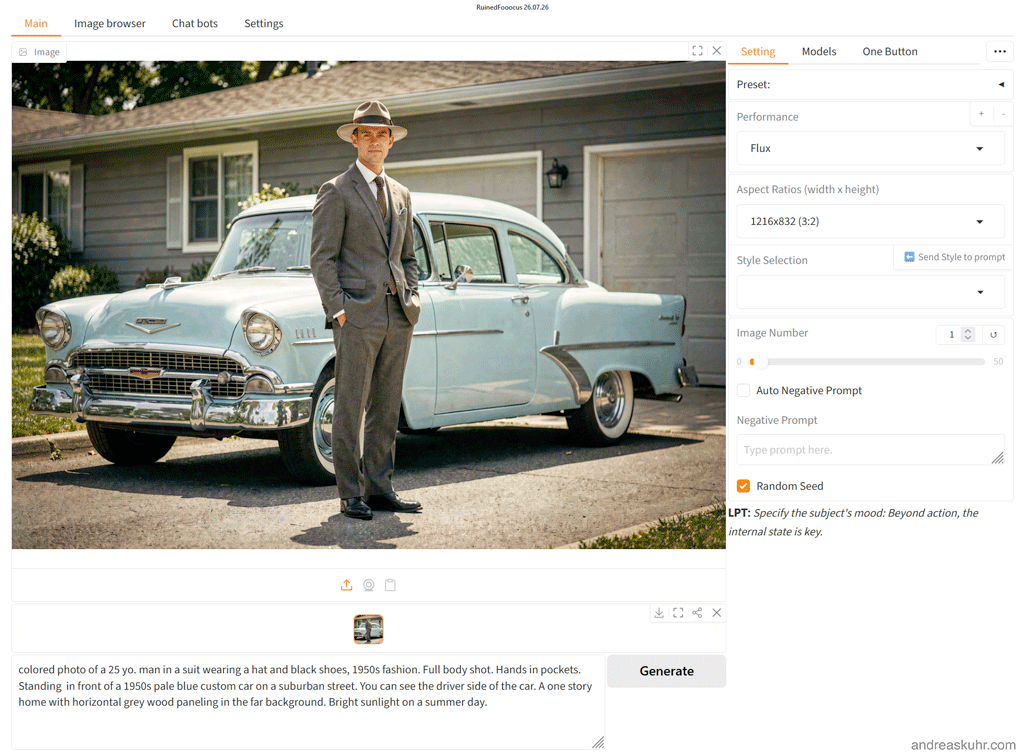
Image editing in RuinedFooocus using Flux.2 and reference images
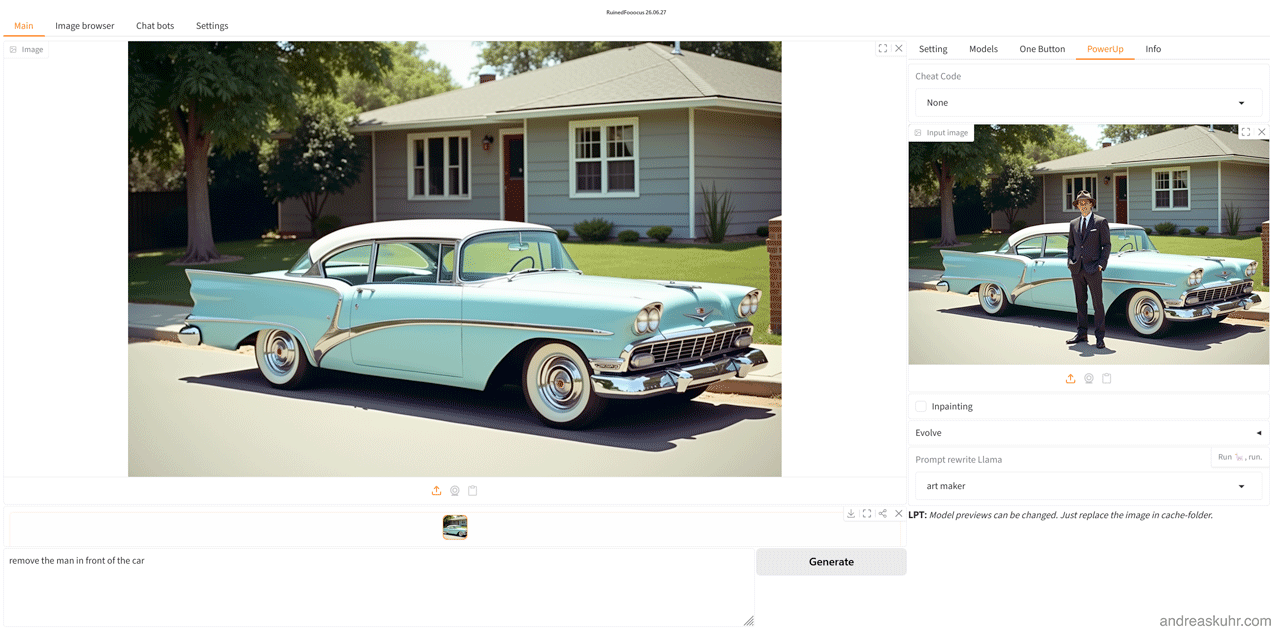
RuinedFooocus only allows you to edit one reference image. To do this, upload an image to the ‘Input Image’ window under the ‘PowerUP’ tab or drag and drop it there. In the input field on the left, describe what you want to do with the image and ensure that the image format under ‘Setting’ > ‘Aspect Ratio’ matches that of the reference image.
In our example, we’ll make the man in front of the car disappear:
remove the man in front of the car