The Stable Diffusion Fooocus Guide: The Image Prompt
Share:




 Buy me a Coffee
In addition to the image generation via text prompt described in Part 1 of the "Stable Diffusion Fooocus guide", Fooocus also offers the option of generating images based on existing photos, illustrations or sketches. These can be images that you have already generated with a text prompt or a file from your own archive.
Before you start using the image-to-image functions in the Fooocus user interface, you should familiarise yourself with the functions for generating images with a text prompt, which are explained in Part 1 "The Stable Diffusion Fooocus Guide: Getting Started".
The "Input Image" option can be found on the left under the text input field next to the "Advanced" option.
The Image Input (Input Image)
You can use the image input to create variations of an image, mix images, upscale or expand (outpainting) an image and make corrections (inpainting). You can swap faces (Face Swap), specify the body posture (Pose) or generally control the content of the image (ControlNet).
The image-to-image function studies the given picture and modifies it according to your specifications. This gives you more control over the final result than is possible with text prompts. Image-to-image picture generation takes into account the colors and image composition of the image source and is therefore the ideal tool for generating variations of the original image or displaying more details by increasing the image resolution.
Upload an image
You can drag and drop an image that you have created with the Fooocus text prompt onto the field provided for this purpose. You can import all other image files by clicking into the field and opening the file on your computer.
The "Upscale or Variation" tab
Image enlargement (upscaling)
The upscale function increases the image resolution and details the image elements. This is helpful e.g. when faces appear grotesque or objects are blurred.
You can choose between 1.5x and 2x upscaling. There is also a "Fast" option for 2x upscaling, which speeds up the process and requires less graphics memory.
Variation
To create variations of an image, add elements or change details in the text input.
While the "Vary (Subtle)" setting only causes minor changes to the image, the "Vary (Strong)" option creates clearly visible modifications.
With the "Vary (Subtle)" option, you can, for example, vary the facial expression of a person without significantly changing the overall image.
The following image was created with the prompt
attractive woman, half body, ultra detailed delicate face, excited, long elegant 80s asymmetric hairstyle, wind blowing hair backwards, looking at the viewer, typing on a computer keyboard, couture dress, monitor exploding, colourful background, vivid coloursand imported into the "Upscale or Variation" field.
- Checkpoint: juggernautXL_v8Rundiffusion
- Style: SAI Fantasy
To change the lady's facial expression from "excited" to "angry", we replace the entire prompt with "angry" or "very angry" and activate the "Vary (Subtle)" setting. The environment changes only slightly, while the face becomes consumed with rage.

The "Vary (Strong)" option is helpful if you want to see major changes. For example, you could rework unsuccessful details, improve the atmosphere or change objects.
In our example, we want to put glasses on the woman. In this case, we keep the prompt and add the word "glasses" where the woman's face is described. The "Vary (Strong)" setting now not only adds glasses to the face, but also changes the dress, hairstyle and background.

The Image Prompt tab
The Image Prompt allows you to mix up to 4 images, swap faces and control image elements such as posture or the arrangement of objects.
To control the influence of the individual images on the final result, activate the "Advanced" option at the bottom. The sliders for the image generation process and the weighting as well as the selection buttons for "Image Prompt", "PyraCanny", "CDPS" and "Face Swap" are now displayed.
Mixing images (Image Prompt)
The "Image Prompt"-function extracts the content, style, character, image composition and colours of the imported images and mixes them to create a meaningful and appealing image. You can control the influence of the individual image sources using the two sliders below the image input.
Image generation sequence (Stop at)
Use the "Stop at"-slider to control the image generation process. The artificial intelligence calculates the result from the image noise in several steps. For example, an image generation with the "Performance" setting "Speed" runs through 30 steps until the final version is created. A value of 0.5 means that the image source loses its influence on the process after half of the generation steps, i.e. after 15 steps.
The image source thus gives the composition a basic structure and colour, which is then overlaid by other image sources and text input. The higher you set the "Stop at" value, the more you restrict the creativity of the image generation.
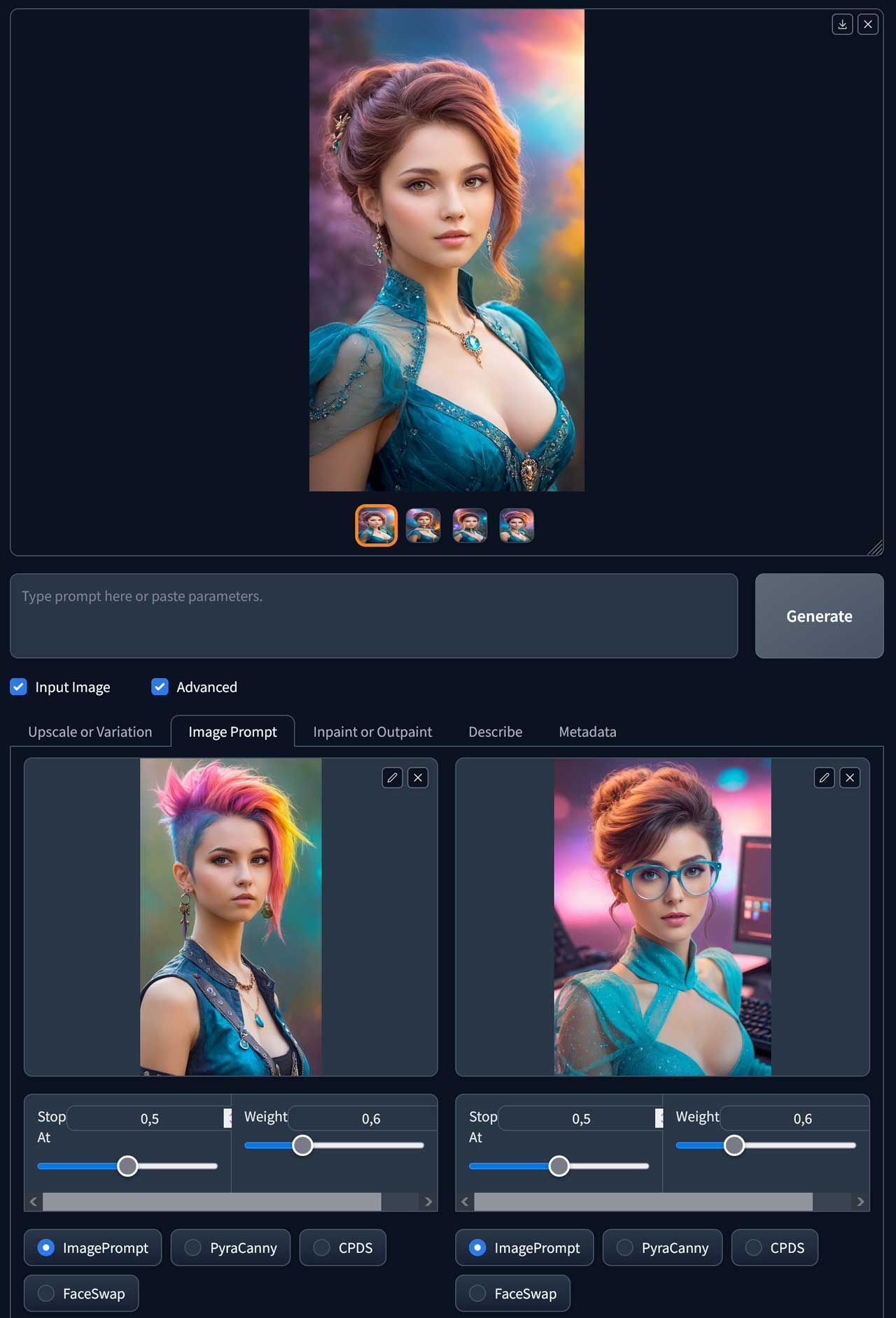
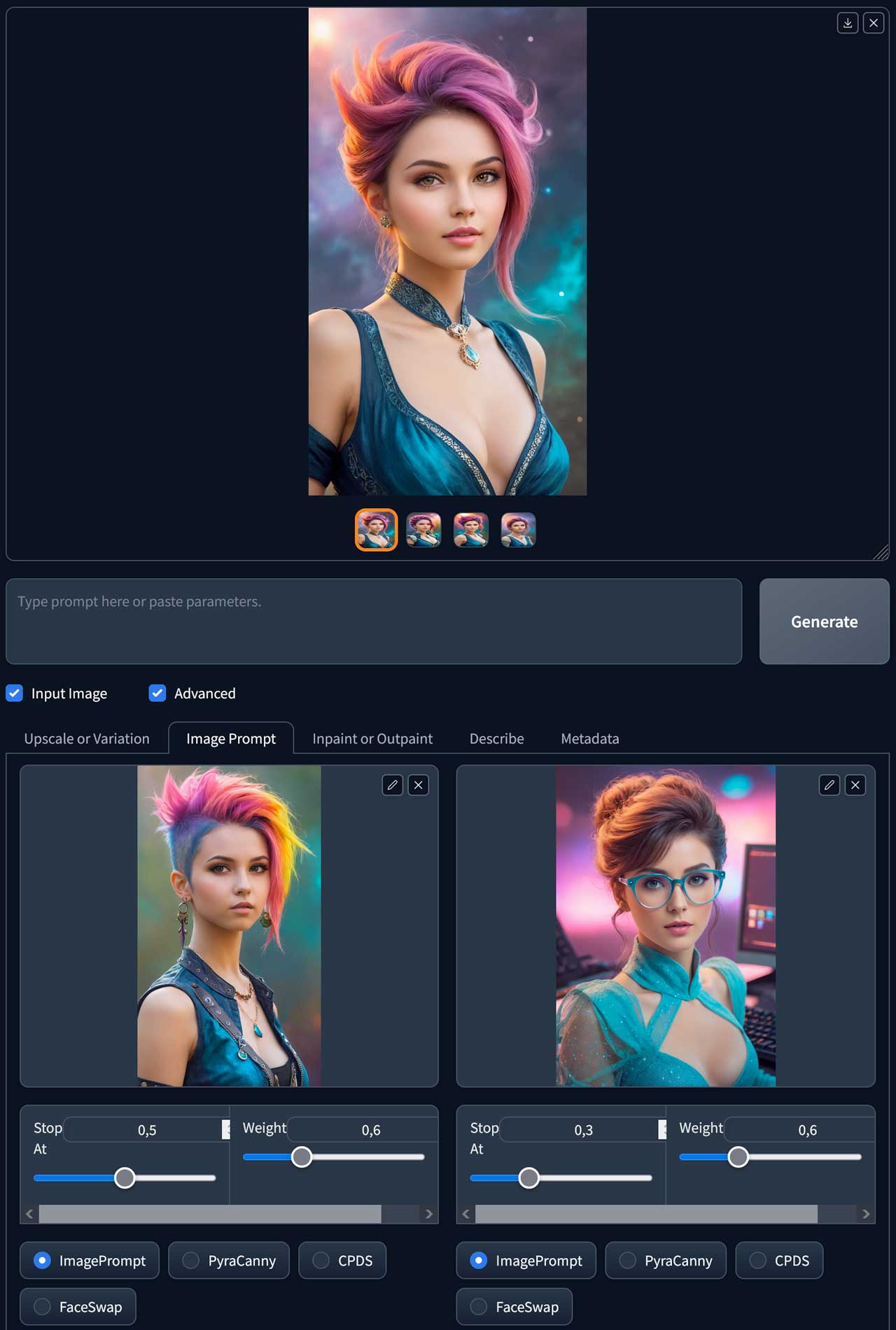
In the example below, we mix two portraits with different "Stop at" values. While the process with the default values (both sources 0.5) mixes the hairstyle, clothing and background evenly, reducing the second image source to 0.3 causes the punk hairstyle and vest to break through. Increasing the value to 0.8 increases the solemn clothing and topknot from the right-hand image accordingly.

Weighting (Weight)
The weighting also controls the influence of individual image sources on the final result, but has an effect on the entire image generation process. The higher the weighting, the more the details, colours and image composition of the image source dominate the generated image.
The example below works with a person in the foreground and a background.

If we use the default Fooocus settings, the colour of the woman's hair is lost and the background is emphasised. If we increase the weighting of the first image prompt to 0.7, we get a balanced mix of the two images. If we raise the value to 0.8, the towers from the background of the first image overlay the scene.

In case of doubt, the default values for the "Stop at" value and for the "Weight" value provide perfect results.
PyraCanny
The "PyraCanny"-function transfers the posture of people or the outline of objects from an image source into the generated image. A black and white version of the source with the outlines of people or objects is stored temporarily and used as the basis for calculating the image composition. A text input or another image source can be used as a prompt here.
The image source for our PyraCanny example was created with this prompt and imported into the image prompt field:
1girl, punk hairstyle, leather jacket, torn pants, vivid colours- Checkpoint: juggernautXL_v8Rundiffusion
- Styles: SAI Fantasy, Futuristic Cyberpunk Cityscape
After activating the "PyraCanny" option, Fooocus automatically changes the values for "Stop at" and "Weight" to 0.5 and 1. These default values lead to the best results in most cases.
We want to use the woman's pose in a more professional context with this text prompt:
1girl, blonde hair, business suit, shopping mall- Checkpoint: juggernautXL_v8Rundiffusion
- Style: SAI Fantasy

The "PyraCanny" function adopts not only the posture, but also the outlines of the hairstyle, clothing and surroundings.
Generate photos from drawings
As the "PyraCanny"-function works with the outlines of the image elements, it is ideal for creating realistic photos from drawings and comics as well as for colouring illustrations.
To do this, load the drawing into the Image Prompt and activate the "PyraCanny"-option.
The example image was created with the anime version of Fooocus. After starting the "run_anime.bat" file, Fooocus first downloads a 7Gb model that is fine-tuned for generating anime images.
Here is the text prompt:
1boy, angry japanese ninja in fighting pose, japanese temple in background, b&wNegative prompt:
sword- Checkpoint: animaPencilXL_v100.safetensors
- Style: SAI Line Art
The photo of the ninja was then loaded into the Iamge prompt in the Fooocus standard version (run.bat) and the "PyraCanny" option was activated.
Text prompt:
1boy, angry japanese ninja in fighting pose, japanese temple in background, vivid colours- Checkpoint: juggernautXL_v8Rundiffusion
- Styles: Fooocus Cinematic, SAI Fantasy

In this case, Fooocus had some problems with the hands and the background. The best results were achieved with the settings 0.8 for "Stop at" and 0.9 for "Weight".
Structure extraction (CPDS)
The "CPDS" (Contrast Preserving Decolorisation Structure) function uses an algorithm that analyses and extracts the structure of an image source. Both the outlines of image objects and the arrangement of the objects in depth (depth map) serve as the basis for image generation.
The "CPDS" function is used in exactly the same way as the "PyraCanny" function. The results are also similar. The "CPDS" option is particularly helpful when the spatial depth of the image source is in the foreground.
The spatial depth would be important for buildings, for example, as in this case:
The prompt for the image source:
woman and man, tai chi in front of a futuristic mansion, sunrise- Checkpoint: juggernautXL_v8Rundiffusion
- Style: Photo Glamour
The prompt after importing the image source into the image prompt and activating the "CPDS" option was:
two knights fighting in front of a temple- Checkpoint: juggernautXL_v8Rundiffusion
- Style: SAI Fantasy Art

Face Swap
The "Face Swap"-function enables you to swap the faces of people in photos. For example, you can insert your own photo, photos of other people or generated portraits into different images to create consistent characters.
The image source for "Face Swap" serves as the basis for a text prompt or another image source to which the face shall be transferred.
Here is an example in which the "Face Swap"-option is activated for the second portrait. The generated image takes the face and glasses from the second image and inserts it into the image prompt.

If this method is not precise enough for you, you should use the Inpaint function at this point.
The "Inpaint or Outpaint" tab
The image extension (Outpaint)
The "Outpaint"-function extends the size of an image by analysing the image content and the text input and trying to extend the image elements in a meaningful way. The text prompt should be taken from the previous image generation or contain a description of the imported image.
To activate the "Outpaint"-function, select the option "Inpaint or Outpaint (default)" in the selection menu at the bottom right and specify the directions in which you want to extend the image under "Object Direction" at the bottom left.
The sailboat scene for the image source was generated with this prompt and then extracted with "Outpaint" on the left and right:
sailboat in a bay, city lights, city and mountains in background, night, sunset- Checkpoint: juggernautXL_v8Rundiffusion
- Styles: Photo SAI Fantasy Art, Fooocus V2, Fooocus Enhance, Fooocus Sharp

Inpaint
The "Inpaint"-function allows you to insert new objects into the image (generative fill), delete existing objects based on the content of the image (content aware fill) or change the background. You can activate this "Inpaint"-option by selecting the "Modify Content (add objects, modify background, etc.)" method in the "Method" selection menu at the bottom right.
In addition, common image defects such as damaged faces, extra legs or defective hands can be easily fixed using this method. To do this, select the "Improve Detail (face, hands, eyes, etc.)" option in the "Method" selection menu at the bottom right.
Once you have imported an image into the field for the image source, a small circle will appear on the image. This is the brush you will use to create the mask. Click on the pencil button to increase or decrease the width of the brush.
You can now use the brush to mark the areas you want to edit. The mask does not have to be drawn very precisely, a rough outline is sufficient. It is important that the surface of the mask is completely closed. It is advisable to only change one detail at a time.
The left button in the toolbar at the top right cancels the last mask action, the eraser removes the mask and the X-button deletes the image source.
At the bottom left below the field for the image source you will find the "Inpaint additional prompt". Here you specify what you want to see in the mask area. In our example, we are replacing the sailing boat from our "Outpaint" scene with a motor yacht. To do this, we mask the sailing boat and the area in which the motor yacht should appear and add in the "Inpaint Additional Prompt":
motor yacht at night
When you start the "Inpaint" function for the first time, Fooocus downloads its own Inpaint model (1.28 Gb). It may therefore take a while before you see the results.
The image description (Describe)
If you upload your own photos or drawings and want to process them with Fooocus, you will often need a description of your image for the text prompt. This is where the "Describe"-function under the "Describe"-tab comes in handy.
Import your image into the field for the image source and specify to the right whether it is a photo ("Photograph") or a drawing or work of art ("Art/Anime").
As soon as you start "Describe this Image into Prompt", an image description appears in the text input field.
