Create unlimited images via text prompt with Stable Diffusion
The most important elements of the AUTOMATIC1111 txt2img user interface
Updated 03.12.2025
Share:




 Buy me a Coffee
Various user interfaces, such as AUTOMATIC1111, Forge WebUI, Invoke AI, ComfyUI or Diffusion Bee, are available for image generation with Stable Diffusion. In addition, there are now plug-ins for Photoshop, Blender or Krita, for example. However, the settings and input options are similar for all applications.
The AUTOMATIC1111 web user interface starts with the "txt2img" tab. If you do not have an image that you want to edit, this is your main workspace with the most important functions for image generation.

1. Select the model (checkpoint)

At the top left you will find the "Stable Diffusion Checkpoint" selection menu. Here you can select the model - "model" or usually called "checkpoint" - that you want to work with. A model contains the data from which the images are generated.
Automatic1111 is able to work with Stable Diffusion models from 1.5 to SDXL 1.0.
On Civitai or Huggingface you will find a variety of other models for special applications and styles, such as illustration, anime, architecture, landscape or fantasy.
The selection menu shows the models that you have saved in the "stable-diffusion-webui\models\Stable-diffusion" directory. To refresh the list, click on the refresh button to the right of the field. 2.
2. The text input (prompt)
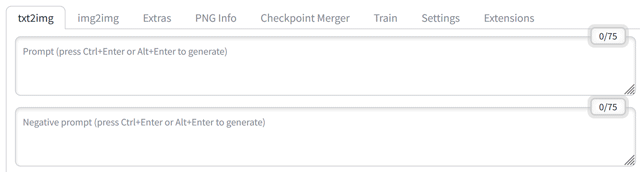
Here you enter what you want to appear on the image and which style you want to see. The image-generating artificial intelligence currently only understands English. If you have any doubts about your foreign language skills, formulate your text in your language and have it translated by Deepl or ChatGPT. This will give you meaningful prompts.
Avoid overly extravagant sentences. Use keywords separated by commas, e.g: "photo of a woman, dark hair, shopping mall". Be precise, so instead of: "illustration, man, car" you could try "vector illustration, old man, vw beetle", for example.
The quality of the image stands and falls with the quality of your text input. A good "prompt" is the most important step in image generation! Experiment by adding and omitting individual terms.
Especially at the beginning, it is helpful to search for existing AI images that match your ideas, copy the prompts and use them as a starting point for your own image. Good sources for this are e.g. Lexica or Civitai.
3. The negative text input (negative prompt)
Here you specify which content, errors and genres you want to avoid in your image. For example, you can prevent poor image quality, excess or deformed body parts or unwanted styles.
If you are working with the Stable Diffusion models from version 2, a negative prompt is mandatory.
The same applies here: the proof of the pudding is in the eating, at least at the beginning.
4 The sampling method

The sampling method determines which algorithm is used to calculate the image. The methods differ in the way they develop something objective from image noise. While some samplers produce coherent results but require more steps to do so, others produce a more random result after just a few steps.
A good start is to work with the preset "Euler a" method and 20 sampling steps. DPM++ 2M Karras" is also generally popular. From 20 sampling steps upwards, this method delivers coherent image results.
4a. Restore faces
Images created with the help of artificial intelligence often show distorted human faces. To prevent this, you can tick the "Restore faces" box. The software will then try to improve the faces. You can make the settings for face correction under Settings.
4b. Create recurring patterns (tiling)
You can use this function to generate image tiles that repeat seamlessly. This is useful for wallpaper or fabric patterns, for example, or for creating surface materials for 3D rendering, e.g. in Blender or Maya.
4c. High-resolution correction (Highres. fix)
Generated images with a size that is larger than the size with which the model used was trained often show blurred details. Depending on the model, this affects side lengths of more than 768 pixels or 1024 pixels. If the "High Resolution Fix" is active, the image undergoes a second cycle that improves the depth of detail.
5 Sampling steps
Each sampling method requires a different number of steps to produce a noise-free image without artefacts. You can increase the image quality by increasing or reducing the number of sampling steps. With 20-25 sampling steps you usually get the best results, especially with the "Euler a" sampling method. The "DPM++ 2M Karras" method can require 30 to 50 steps to produce usable images.
6. Width and height

Here you enter the width and height of the image in pixels that you want to create.
Important: The values should be a multiple of 64 pixels.
The default value is 512 x 512 pixels. This is a good starting value to generate initial results for a prompt and save time. As soon as you are satisfied with the result, you can work with higher values. However, higher values also require more working memory. If you get an error message here, you should try the low VRAM-settings from the installation guide for Stable Diffusion with AUTOMATIC1111.
If you have selected a stable diffusion model above V 1.5 as a checkpoint, it is recommended that you set at least one side to 768 pixels.
7. Number of images
7a. Batch count
The "Batch count" shows the number of images that are generated one after the other in one run. In order to have a certain selection, an initial value of at least 4 is useful here.
7b. Batch size
The "Batch size" shows the number of images that are generated simultaneously in one run. Leave the value at 1 if you do not have a high-end graphics card with a lot of graphics memory.
8. The mixing ratio between text input and randomness (CFG Scale)

The Classifier Free Guidance Scale (CFG Scale) determines the extent to which text input is taken into account when generating images. The smaller this value is, the more random and creative the result. A CFG Scale below 5 and above 15 often generates unconventional image compositions. The default value of 7 usually produces the best results.
Values from 0 - 30 can be set:
1 ignores the text input, purely random result
3 considers the text input superficially, creative result
7 good ratio of text input to creativity
15 prioritises text input
30 uses text input exclusively
9 The image origin (seed)

Each image generated by the artificial intelligence is given an identification number. With the help of this number and the sampling settings used, the image can always be recreated.
This "seed" is primarily used as a starting value for generating variations of existing images that you want to improve. To do this, press the green "Recycling" button to the right of the seed field when the image you want to edit is displayed in the image display on the right. The start value for the image is then transferred to the seed field.
If you would like to use an image that you have found on Lexica or Civitai, for example, as a basis, copy the corresponding "Seed" into this field.
The default value for the seed is -1, i.e. the origin of the image is left to chance. This should always be the start value if you want to create something new from a prompt. You can restore this value by pressing the "Cube" button to the right of the seed field.
10. Image generation
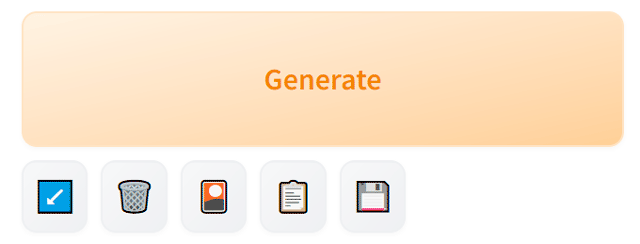
Start image generation with the "Generate" button. The results appear in the field below. The images are automatically saved in the "stable diffusion webui\outputs" folder. You can also save them to another location using the "Save" or "Zip" buttons. You can use the "Send to ..." buttons to further process the current image.
