The Stable Diffusion prompt for perfect images
Share:




 Buy me a Coffee
The prompt is the most important tool when creating images with image generators. Creating a good prompt that leads to a high-quality result requires an understanding of the technology and some practice.

The ultimate prompt for AI image generators, such as Stable Diffusion, Midjourney or Dalle-E, is the subject of myths and wars of faith. Not all keywords that people use in their text input will work. Especially in the beginning, it certainly helps to copy the prompts from AI images that come close to your own ideas. Good sources for this are e.g. civitai or Lexica.
However, there are also many endless texts overloaded with weights and repetitions that are more reminiscent of the rain dances of our ancestors than the effective use of generative, artificial intelligence. Not all popular keywords and formulae that are said to have magical powers also have an influence on the algorithm.
Don't be put off by the frightening results of your first prompt attempts. Only a few text inputs lead to magnificent masterpieces at the first attempt. What's more, each model reacts differently to certain keywords, depending on which image descriptions it has been trained with. Once you understand how to create clear and concise prompts, you can utilise the full style range of Stable Diffusion. To be successful in creating prompts, you should start with a specific topic and add keywords to create a specific effect. The skills learnt in this article can also be applied to other image generators such as Dall-E or Midjourney.
All images in this article were generated using the Stable Diffusion XL 1.0 model without using the Refiner.
How to create an effective prompt
In a prompt, you describe as specifically and in as much detail as possible what should appear in the image and in which style. The text should consist of keywords and short formulations, separated by commas:
photo of an old wizard, reading a book, wooden hat, indoors, candlelight
Avoid wordy descriptions and keep the text as short as possible. The more detailed your description, the closer you get to your ideas, but the more you limit the creativity of the artificial intelligence and at the same time distract from the main object.
Depending on how specific your ideas are, there are two approaches:
a) You describe what you want to see in a short prompt using general terms, let the artificial intelligence algorithm surprise you and then go into detail.
b) You formulate in detail what is to be depicted in the image and in what style and change your specifications until you come close to the desired result.
The models with which the image generators work have been trained with millions of images and the corresponding image descriptions. In simple terms, this means that you should work with terms in your text input that the model recognises from these image descriptions. You can find out which keywords work and which don't by gradually adding a keyword to your prompt and comparing the results.
It is best to start with the medium followed by the object:
- photo of an old wizard, ...
- digital painting, farm house, ...
Continue with the behaviour, clothing and physical characteristics of the object:
- ... , reading a book, looking at the viewer, smiling, glasses, patterned robe, ...
- ... , scandinavian, reed thatched roof, red wooden walls, ...
Describe the surroundings:
- ... , wooden hut, indoors, ...
- ... , lowlands, sea in background, ...
The location "indoors" or "outdoors" also narrows down the lighting conditions. However, the lighting of the scene can also be characterised in more detail:
- ... , candlelight
- ... , highlight by sun, dark background, dramatic lighting
Here is the complete prompt:
photo of an old wizard, reading a book, looking at the viewer, smiling, glasses, patterned robe, wooden hat, indoors, candlelight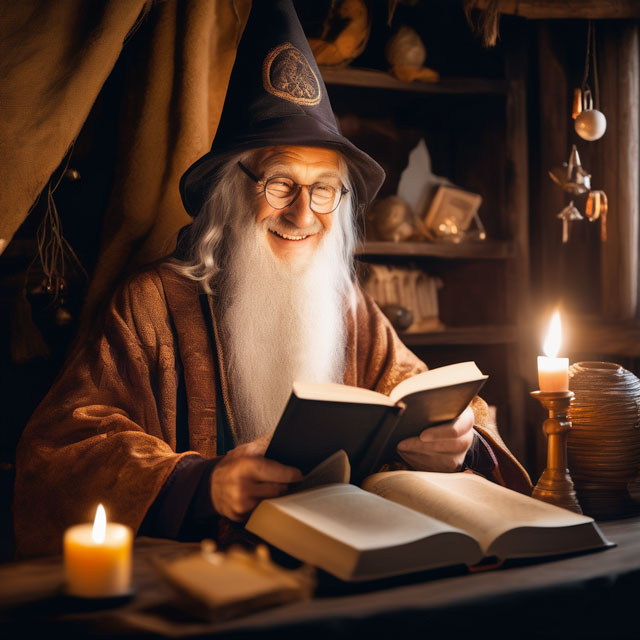
digital painting, farm house, scandinavian, reed thatched roof, red wooden walls, lowlands, sea in background, highlight by sun, dark background, dramatic lighting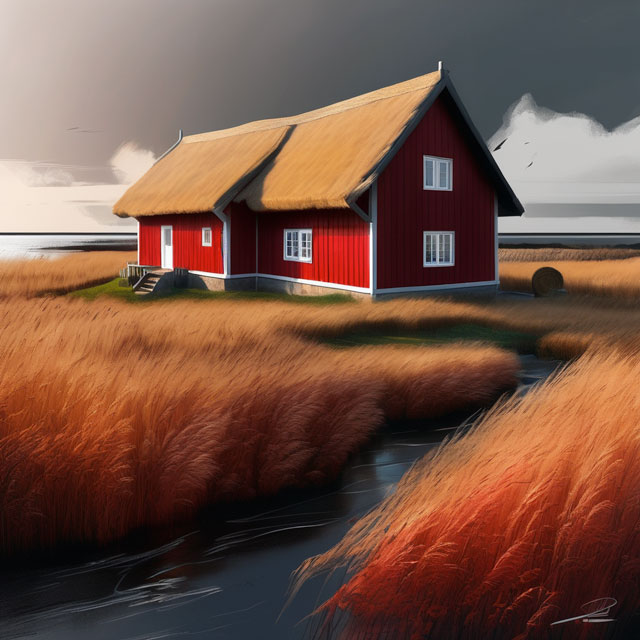
Finally, you can specify an art style to make the picture more interesting. Our wizard in neonpunk style:
neonpunk style, photo of an old wizard, reading a book, looking at the viewer, smiling, glasses, patterned robe, wooden hat, indoors, candlelight
Our house in anime style, by Makoto Shinkai:
digital painting, by Makoto Shinkai, farm house, scandinavian, reed thatched roof, red wooden walls, lowlands, sea in background, highlight by sun, dark background, dramatic lighting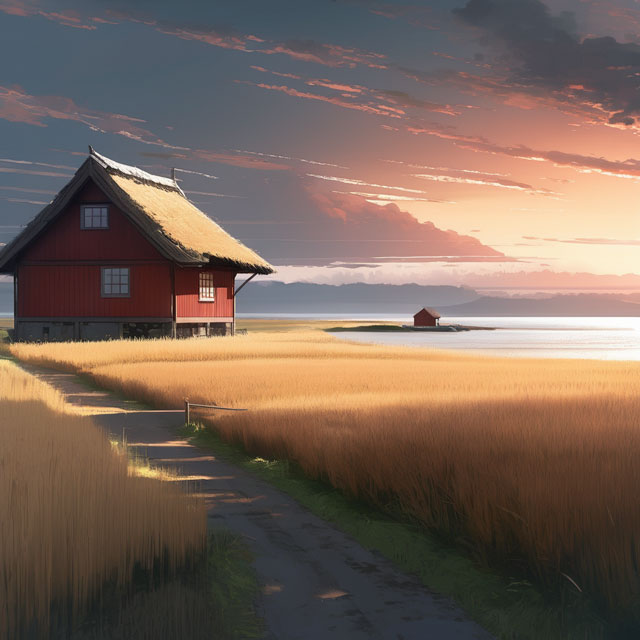
The elements of a prompt
- Object or character
- Medium
- Image composition, perspective
- Quality
- Environment
- Lighting
- Style
- Aesthetics
- Colour scheme
- Artist
- Website
1. Object or character
The most important element in a prompt is the object that should be at the centre of the picture. This can be a thing or object, such as a house, a landscape or a candle, or a character, such as a person, an animal or a fantasy figure.
The characteristics of the object are just as important as the object itself. If there is no detailed description, you will get a random, often chaotic result. The characteristics that you assign to this object not only influence the object, but also its surroundings.
Examples of details:
| Behaviour | looking at viewer, sitting on a chair, dancing |
| Appearance | blonde hair, dark eyes, old |
| Emotions | smiling, angry, sad |
| Clothing | patterned robe, green dress, glasses |
| Colours | red, iridescent, purple, camouflage |
| Material | wooden, reed, stone, shiny |
2. Medium
The medium determines whether the result should appear as a photo, a digital artwork or a handmade artwork. In other words, you select an art style and then specify details such as the art style or technical details:
Examples of art categories:
| Photo |
| Illustration |
| Painting |
| Digital painting |
| 3D rendering |
| Video, animation |
3. Image composition, perspective
The composition of the image, the size relationship between the object and its surroundings and the distance of the viewer from the object are essential elements in a prompt and should not be left to chance. Use terms and technical details familiar from film, photography or painting to describe them.
Examples of object size and distance:
| Close-up | close up |
| Portrait, close-up, bust portrait | portrait |
| Half close-up (head to hip) | medium shot |
| Half close-up including hip (revolver) | cowboy shot |
| Half close-up, full body (head to foot) | full body |
| Landscape | landscape |
Examples of camera angles and perspective:
| Camera angle, perspective | Applications | Prompt general | Prompt specific |
|---|---|---|---|
| Fisheye | Distortion effects, panorama, macro photography | fisheye | 8 mm wide lens |
| Ultra wide angle | Architecture, interior | extreme wide angle | 14 mm wide lens |
| Wide angle | Landscape, street scenes, group shots | wide angle | 35 mm wide lens |
| Normal | Reportage, snapshots | 50 mm wide lens | |
| Lightweight telephoto lens |
Portrait, flora and fauna | medium telephoto | 85 mm wide lens |
| Telephoto lens | Sports, action | telephoto | 135 mm wide lens |
| Super telephoto lens |
Long distance shots, animal photography | super telephoto | 300 mm wide lens |
| From below | low angle | ||
| From above | high angle |
4. Quality
There are numerous keywords in circulation that you can use to improve the quality of your results. Some are effective, others are not. Much also depends on which model you use. Here are some examples:
| Quality in general | best quality, masterpiece, professional |
| Image resolution | UHD, ultra high res, 4k, 8k |
| Sharpness of detail | highly detailed, sharp focus, octane render, RAW photo, HDR |
5. Environment
The environment describes the space in which the object or person is located and the time in which the scene is set, such as places, landscapes, weather, furnishings or the year.
The AI will often deduce the environment from the description of the object. This effect is explained under Attribute Association below. If you are unsure which elements and colours you want to use to create the environment, you can remain general here and rely on the AI to create a suitable environment.
| Place | paris, shopping mall, japanese garden |
| Landscape | forest, desert, beach |
| Weather | thunderstorm, rainy, sunny, cloudy sky |
| Time | autumn, 1950s, sunset |
To emphasise image elements in the foreground, you can focus them with "focus on ...". However, the better solution here is to work with a blurred background to create the illusion of depth:
| Blur gradient | bokeh |
| Depth of field | depth of field, DOF |
| Vignetting | vignetting |
6. Lighting
If you do not specify any lighting details, the lighting conditions are determined by the object and the surroundings. If you want to influence the lighting, you can control it using the following terms, for example:
| Natural light | daylight, night, sunset, bright sunlight |
| Artificial light | studio lighting, cinematic lighting, ambient lighting, candlelight, neon lights |
| Lighting details | backlight, ethereal glow, light beams, dramatic lighting |
7. Style
By specifying the desired style of the generated image, you specify the means or methods used to create the artwork and the art style to which it belongs.
Examples of means and methods:
| oil painting |
| watercolour |
| pencil drawing |
| sketch |
| Leica M, Hasselblad, Nikon D850, Kodak Ultramax 800, Fuji film |
| clay |
| fabric |
Examples of style:
| realistic |
| hyperrealistic |
| concept art |
| abstract |
| cartoon |
| anime |
| manga |
| graffity |
| cyberpunk |
| pop art |
| futurism |
| surrealistic |
| impressionistic |
| cctv video |
8. Aesthetics
The path from an appealing image to a breathtaking image leads through concepts of aesthetics and the mood of the people and the scene:
| Aesthetics | beautiful, cute, cosy, baroque, luxury |
| Atmosphere | sci-fi, dystopian, fantasy, horror |
Negative prompt
In the negative prompt, you specify which content, errors and genres you want to avoid in your image, such as poor quality or deformed body parts. The way in which you use the negative prompt depends on which model (checkpoint) you are working with.
For the Stable Diffusion models 1.4 and 1.5, a negative prompt is optional, but improves the quality of the results. If you are working with Stable Diffusion models version 2.0 or 2.1, a negative prompt is mandatory. The Stable Diffusion XL 1.0 model also generates good results without a negative prompt. In this case you only enter the details in the negative prompt that you do not like after image generation with the positive prompt. The same applies to user-defined models that have been trained on the basis of these stable diffusion checkpoints.
The opposite in terms of content
A negative prompt describes, among other things, the opposite of the content you want to see on the image. If you want to create a photo, the opposite in terms of content is a painting; if you want colour, the opposite is black and white. You can also influence the style by defining the styles you want to prevent in the negative prompt.
Here is a negative prompt for a realistic colour photo:
anime, illustration, cartoon, 3D, b&wAnd here is a typical example of how you can improve the quality of your image with a negative prompt:
ugly, bad composition, out of frame, disfigured, deformed, blurry, grainyUnwanted content
You can also exclude unwanted image elements such as body parts, objects or colours with the negative prompt. You can also avoid the deformed double that sometimes appears when you want to depict a single person by using the keyword "clone" in the negative prompt. Models that are optimised for the photorealistic depiction of people often produce poorly clothed characters. If this is not desired, work with the abbreviation "NSFW" (not safe for work) in the negative prompt.
Assuming we want to see our laughing wizard without glasses, we delete the glasses from the positive prompt and transfer them to the negative prompt:
Prompt:
photo of an old wizard, reading a book,looking at the viewer, smiling, patterned robe, wooden hat, indoors, candlelightNegative prompt:
glasses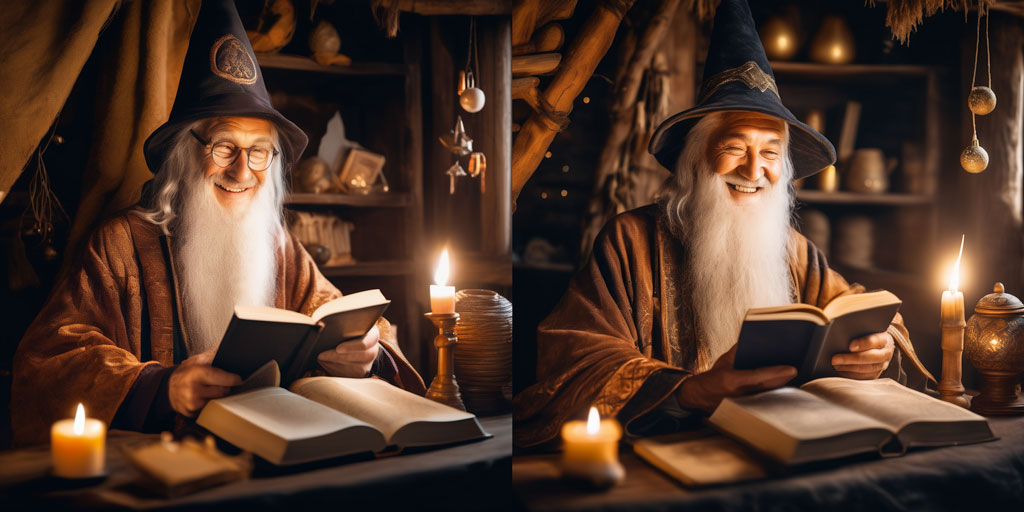
Here comes an unfortunate version of our thatched house, which not only colors the walls red, but also the surrounding fields. To save the picture, we exclude the red fields in the negative prompt:
Prompt:
digital painting, farm house, scandinavian, reed thatched roof, red wooden walls, lowlands, sea in background, highlight by sun, dark background, dramatic lightingNegative prompt:
red field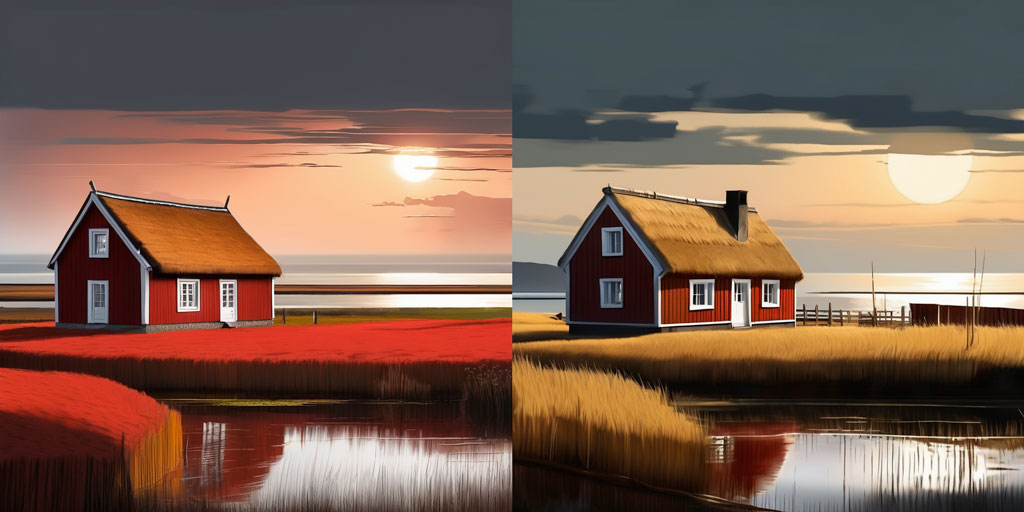
However, this has the side effect that the whole picture now has a yellow tinge and the consummate sunset loses its charm. This effect is described below under "Color transfer".
The weighting of the keywords
The order of the details in the image description has a dramatic effect on the result. The earlier you enter a keyword or phrase in your text input, the greater its weight in the image generation.
In most Stable Diffusion web user interfaces, you can also increase the weight of a keyword using round brackets, reduce it using square brackets or specify a numerical value. You can specify the weight in brackets using the notation (keyword:factor), e.g. (scandinavian:1.2) or (sean connery:0.7) or by using multiple brackets ((scandinavian)) [ [ [ [sean connery] ] ]. The number of brackets corresponds to the following factors:
Increase weight:
| (keyword) | 1.1 |
| ((keyword)) | 1.21 |
| (((keyword))) | 1.33 |
Reduce weight:
| [keyword] | 0.9 |
| [ [keyword] ] | 0.81 |
| [ [ [keyword] ] ] | 0.73 |
Blending keywords and controlling the prompt sequence (prompt scheduling)
Stable Diffusion user interfaces offer the option of blending keywords. For example, you can mix art styles or cross the faces of actors or celebrities.
The [keyword1:keyword2:time] notation allows you to control the image generation process:
The prompt [dog:cat:0.5] causes a dog to be generated in the first 20 steps of an image generation with 40 sampling steps, which is overlaid by a cat in steps 21 to 40. This results in a hybrid creature consisting of a dog and a cat. If the creature is to resemble a cat more, the ratio of dog to cat can be reduced to [dog:cat:0.3] so that the cat characteristics are already added after 12 steps.

You can specify the time as a factor or the number of steps after which the second keyword should start:
- [dog:cat:0.3]
- [dog:cat:12]
The prompt [keyword::time] behaves in a similar way, except that there is no overlay with a second property. In this case, the keyword is removed from the image calculation after a certain number of steps, e.g:
- [dog::12]
Linking effect, color transfer (attribute association, color bleeding)
Properties of image elements with a high weight in the prompt influence the properties of other elements. Similarly, characters and objects are often depicted clichéd in their typical environment or with their particular behaviour.
This effect is the basis on which image generators work. The purpose of machine learning is to recognise patterns. To this end, the models are trained with millions of images. The different image elements are recognised and recurring correlations are learned.
In our example of the negative prompt, we have already struggled with color transfer. The red walls of the Scandinavian house have colored the surrounding fields red. If we now add the art style of a well-known Japanese anime director to the prompt, the linking effect not only takes on the stylistic character of Makoto Shinkai's works, but also the Japanese scenery that is typical of his paintings (left image).
digital painting, farm house, scandinavian, reed thatched roof, red wooden walls, lowlands, sea in background, highlight by sun, dark background, dramatic lighting, by Makoto Shinkai
This can be remedied by weighting the location and the artist and transferring the red field to the negative prompt (image on the right):
digital painting, farm house, (scandinavian:1.3), reed thatched roof, red wooden walls, lowlands, sea in background, highlight by sun, dark background, dramatic lighting, (by Makoto Shinkai:0.3)negative prompt:
red fieldThe linking effect is particularly noticeable when you work with the names of celebrities. Actors, politicians or models often adopt certain postures or wear typical clothing in public photos.
Here comes our magician, this time played by Sean Connery, one of the many 007 actors. There are countless pictures of him, but none with a wizard's cap. While we were previously able to create a wizard complete with a cap because wizards wear caps, the actor is shown bareheaded because the model did not link him to this headgear (left picture).
photo of an old wizard, reading a book, looking at the viewer, smiling, patterned robe, wooden hat, indoors, candlelight, sean connery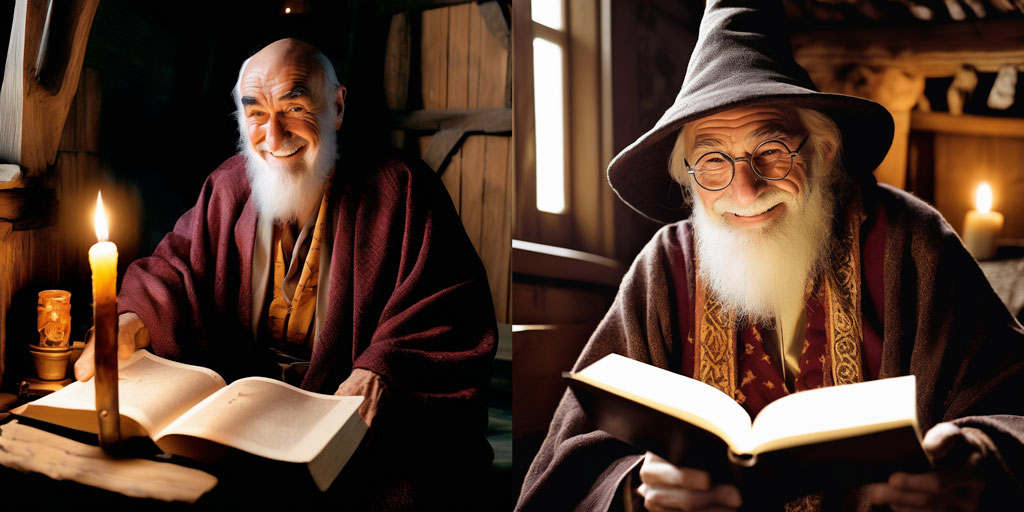
You can control this effect by weighting the name (right image):
photo of an old wizard, reading a book, looking at the viewer, smiling, patterned robe, wooden hat, indoors, candlelight, (sean connery:0.5)If you use names of celebrities or other living persons and want to show the result outside your own computer, you should mix persons in order not to violate any personal rights, e.g. [jonny depp:sean connery:0.25]!
The length limit of the prompt and the BREAK instruction
The Stable Diffusion Clip model converts the text into "tokens", a numerical representation of words with which it has been trained. The number of tokens is greater than the number of words in the text, as unknown terms are broken down until the AI understands them.
The number of tokens that Stable Diffusion can process in one go is limited to 75. However, Stable Diffusion web user interfaces are allowing much longer texts. The prompt is then divided into units of 75 tokens, processed and merged again to generate images.
This can have the consequence that a coherent formulation in the prompt is split and therefore has no effect. With the "BREAK" instruction in the text, you can end a unit prematurely and transfer your formulation completely to the next unit.
The number of tokens that Stable Diffusion reads from your prompt is displayed at the top right of the text field.