The Flux.2 Guide - Part 1: Applications, Models, Prompts, Issues
Updated 25.08.2026
Share:




 Buy me a Coffee
After Black Forrest Lab's "Flux Kontext" model led the way, models such as Flux.2, Qwen Image Edit and Google Nano Banana have now emerged that can edit image elements in addition to generating images, without having to go to the trouble of cropping, selecting or masking them. Objects, image composition and styles can be controlled via text or image prompts, eliminating the need to install and configure ControlNets. These models enable professional image editing for everyone and save professional image editors and creatives a huge amount of time and effort.
Please find Part 2 of the Flux.2 guide here: Installation, Settings, How It Works
Flux.2 overview
Due to their size and hardware requirements the Flux.2 models are obviously aimed at professional users. However, Black Forrest Labs also provides a slimmed-down version (Flux.2 [klein]) for users with little graphics memory.
The main advantage of Flux.2 is the ability to edit individual image elements while all other objects - i.e. the context - remain unchanged. The model requires neither masks nor ControlNets for this, but works with a multilingual text input and one or more reference images. Flux.2 thus combines several steps of image processing, such as cropping, retouching, inpainting, inserting text, compositing or color grading. In addition, complex scenes, infographics, websites or flyers can be created with a single text prompt or combined from up to 10 reference images.
Here is the preliminary design for a fictitious advert:
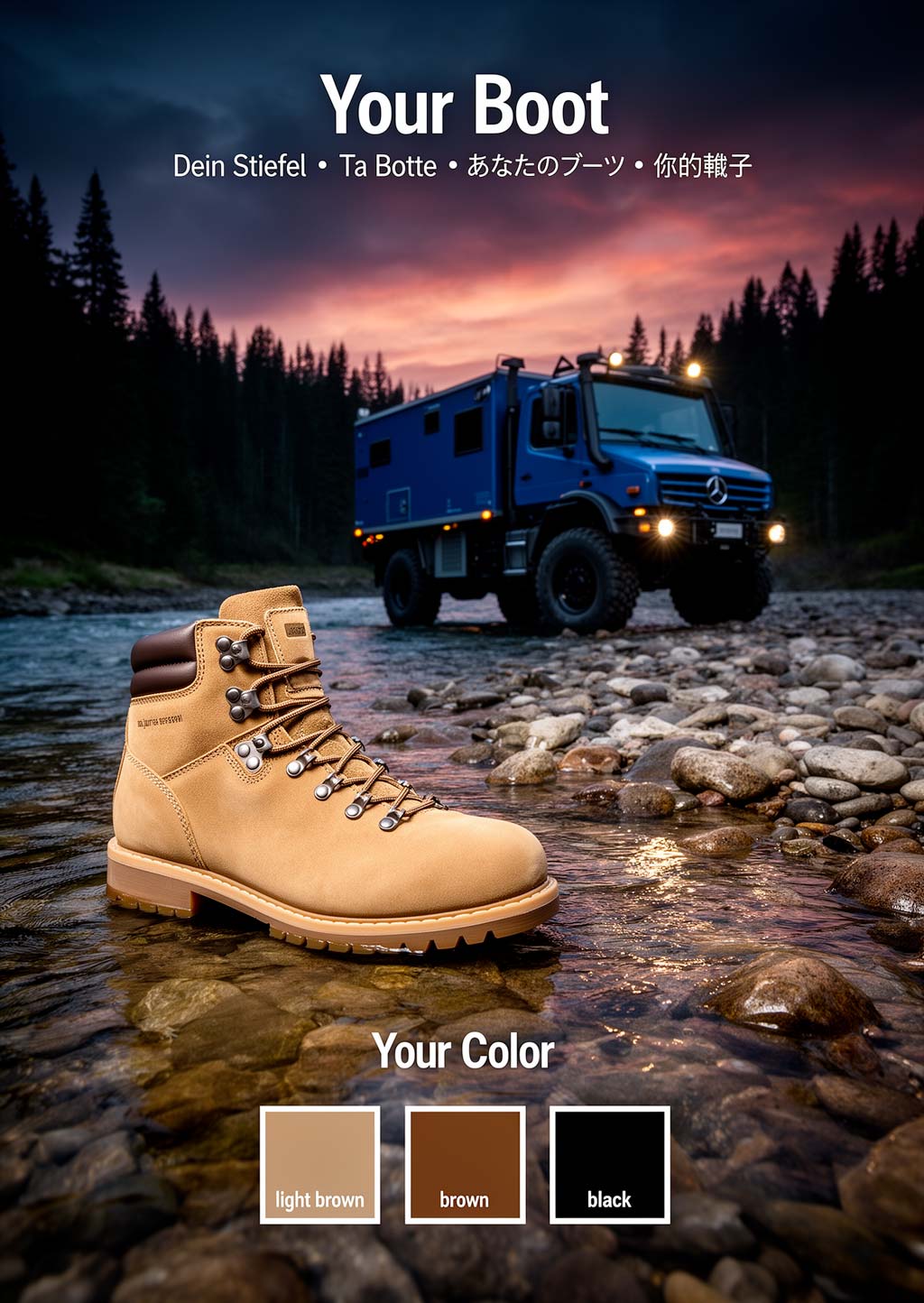
You can discuss individual details on the boot and the Unimog, but being able to present a quick but relatively precise visualisation of your own ideas within minutes using a prompt without a photoshoot or hours of trawling through stock photo archives is revolutionary.
Flux.2 features and capabilities
In addition to image creation, the Flux.2 model offers countless application possibilities for image processing. A selection:
Generate image:
- Merge image elements from up to 10 reference images into one image
- Generate infographics, websites, flyers and the like via text prompt
Edit characters:
- Change pose
- Change expression
- Change clothes, change colors / patterns
- Face swap / swap hairstyle
- Combine several elements (e.g. person + hairstyle + clothing)
- Combine two characters in one image
- Constant characters
- Rotate camera view, change perspective
Edit scene:
- Change daytime
- Change background
- Change atmosphere
- Add or remove elements
- Compositing
- Add vignette
Edit image:
- Restore image (scratches, stains, etc.)
- Colorise image
- Color correction
- Create image from sketch
- Extend image (outpainting)
- Change image size (upscaling)
Text:
- Add
- Change text
- Formatting / Style
Flux.2 Areas of application
Professional areas of application would be e.g:
- Product placement (inserting or combining products in an environment)
- Fashion (fashion photography (fashion shots), combination / exchange of clothing)
- architecture
- Interior design (living, shop fitting, exhibition stand construction)
- Publication (comics, book illustration)
- Storyboard (film, animation)
- Communication design (infographics, flyers, posters, websites)
Application examples for Flux.2
Image retouching or "The finger problem"
I'm probably not the only one who constantly has their finger in front of the lens when taking photos. But the solution also works for careless contemporaries who walk through the perfect motif.
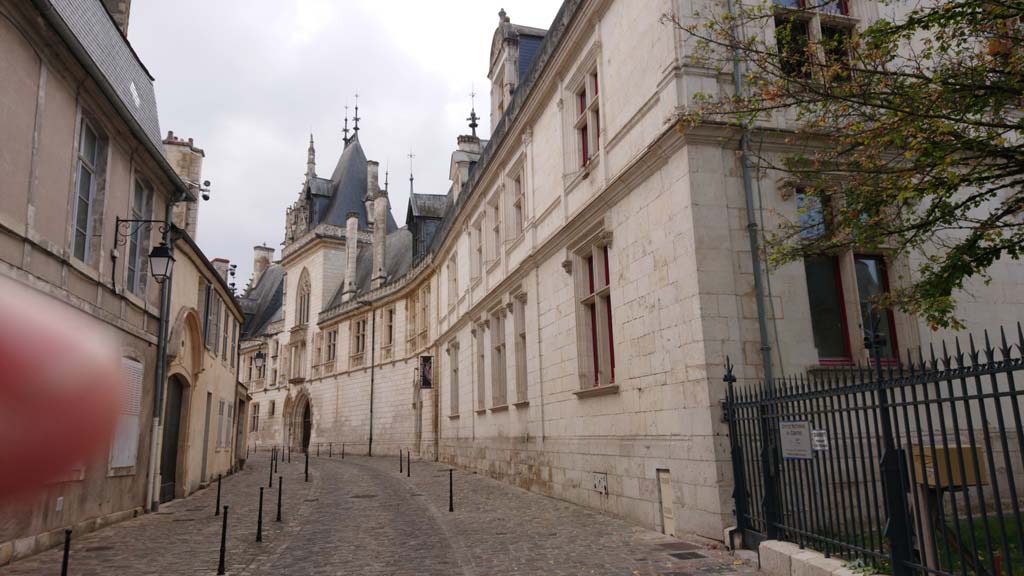
remove the finger on the left side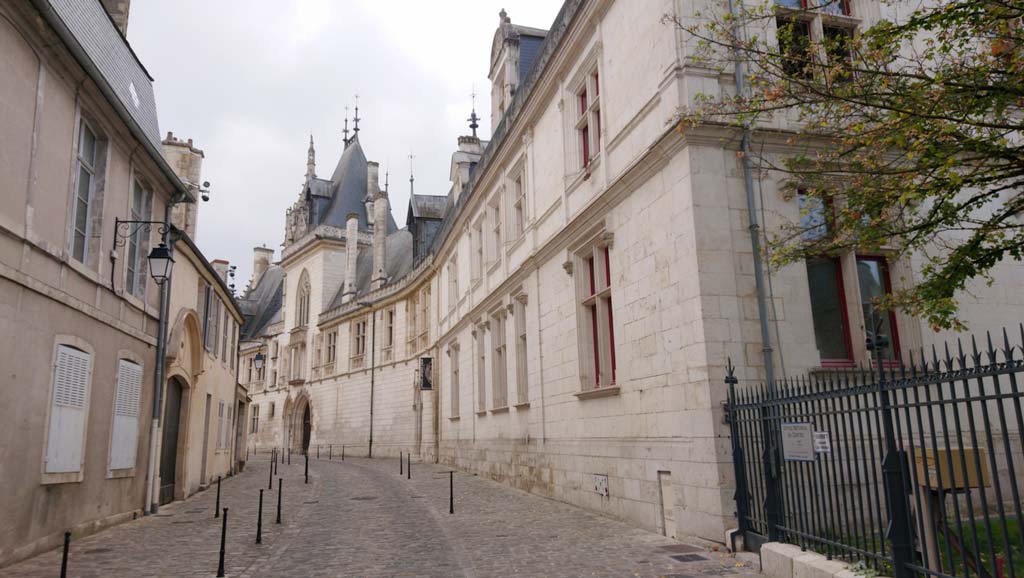
It's amazing how precisely Flux.2 added the ugly steel shutters on the left, even though only the inconspicuous corner of a shutter was visible in the original.
Restore and upscale image
In this original image, we see a well-known 1950s car tuner in work clothes in front of his custom-built 1949 Mercury with a lowered roof in a typical Midwestern American setting.
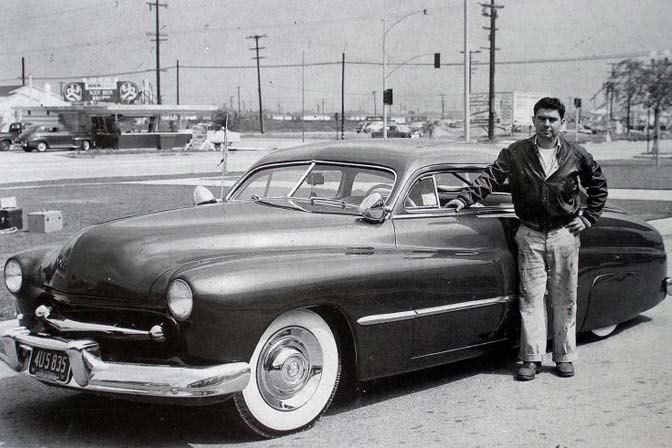
The image is blurred, noisy, contains lint and specks and is too small for our purposes. Therefore, we first restore the image and scale it from 672 x 448 to 1248 x 832 pixels.
Restore and sharpen this image. Remove scratches, stains and noise.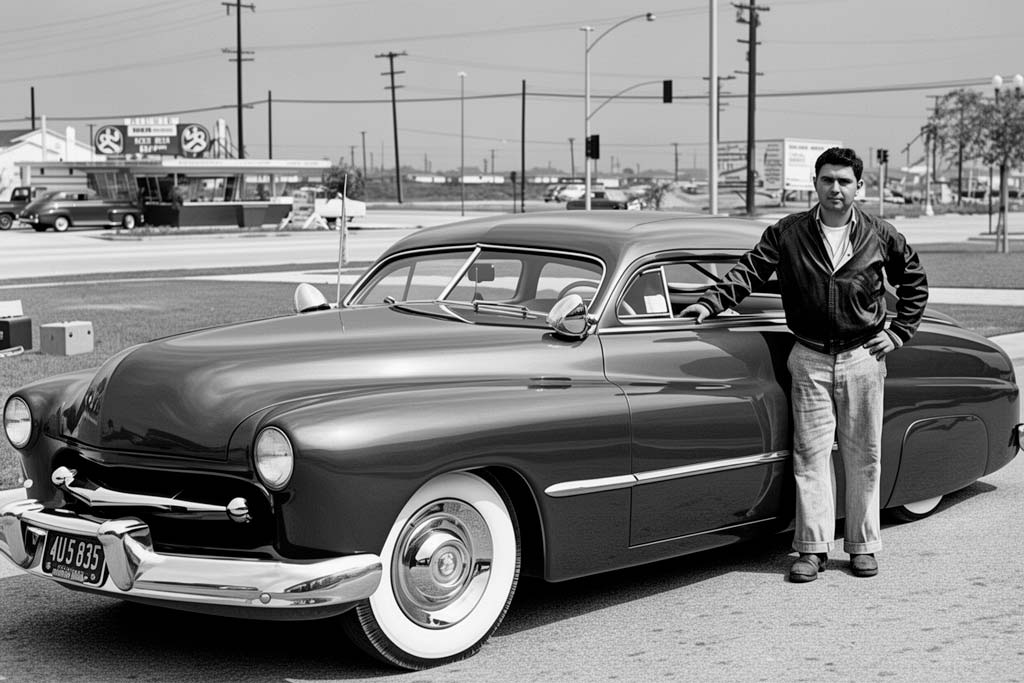
The upscaling to 1 megapixel was done automatically in ComfyUI with the help of the Flux.2 model using the "ImageScaleToTotalPixels" node.
Coloring the image
Next, we add some color to the surroundings:
Colorize this image with natural colours. Give the car a dark orange colour and the man in front of the car beige trousers and a dark red jacket.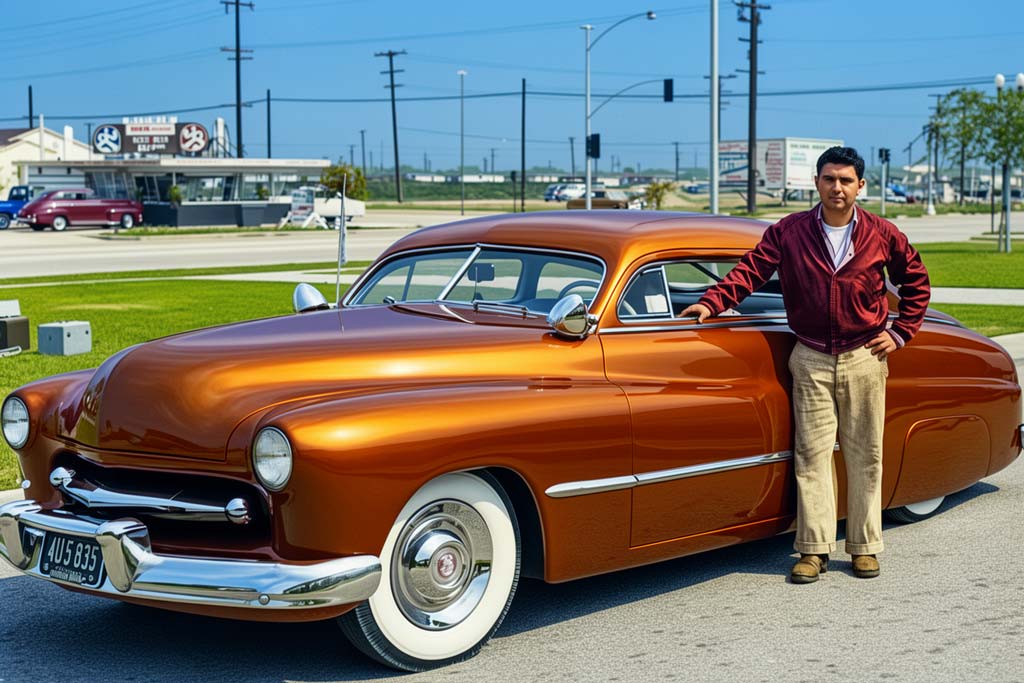
Although the original vehicle shone in metallic green, we'll try it out with other colors for demonstration purposes. The metallic effect is well reproduced in this version. For further processing, we choose a restrained black and make the gentleman disappear to protect his personal rights.
Remove the man in front of the car.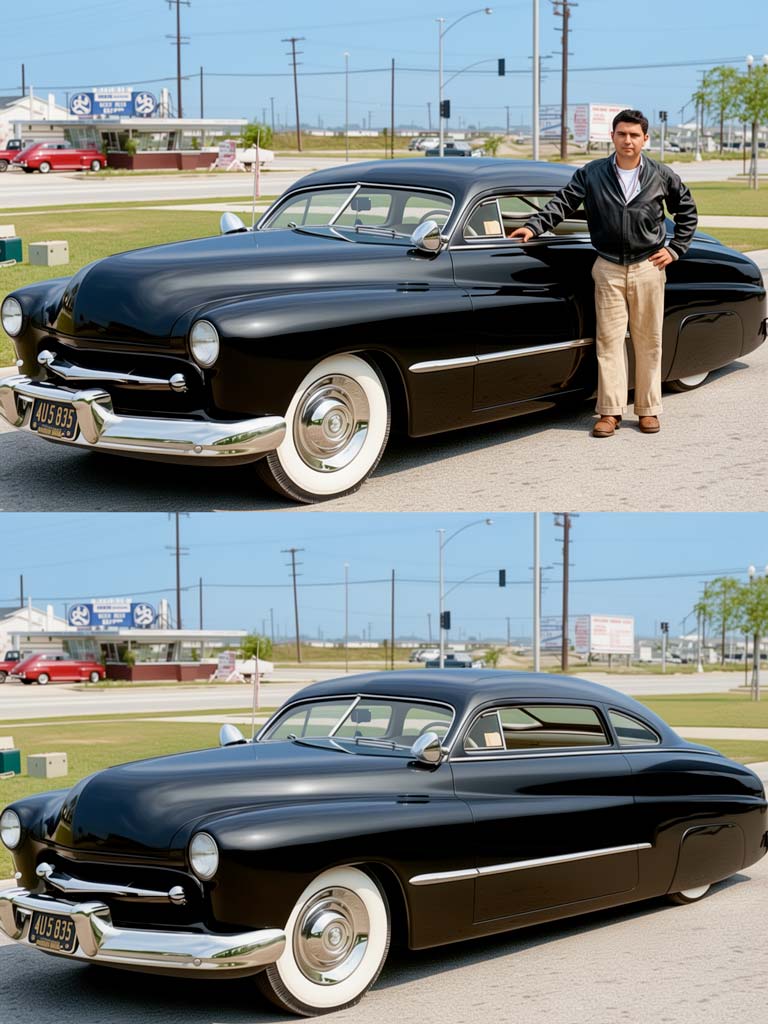
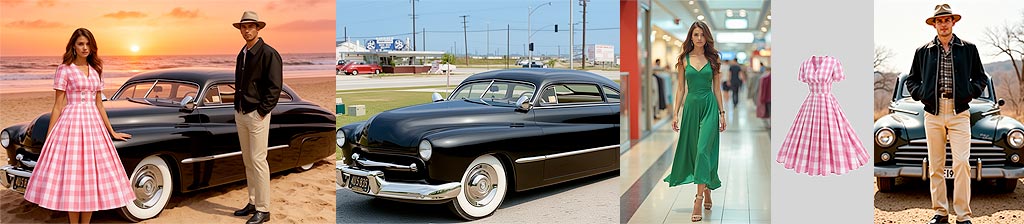
Combining image elements from reference images (compositing)
One of Flux.2's greatest strengths is its ability to combine image elements from up to 10 reference images. Creating such an image montage in Photoshop would take hours: cutting out objects, merging, scaling, adjusting colors.
Let's now give our custom-built two protagonists in contemporary clothing:
- Image 1: Custom car with background
- Image 2: Woman in green dress in shopping mall
- Image 3: Image of chequered dress in vintage look
- Image 4: Man with hat in front of a vintage car
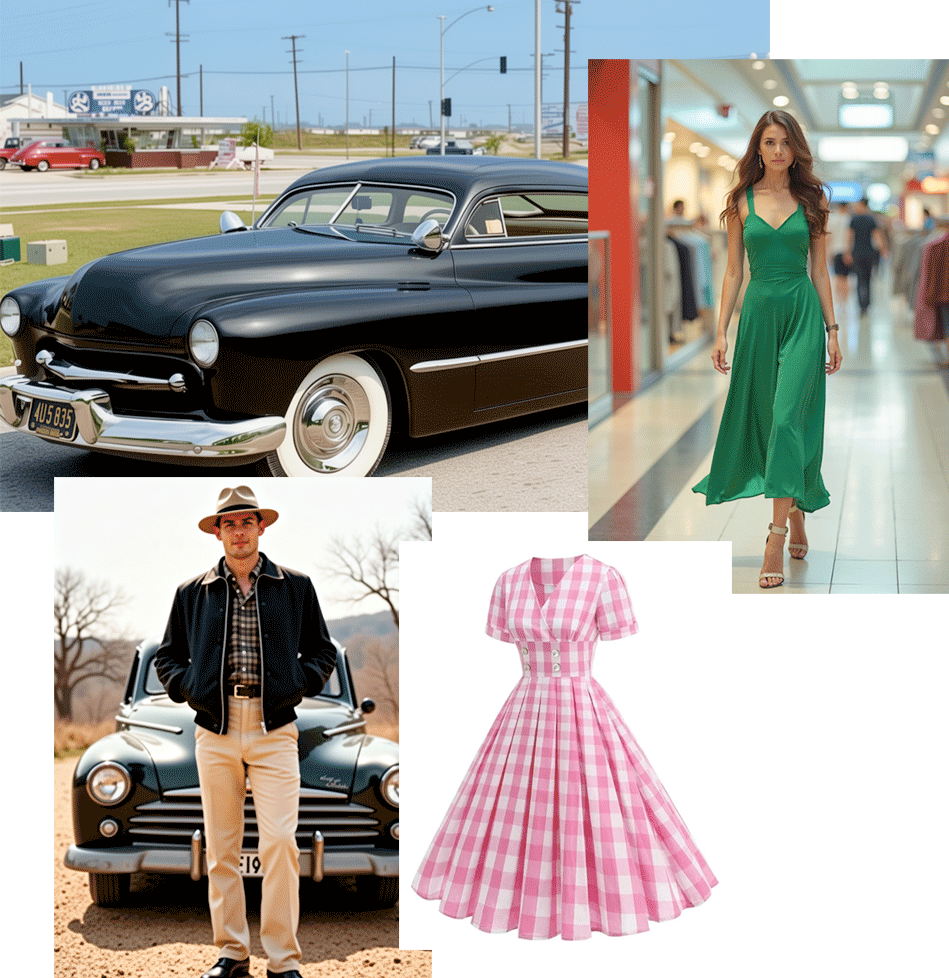
Here is the prompt:
A woman in a red white checkered dress is standing at the fender in front of a black car with one hand on the fender and looking at the viewer. A man with his hand in his pockets, wearing a black jacket, beige trousers and a hat is standing near the door of the car.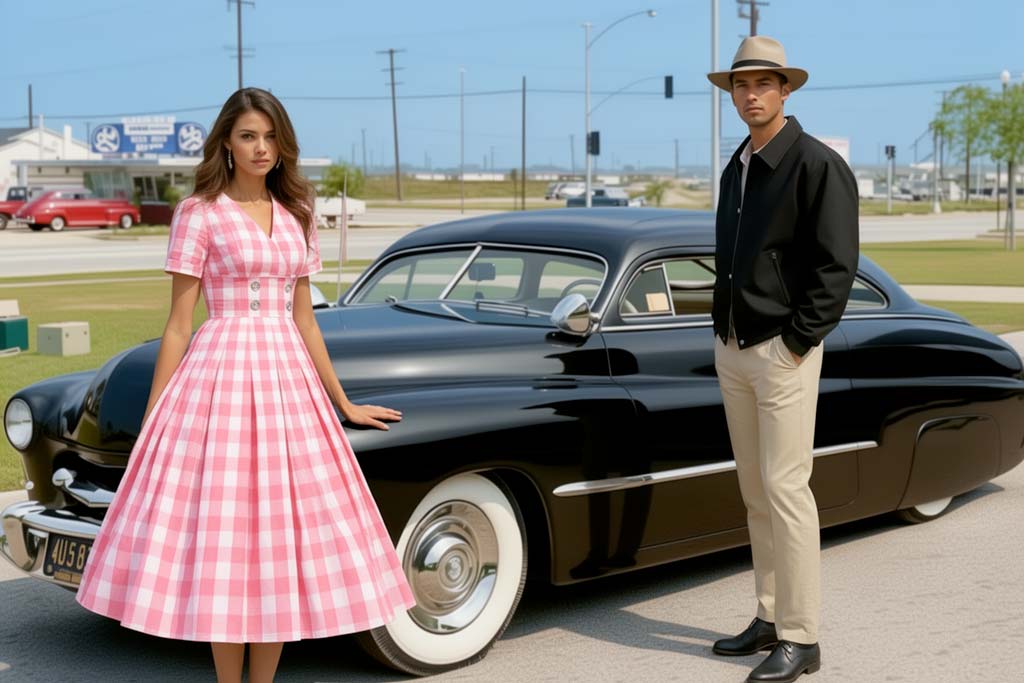
Flux.2 takes over the woman's clothing from image 3, changes her pose as described in the prompt, but retains her facial features and hairstyle. The man is inserted from picture 4 as described in the prompt. The rest of the picture remains unchanged.
Changing the background and daytime
With Flux.2, not only objects can be changed, but also the entire scenery. In our example, we could move the couple and their car to a beach at sunset.
Change the background to beach at sunset.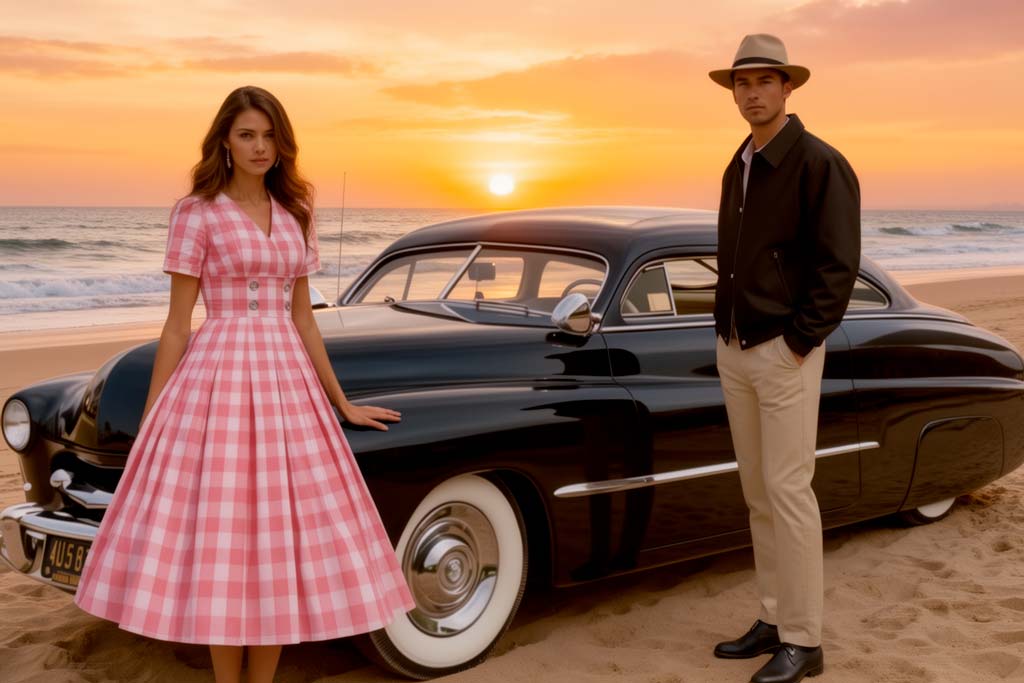
Please note that not only the light reflections on the car reflect the atmosphere, but the paint also reflects a correct beach landscape.
Insert text
The ability to display correct text has been significantly improved with Flux.2. Here we position the two on Broadway at night and insert a text:
Change the background to the round front of a theatre on broadway at night. The sign above the entrance reads "Flux.2" and is consisting of lightbulbs. Keep the car. Highlight the faces.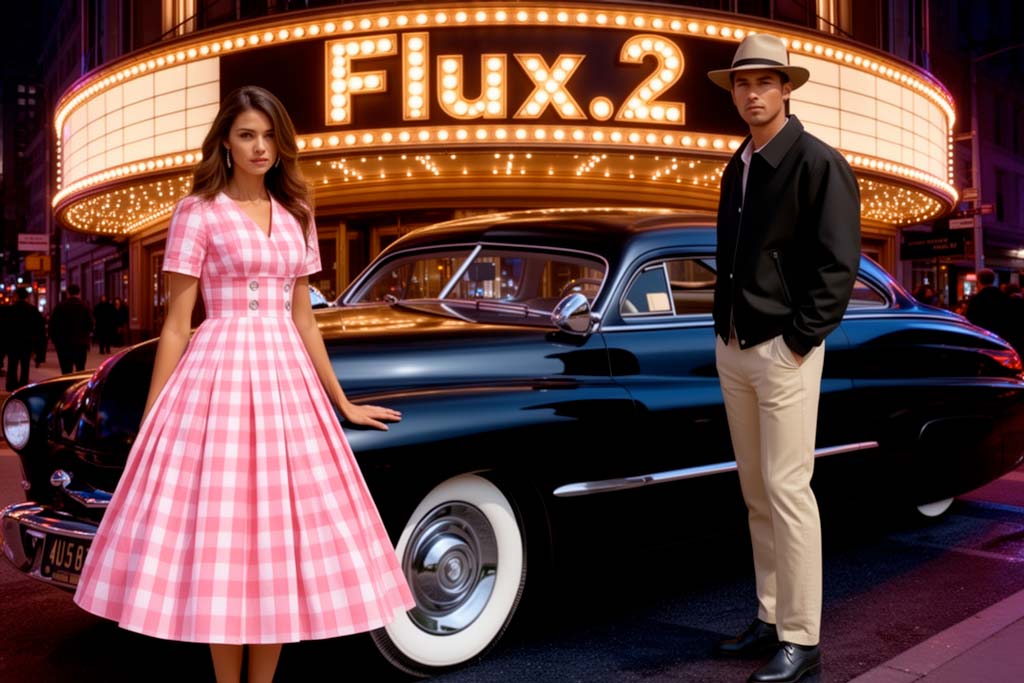
Here, too, we see perfect light reflections on the car paintwork.
Changing image content
In our next example, we change the woman's posture and place her on a director's chair, just like on a film set:
The woman sits down on a director's chair at the side of the car, reading a screenplay. Maintain the rest of the scene.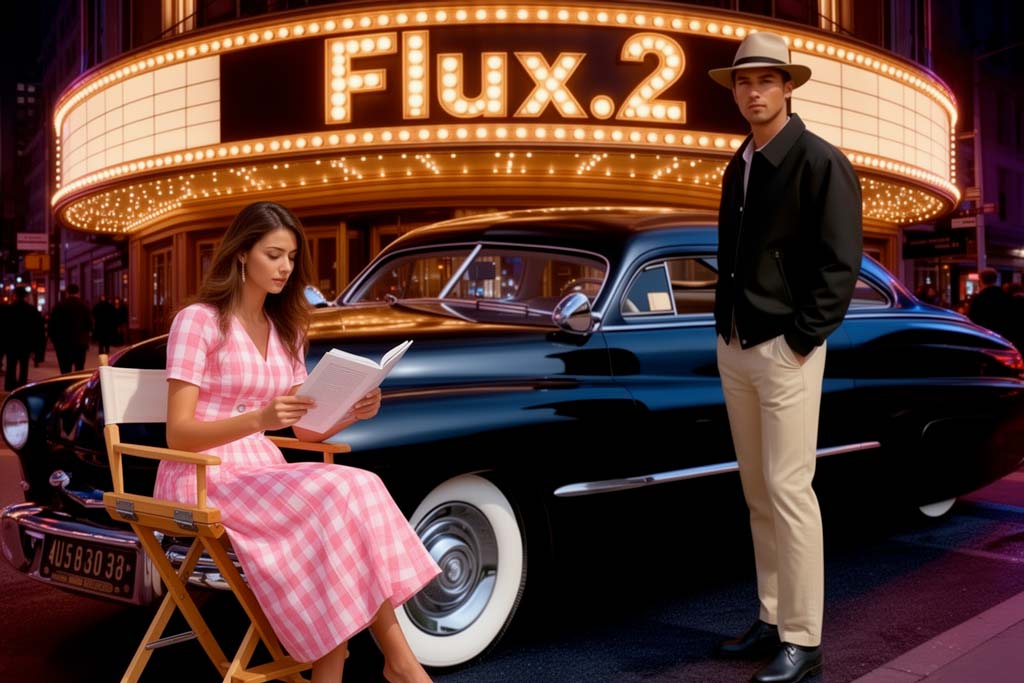
Flux.2 correctly reproduces the woman's features, such as her face, hairstyle and dress, and her surroundings, while her position and posture change.
Change image style
Flux.2 is able to recognise and convert different image styles, such as photography, drawing or painting. For example, drawings can be converted into realistic photos and photos can be converted into drawings. Here is our example image in comic style:
Change the background to the front of diner at sunset and convert the image to comic style. The sign on the roof of the diner reads "Betty's Diner".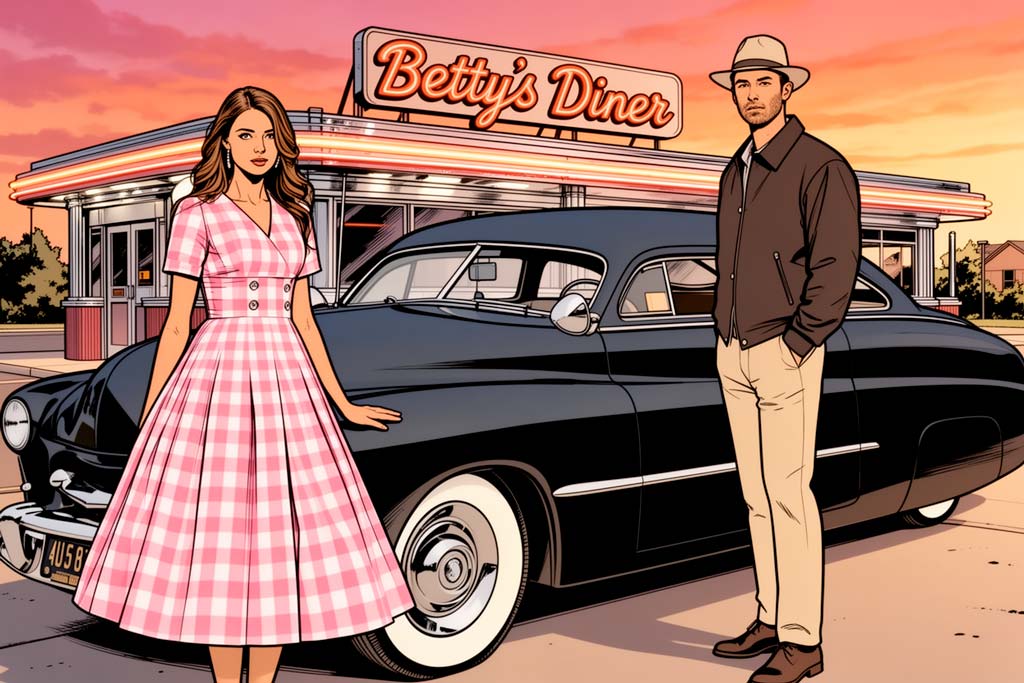
The text is also reproduced correctly here.
Face Swap
One of the most important advantages of Flux.2 is the ability to create consistent characters. This means that a person's face, hairstyle, body shape and clothing remain the same, while their posture, pose and surroundings change. However, Flux.2 is also able to give a character a given face, hairstyle or eyes from a reference image without having to mask these details. In the following example, we swap the head of our white-clad lady for the head of a medieval princess.
Change the face and the hairstyle of the woman in the white dress to the face, the hairstyle, the hair colour and the crown of the woman with the crown, while maintaining the enviroment of the shopping mall.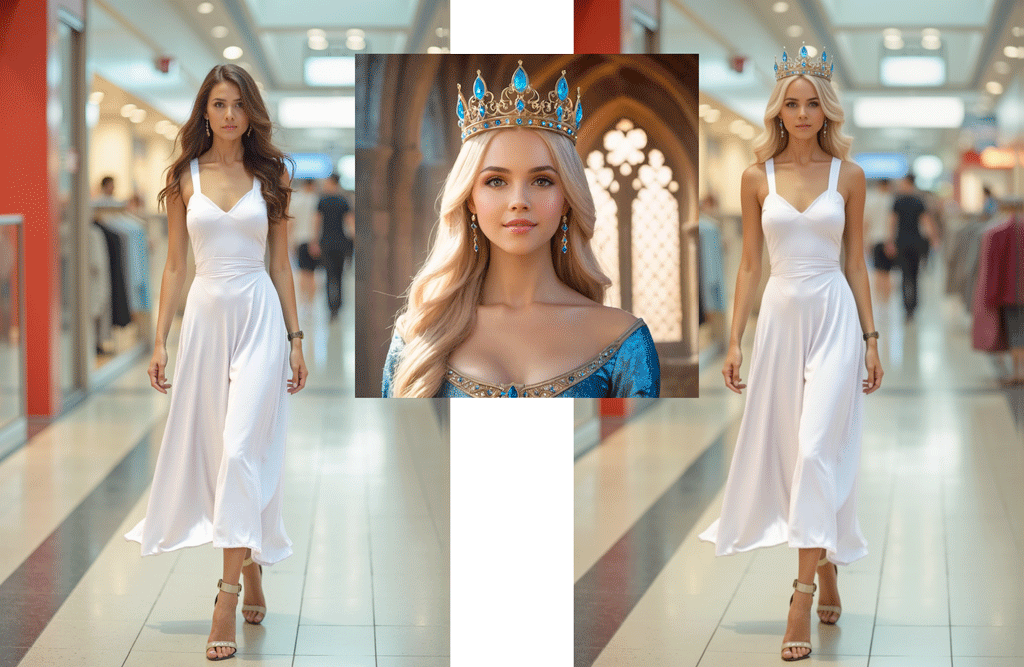
Changing perspective
An amazing feature of Flux.2 is the ability to change perspective. If the front of an object is shown in an image, the model is able to generate the back view of the same object.
Turn to back view.Change the perspective to the left side of the man.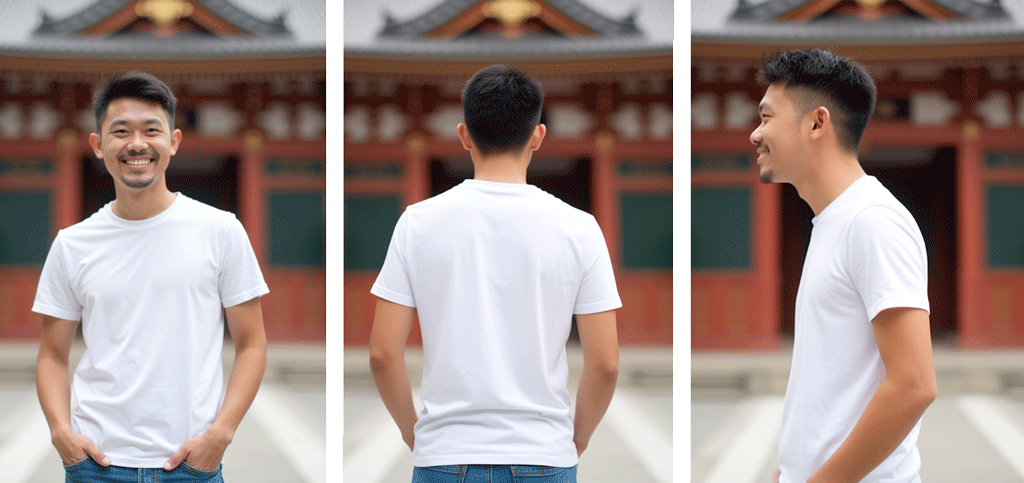
However, success depends on the object and its surroundings.
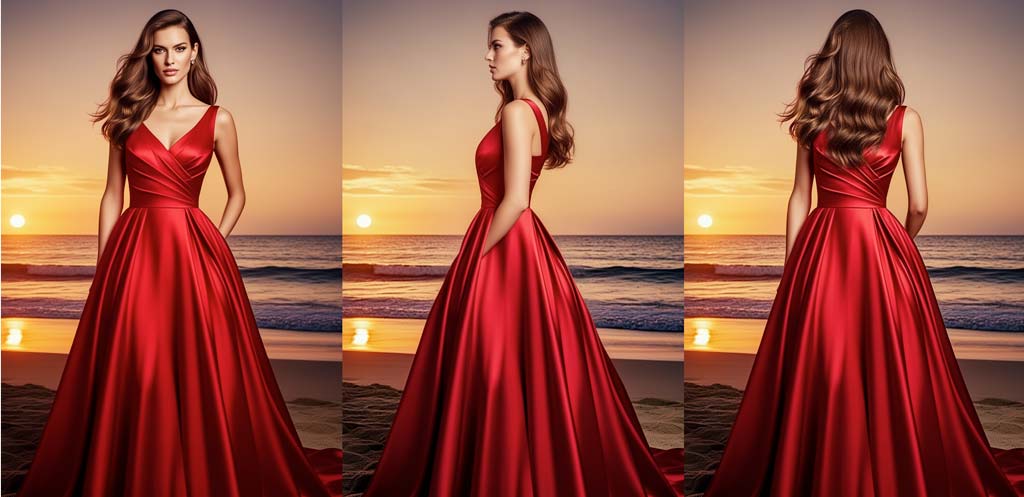
In the second example, the side view of the woman is generated correctly, but the back view shows the front view of her dress. In both cases, the background remains the same, although a dune landscape or similar would have been expected.
Colors and color gradients
Another helpful feature of Flux.2 is the ability to name colors more or less precisely. The model understands both descriptive color specifications, such as "light blue" (example 1), as well as hexadecimal specifications, such as those familiar from web development or image editing programs, e.g. "#8b2323" (example 2).
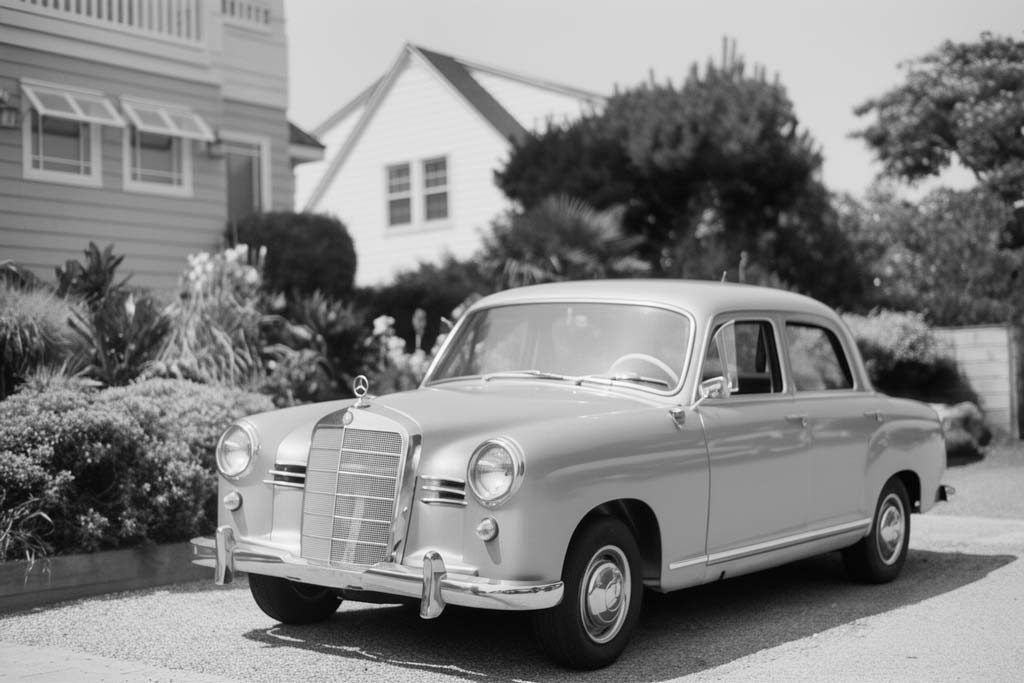
Colorize this image with natural colours. Give the car a light blue colour.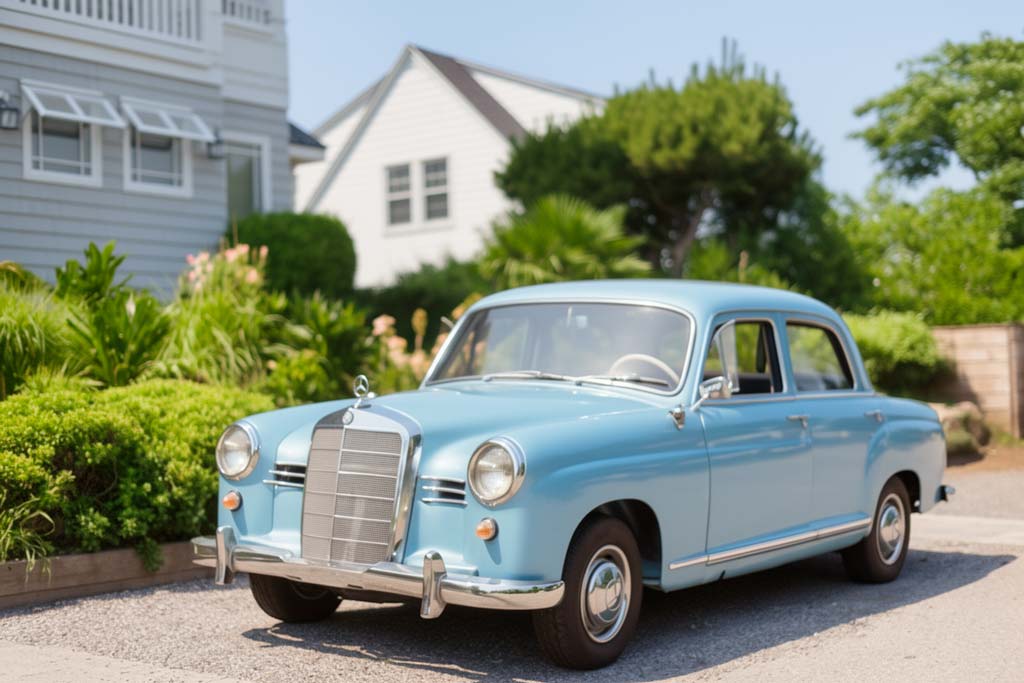
It seams ingenious to me, how Flux.2 recognises the indicators and the bumpers in example 1 and displays them in the appropriate colors.
Example 2 shows that Flux.2 [dev] often has difficulties rendering colors correctly: the saturation is either too high or the color is too dark. However, this can be influenced with the help of the "CFG-Scale", as described below under "Flux.2 issues".
Change the color of the dress to hex #cd3333Change the color of the dress to hex #8b2323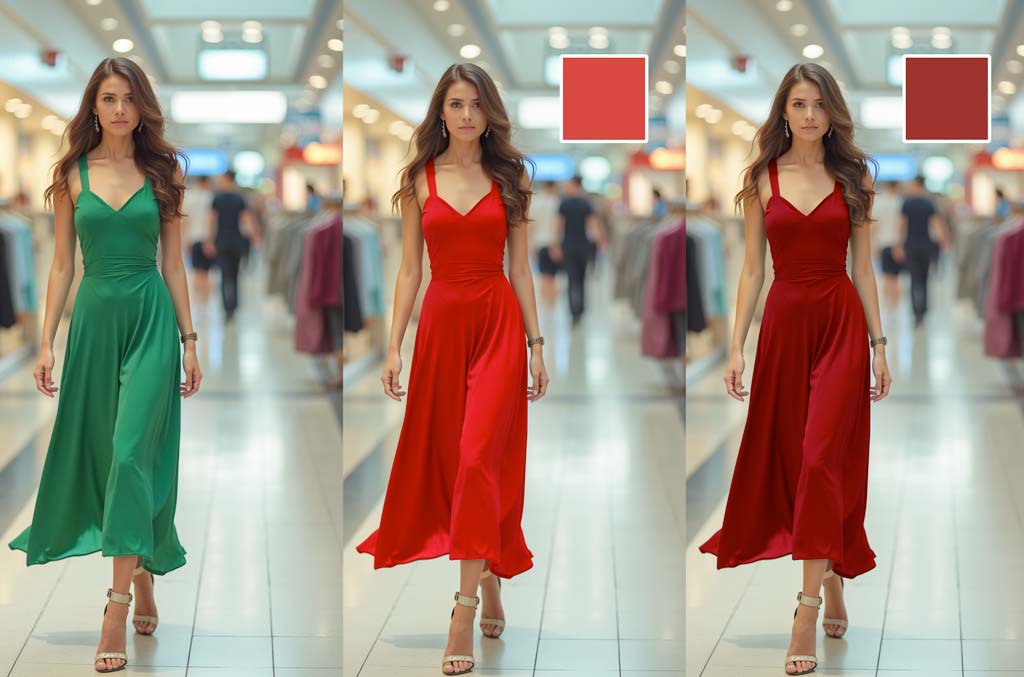
With these specific color specifications, clearly defined color gradients can now also be created:
Change the color of the car to gradient starting with hex #2F4F4F at the bottom of the car and finishing with hex #FAEBD7 at the top while maintaing the reflections on the varnish.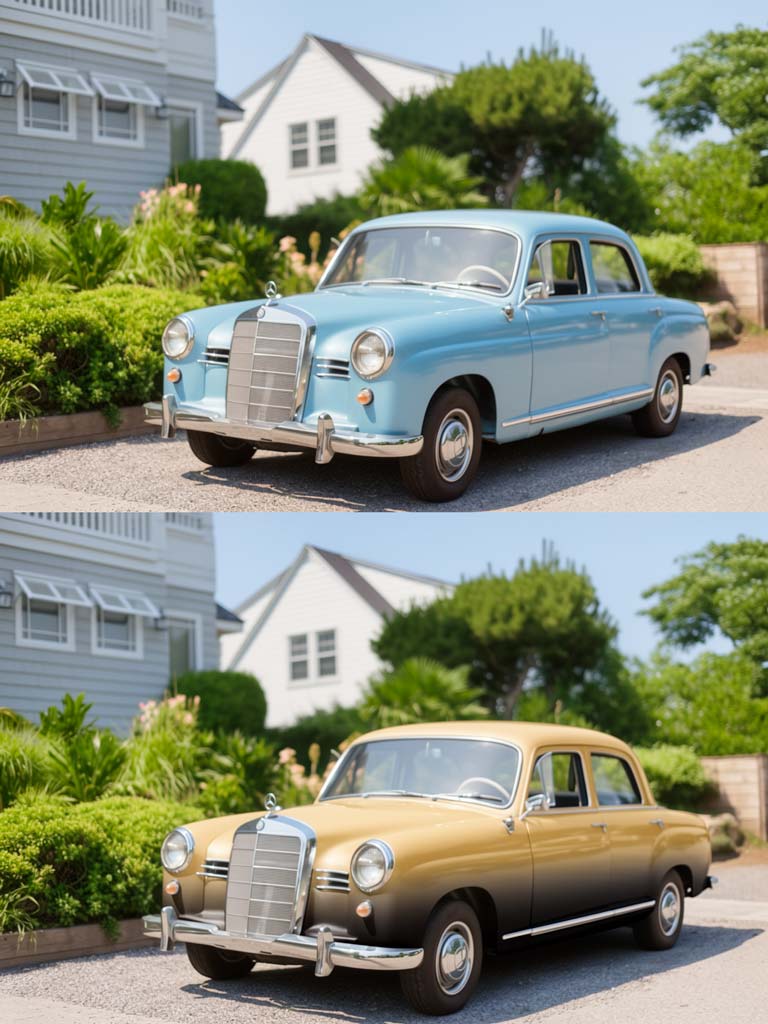
Flux.2 models
Black Forrest Labs offers Flux.2 in five basic model variants for different applications and computer configurations:
Flux.2 [max]
The Flux.2 [max] model delivers outstanding quality for high-end applications with a focus on professional photography. Based on 32 billion parameters, the model generates images with up to 4 megapixels. The model can be used for testing via the Black Forrest Labs Playground or for a fee via the Flux API and cloud services such as Runware, togehter.ai or Ltx Studio.
Flux.2 [pro]
The Pro model of Flux.2 enables professional, commercial applications with the highest image quality at optimised speed and cost-effectiveness. Like Flux.2 [max], the model can be used to test the Black Forrest Labs Playground or for a fee via the Flux API and cloud services such as Replicate, togehter.ai, Freepik, Verda or Ltx Studio.
Flux.2 [flex]
Flux.2 [flex] offers a middle ground between quality and versatility. The model is optimised for speed and richness of detail and delivers a variety of everything from photos to illustrations. Unlike the Flex and Pro versions, the image generation can be influenced via parameters such as "CFG-Scale" and "Steps". In addition, Flux.2 [flex] is particularly suitable for text generation and editing. This model can also be used for testing via the Black Forrest Labs Playground or for a fee via the Flux API and cloud services such as fal, togehter.ai, Freepik, Verda or Ltx Studio.
Flux.2 [dev]
Flux AI provides the dev model for non-commercial image generation. You can download the model as an open source checkpoint from Huggingface and install it on your own computer. Flux.2 [dev] delivers good quality with moderate memory requirements. All settings for image generation can be customised. In addition to image generation, it is also suitable for training user-defined models and LoRAs. The FLUX [dev] Non-Commercial Licence v2.0 applies to the use of the model and the generated images.
Flux.2 [klein]
The Flux.2 [klein] model is available for users with a graphics card memory of 13 Gb or more or with high time pressure. Images can be created in a very short time with little VRAM. The price is lower image quality and depth of detail. However, it can be used to create quick preliminary designs or storyboards, for example. Depending on the version, the generated images may be used commercially (4 billion parameter version: Apache 2.0 licence, 9 billion parameter version: FLUX [dev] Non-Commercial License v2.0).
Flux.2 Prompting
Thanks to the use of a comprehensive language model from Mistral AI, Flux.2 is not only able to understand prompts in natural language but also text input in many different languages. This means that you can now also write your prompt in native language. The disadvantage of this option is the file size of the Mistral model, which affects the speed of image generation. In order to keep the speed of image generation with Flux.2 [klein], the smaller encoder from Qwen AI can be used here.
In general, the following also applies to Flux.2 prompts: Write simple and precise instructions and avoid nebulous, epic word deserts and ambiguous words. The emphasis here is on "precise", i.e. describe in detail which objects you want to display or change in the image and what exactly you want the AI to do. Imagine you are dealing with a completely clueless simpleton. So instead of "Change the color of the dress", it should ideally say: "Change the color of the green dress of the woman in the centre to white".
Color specifications
With Flux.2 you now have the option of specifying colors as hexadecimal numbers and defining color gradients:
Change the color of the t-shirt to gradient starting with hex #006400 at the bottom and finishing with hex #ffd39b at the top.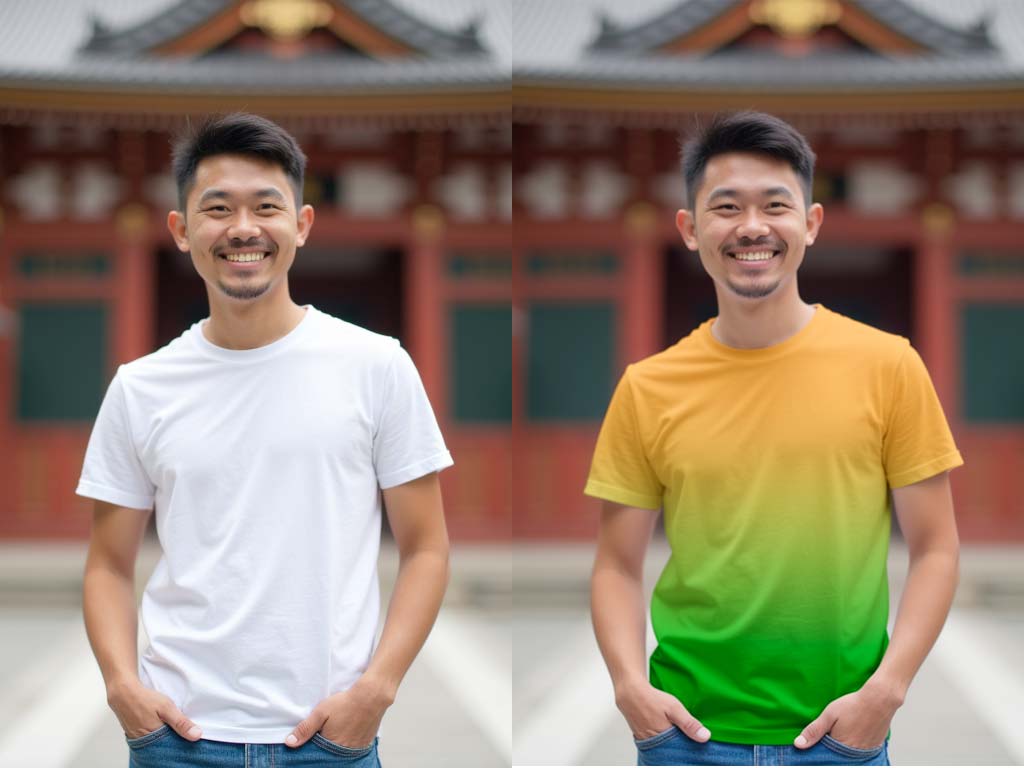
Prompts for changing elements
As the strengths of Flux.2 lie particularly in image editing and compiling reference images, use clear instructions here, such as
| Change something | Change ___ to ___ |
| Replace ___ with ___ | |
| Remove something | Remove ___ |
| Add something | Add ___ |
Sometimes you need to clarify which image elements you want to change and which not:
Change the background to a wall high mirror in a hotel lobby, while maintaining the pose and the features of the woman.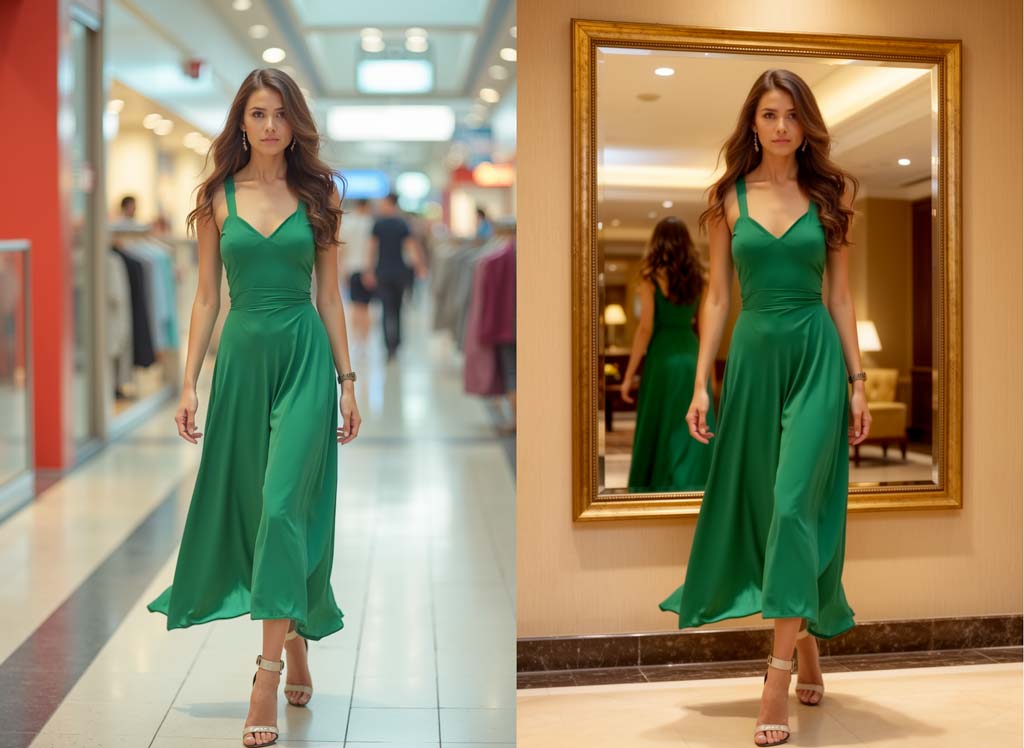
This result also shows the higher color saturation in Flux.2 compared to Flux.1 (original image). But the mirror image fits perfectly.
Prompts for combining reference images
To combine several reference images in one image, you can either describe the contents of the reference images or refer to the order of the images:
Change the dress of the woman in the green dress to the light blue dress in the second image.or:
Change the dress of the woman in image 1 to the dress in image 2.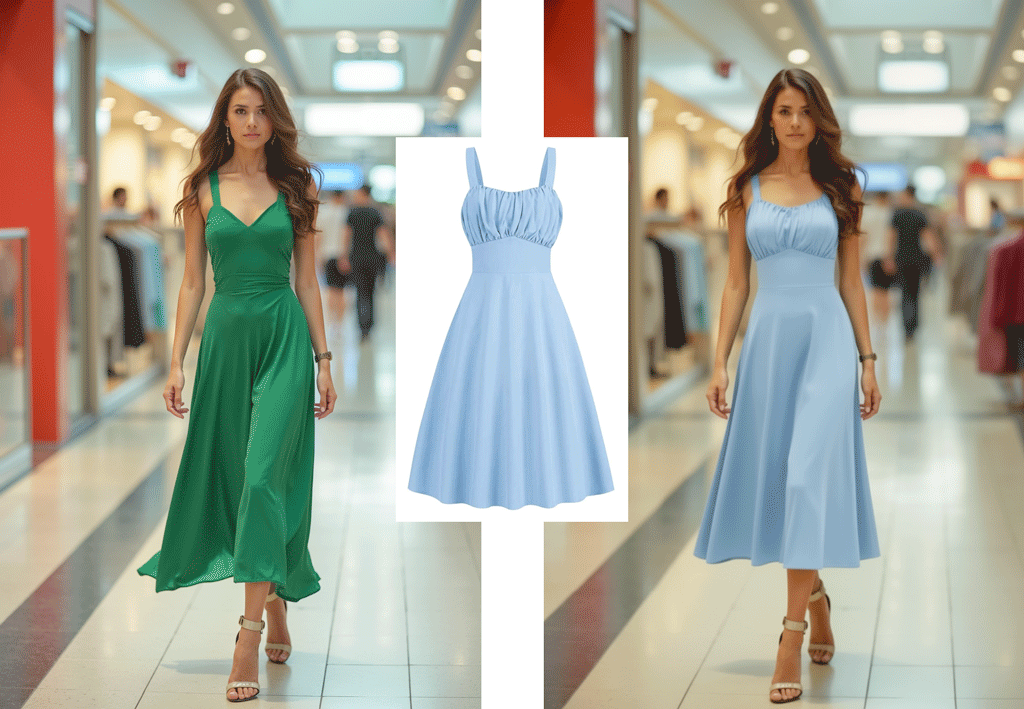
If you try to combine different image styles or concepts in one image, it can happen that the image flips. This means that the style of one element is transferred to all other elements (style blend), e.g. if you combine a photo with an illustration. In this case, you should describe in detail which style is relevant for the overall image and which style is only relevant for a specific image element.
Editing texts
You can add or edit texts in the image by placing the desired text in quotation marks:
Change the sign on the roof of the diner from "Betty's Diner" to "Molly's Diner".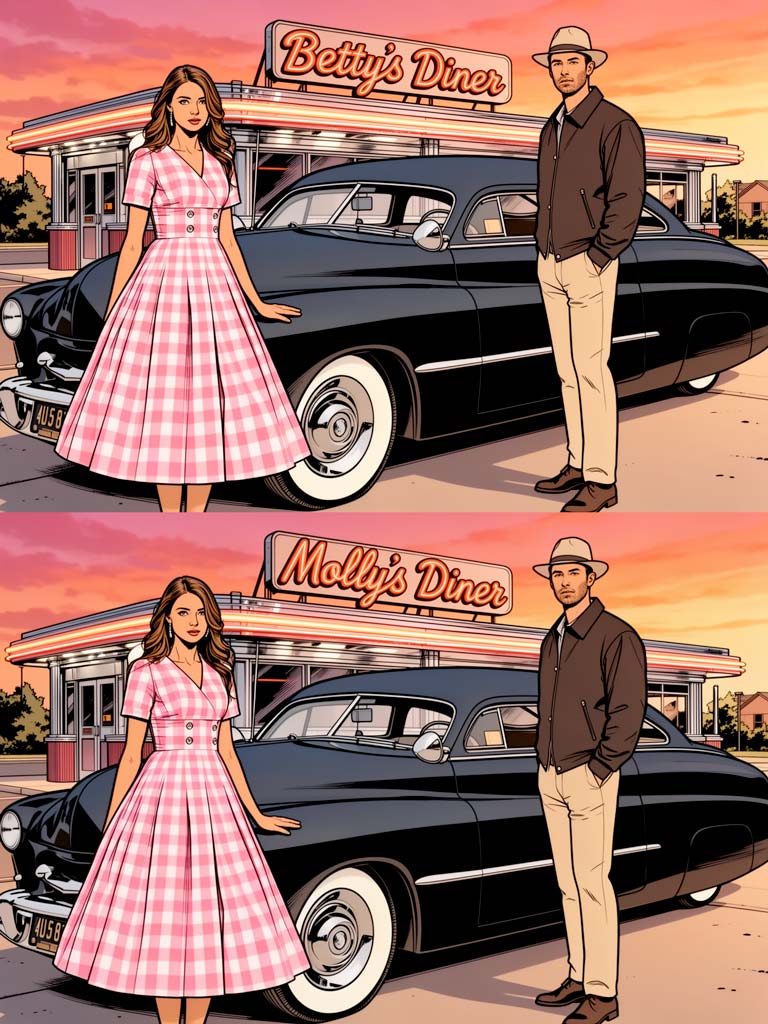
The structured prompt in json format
In my opinion, the most outstanding new feature of the Flux.2 model is the structured prompt in Json format. It is the gateway to efficient, professional, AI-supported design in areas such as communication design, product design, architecture or interior design.
I created the boot advert without any clue needing 26 attempts within 105 minutes. It's not an avant-garde design, but it shows pretty well what I had in mind - and in top image quality. With a little practice, design series can be generated in a very short time by simply changing details in the prompt structure.
Here is the prompt:
{
"scene": "Professional product photography of a hiking boot is standing in the shallow water of a river surrounded by stones and rocks. An unimog RV with turned front wheels is standing in the background in front of a dark, dramatic sky at sunset.",
"subjects": [
{
"description": "suede leather hiking boot with slip-resitant sole",
"position": "foreground left",
"color": "light brown"
}
{
"description": "riverbed with wet rocks and stones",
"position": "foreground and background"
}
{
"description": "Unimog RV with turned frontweels with headlights on",
"position": "background right",
"color": "#104e8b"
}
{
"type": "product ad",
"title": "Your Boot",
"subtitle": "Your Boot ・ Ta Botte ・ あなたのブーツ ・ 你的靴子",
"position": "top center",
"color": "white",
"style": "modern, clean, corporate"
}
{
"type": "product ad",
"title": "Your Colour",
"position": "in one row bottom center",
"sections": [
{
"heading": "light brown",
"visual": "light brown square with small white border"
}
{
"heading": "brown",
"visual": "brown square with small white border"
}
{
"heading": "black",
"visual": "black square with small white border"
}
],
"style": "modern, clean, corporate"
}
],
"style": "Ultra-realistic outdoor product photography with commercial quality",
"color_palette": ["light brown", "dark blue", "#4a708b", "#ff7f24"],
"lighting": "dramtic, blue hour, sunset, soft highlight on foreground",
"mood": "cinematic, professional",
"background": "dramtic sky above dark pine forest on the riverbank",
"composition": "rule of thirds",
"camera": {
"angle": "low angle",
"lens-mm": 85,
"f-number": "f/5.6",
"ISO": 200
}
}
After a general description of the image content ("scene"), the image elements ("subjects") are described ("description") and positioned in the image ("position"). If necessary, a color is also defined ("color"). This is followed by the text elements, such as title ("title") and ("subtitle"), as well as the elements for color selection with heading ("heading"), design ("visual") and font style ("style"). At the end of this list, which is enclosed in square brackets, there is also information on background, mood and style. Another new feature in Flux.2 is the option to define specific camera settings and parameters under "camera".
The translations are from DeepL.
Flux.2 issues
Creating or repairing images, changing styles and objects, rendering and formatting texts correctly and much more - such an egg-laying woolly milk pig cannot be perfect in every respect and therefore has its own issues:
Flux.2 graphics card memory
For Flux.2 [dev] you need a professional, powerful computer, especially if you are using the FP16 version of the text encoder from Mistral AI. With a graphics card between 24 and 32 Gb VRAM, you should use the FP8 version of the Mistral encoder. Even then, you can expect image generation times of 1-2 minutes.
The alternative for graphics cards from 13 Gb would be the Flux.2 [klein] model in conjunction with the Qwen text encoder, which only takes a few seconds to generate images due to its small file size.
Blurred faces
While Flux.2 does an amazing job when it comes to image processing, the quality of the image content when generating new text-to-image images of people often does not come close to the quality of Flux.1 in my opinion. Even sharpening using the text prompt does not lead to a better result. My conclusion: Flux.1 and Flux Kontext are not yet out of the race.
A woman in a green dress is walking in a shopping mall.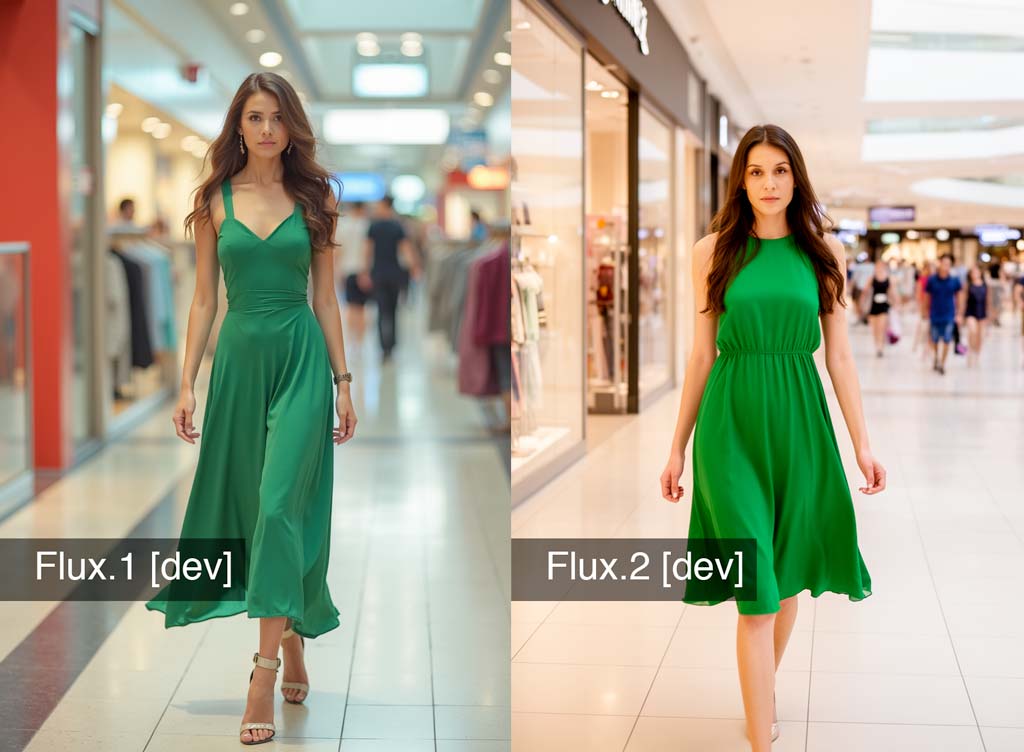
Extreme color saturation
Even if the problem with unrealistic color saturation has improved significantly compared to Flux Kontext - after coloring or changing the color of image elements, these often stand out with overly strong, bright colors. You can remedy this by gradually reducing the CFG scale (Classifier Free Guidance Scale) - i.e. the ratio between text input and randomness during image generation.
The image of our 1949 Mercury below was generated with the recommended CFG scale of 4. Gradually reducing the value to 2 resulted in an image composition with more natural colors.
Colorize this image with natural colours. Give the car a dark brown colour and the man in front of the car beige trousers.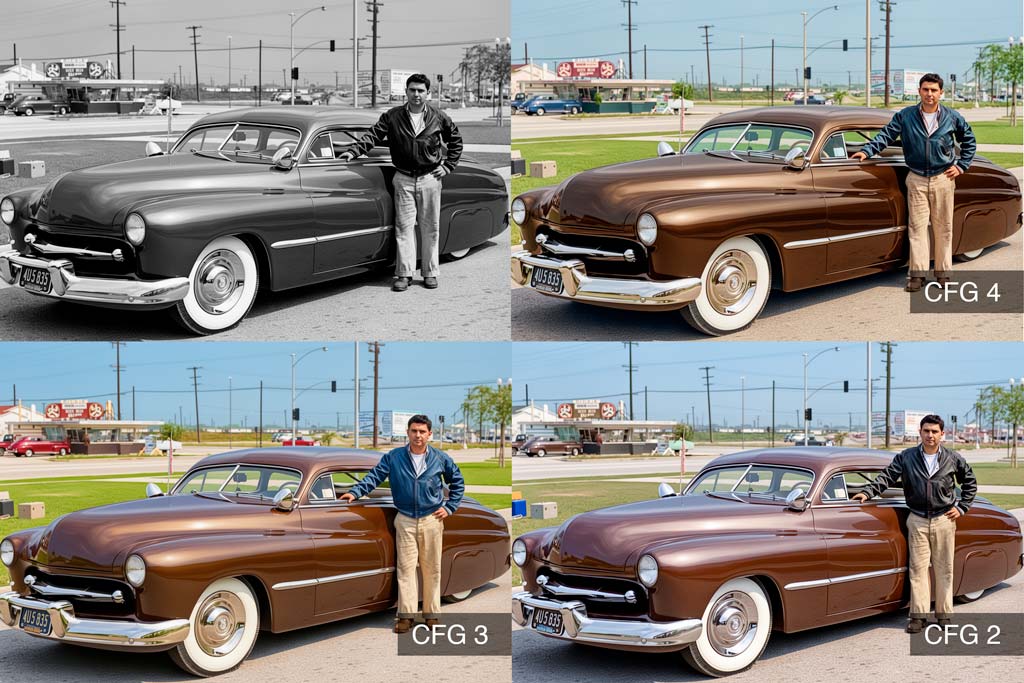
Sometimes it also helps to use a different sampler, e.g. "Heun" instead of "Euler", as in this example:
Change the colour of the dress to red.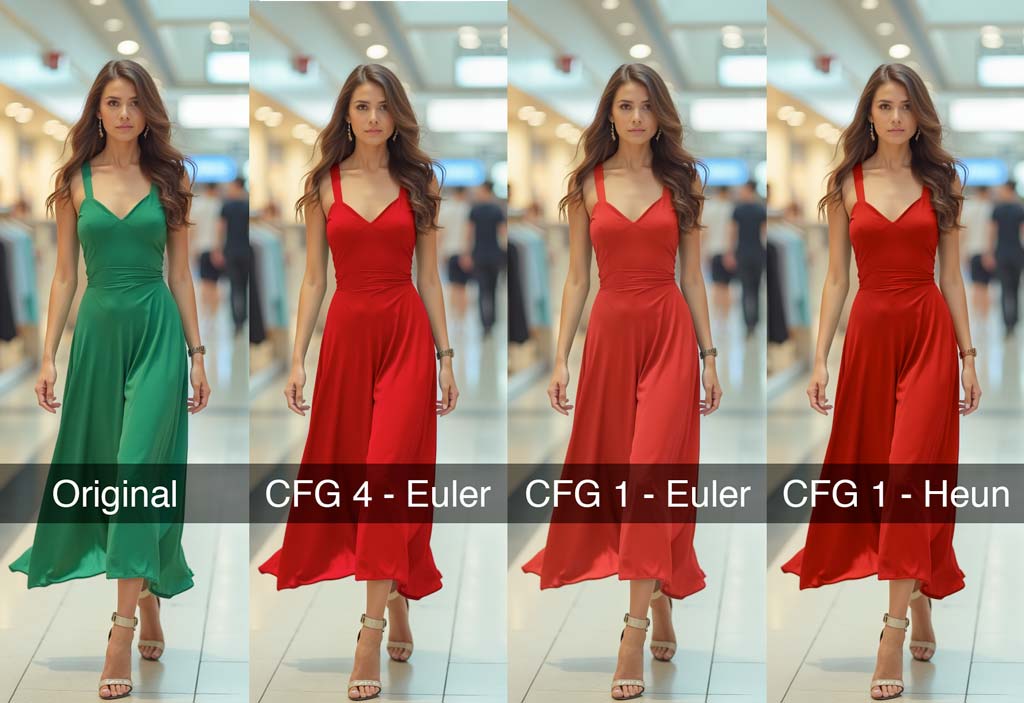
Black Forrest Labs recommends writing a longer prompt if the color saturation is too high.
Flux.2 installation, settings and working methods
Part 2 of the Flux.2 guide shepherds you through the installation of the different Flux.2 models under user interfaces such as ComfyUI, InvokeAI, SD Next or Ruined Foocus. The most useful settings and working methods are also explained. The article will follow shortly.