Fooocus Advanced Masking Features: Automatic Masking

Share:




 Buy me a Coffee
An extremely helpful tool in the current Fooocus user interface is the automatic object recognition and segmentation of image content.
With the Advanced Masking Features, image elements such as objects, silhouettes, clothing, faces or hands can be automatically selected for the Inpaint and Enhance functions. The manual creation of masks still leads to a better end result, but especially when it comes to cropping an object or enhancing a face, the automatic function saves a lot of time.
You can familiarise yourself with the inpaint function and the creation of masks in the Fooocus Image Prompt instructions.
The advanced masking features can be found under the "Inpaint or Outpaint" tab, but are also integrated in the Enhance function.
Create masks automatically in Fooocus
If the advanced masking features are activated under the image source, the display area for the mask appears to the right of the image source. You can also upload a mask you have created yourself here. The white area corresponds to the masked content.

Models for the automatic generation of masks (Mask generation model)
Under "Mask generation model", select which model should be used to generate the mask.
The default model "isnet-general-use" is recommended for most tasks, as it creates very detailed masks of the central image element in the foreground. It also captures intricate details.
| isnet-general-use | The preset model is recommended for most tasks, as it creates very detailed masks of the central image element in the foreground. Also captures intricate details. | |
| isnet-anime | Is optimised for masking anime elements. | |
| u2net | Masks the main element in the image. | |
| u2netp | Like u2net, but requires fewer resources and may capture fewer details. | |
| u2net-human-seg | Masks only the person(s) in the image without accessories. | |
| u2net-cloth-seg | full | Masks the complete clothing of a preson, but rarely works. |
| upper | Only selects clothing above the waistline. | |
| lower | Only selects clothing below the waistline. | |
| silueta | Like u2net, selects the silhouette of the main element | |
| sam | Uses the "Segment anything model". |
Here is a comparison of the different models:

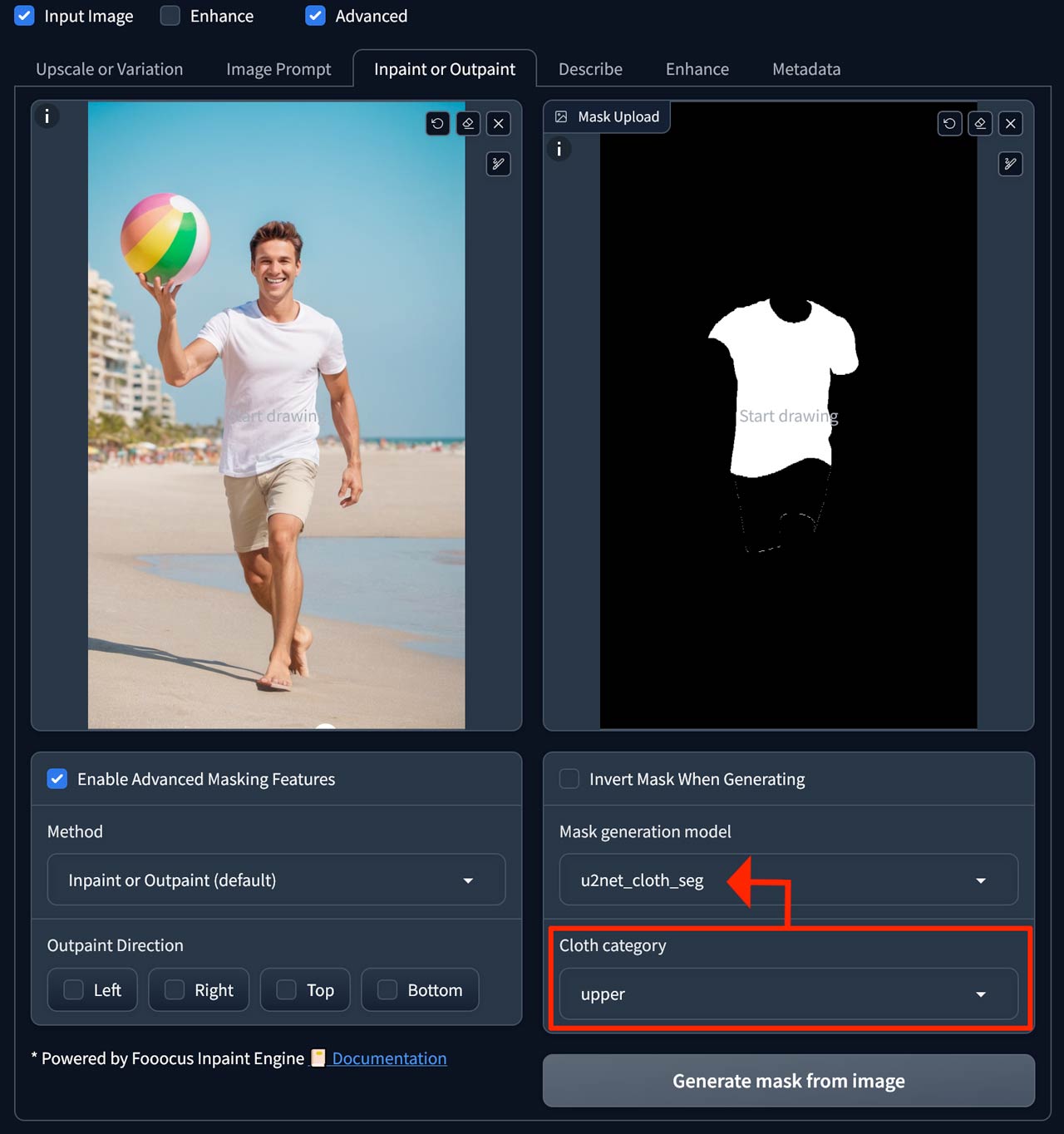
When masking clothing with the "u2net-cloth-seg" model, another dropdown menu appears, allowing you to choose between full clothing, clothing above the waistline and clothing below the waistline:
Segment anything model (sam)
As the name suggests, the "segment anything model" allows you to select and mask all objects in an image.
A text field appears below the selection menu for the masking model to describe the object. Always enter multiple objects here in the singular, e.g. "eye" instead of "eyes". Buttons are available below the text field for frequently used prompts, such as face, eyes, body, etc.


Several image elements can also be masked at the same time, such as this seal playing with a ball.

Advanced options
You can adjust further settings in the "Advanced options" field:
SAM model
The "Segment anything model" is available in three variants:
| vit-b | simple model (base) | fast but sometimes not detailed enough |
| vit-l | large model (large) | recommended |
| vit-h | huge model (huge) | requires time and graphics memory, very detailed |
The "vit-l" model delivers good results in most cases.
Box Threshold, Text Threshold
The threshold values for the selection window determine the relevance with which the object is searched. If the generated mask does not capture too much or too little, you should use the default values.
Number of similar masks (Maximum number of detections)
Use this setting to limit the number of objects to be selected. The count always starts with the largest element and then jumps to the smaller objects. This allows you to filter out people in the foreground of a crowd. The setting "0" selects all objects that you have described in the prompt.
Crop objects
A popular function of the Advanced Masking Features is the cropping of objects.
In our example, we are editing our seal with the SAM model again. To select the background and not the seal, we invert the selection by ticking the "Invert Mask When Generating" option.
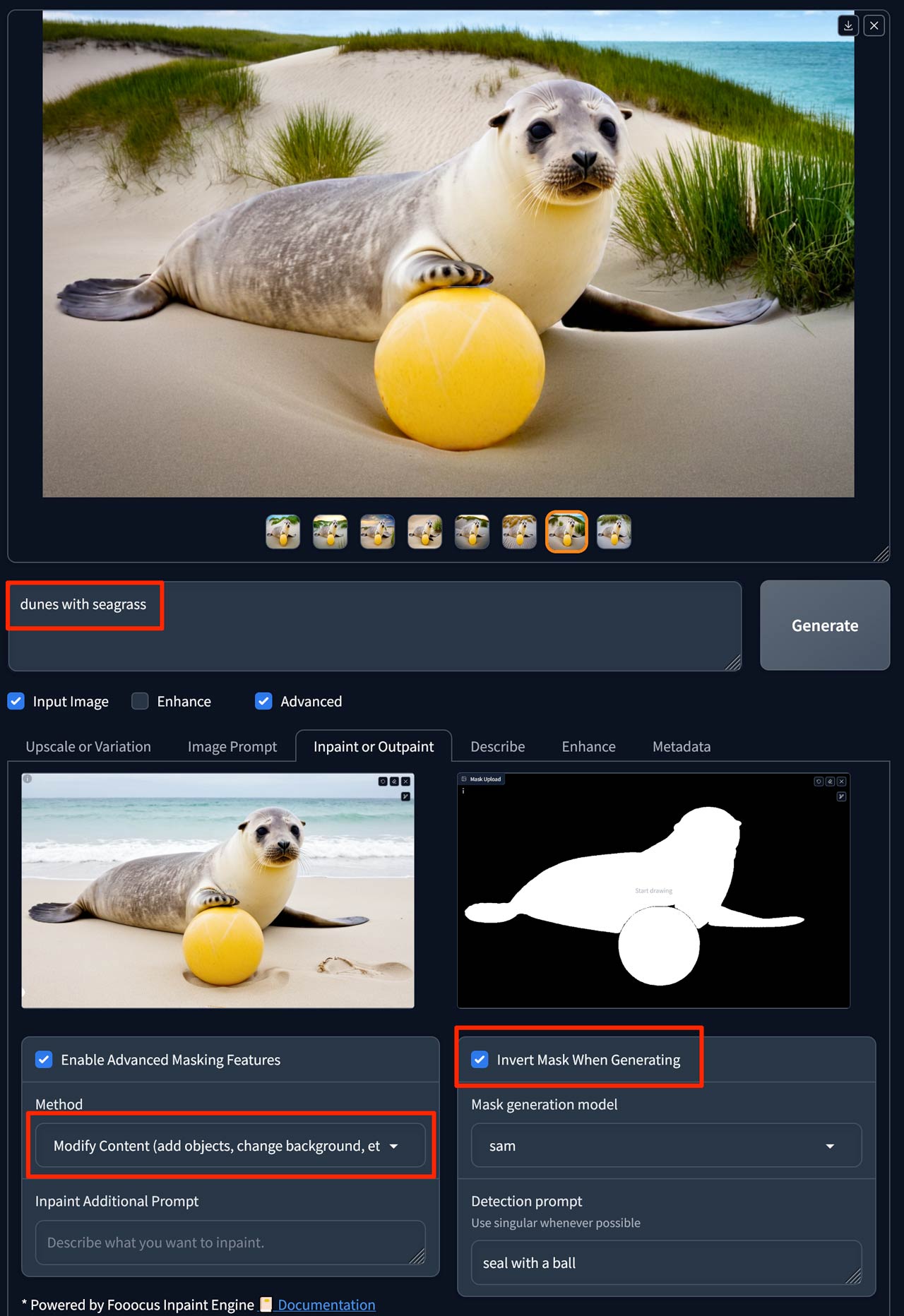
Because we want to change the background, we select the option "Modify Content (add objects, change background, etc.)" under "Method".
In the text prompt for image generation or in the "Inpaint Additional Prompt" under the method, we can now describe what we like to see in the background:
dunes with seagrassSet mask blur (Mask Erode or Dilate)
If the transitions between the object and the background appear unrealistically hard, you should increase the blurring of the mask. Unfortunately, the setting for this is still hidden under the "Advanced" tab. Activate the "Debug Mode" there and look for the "Mask Erode or Dilate" slider under the "Inpaint" tab.
Here is another example where the background has been replaced:
woman in red dress on the beach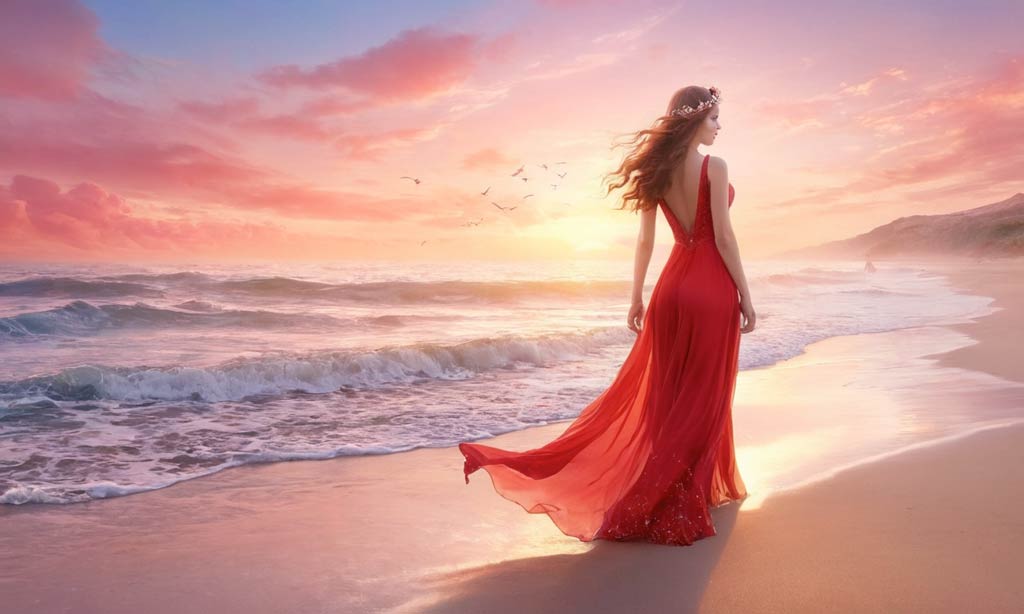
The mask was generated with the "isnet-general-use" method and inverted. The background was then changed using the "Modify Content" method and an "Inpaint Aditional Prompt".
in the forest
The transition of the hair to the surroundings appears unrealistic, as the backlight was taken from the sun background of the image source and does not fit into the forest environment. The face is also heavily deformed.
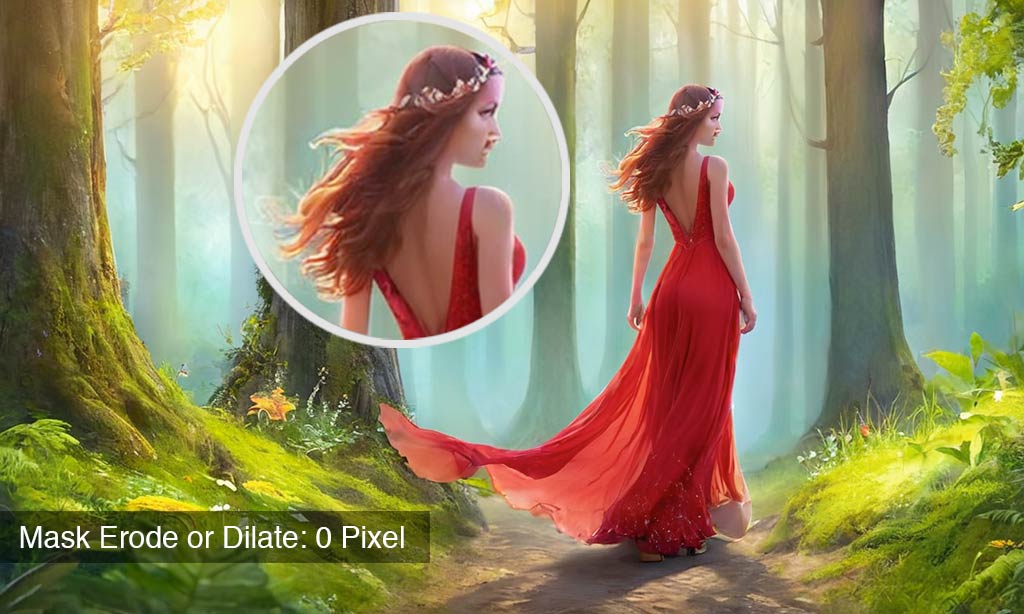
A negative value (-2) was selected for the "Mask Erode or Dilate" setting so that the mask blur appears in the direction of the woman.
